702 Troubleshooting Guide
FILE LOCATION: C:\Users\fxstdpc-
admin\Desktop\0630_UG??\Mioga_AIO_UG_FM\Mioga_AIO_UG_FM\section31.fm
DELL CONFIDENTIAL – PRELIMINARY 9/13/10 - FOR PROOF ONLY
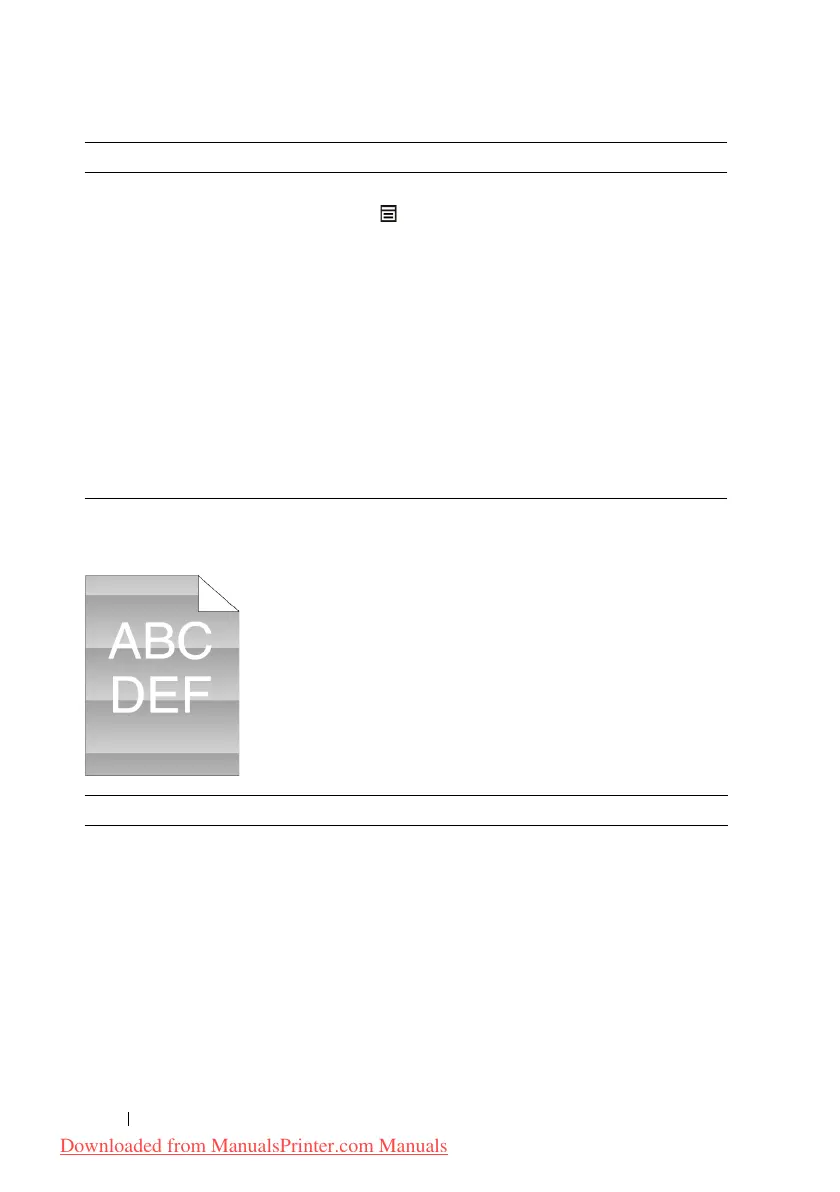
Light-induced fatigue
3 Adjust the transfer bias.
a
On the operator panel, press the
(Menu)
button and
select
System Setup
Admin MenuMaintenance
Adjust BTR
.
b
Adjust the setting for the type of print media
being used.
c
Launch the Tool Box, and click
Chart Print
on the
Diagnosis
tab.
d
Click the
Ghost Configuration Chart
button.
The Ghost Configuration Chart is printed.
Does this solve your problem?
The task is
complete.
Contact Dell.
Action Yes No
1 Check the light fatigue pattern using the Pitch
Configuration Chart.
a
Launch the Tool Box, and click
Chart Print
on the
Diagnosis
tab.
b
Click the
Pitch Configuration Chart
button.
The Pitch Configuration Chart is printed.
Does the pattern on the output match with that on
the Pitch Configuration Chart?
Go to action 2. Contact Dell.
Action Yes No
Downloaded from ManualsPrinter.com Manuals











 To Next Page