Troubleshooting Guide 703
FILE LOCATION: C:\Users\fxstdpc-
admin\Desktop\0630_UG??\Mioga_AIO_UG_FM\Mioga_AIO_UG_FM\section31.fm
DELL CONFIDENTIAL – PRELIMINARY 9/13/10 - FOR PROOF ONLY
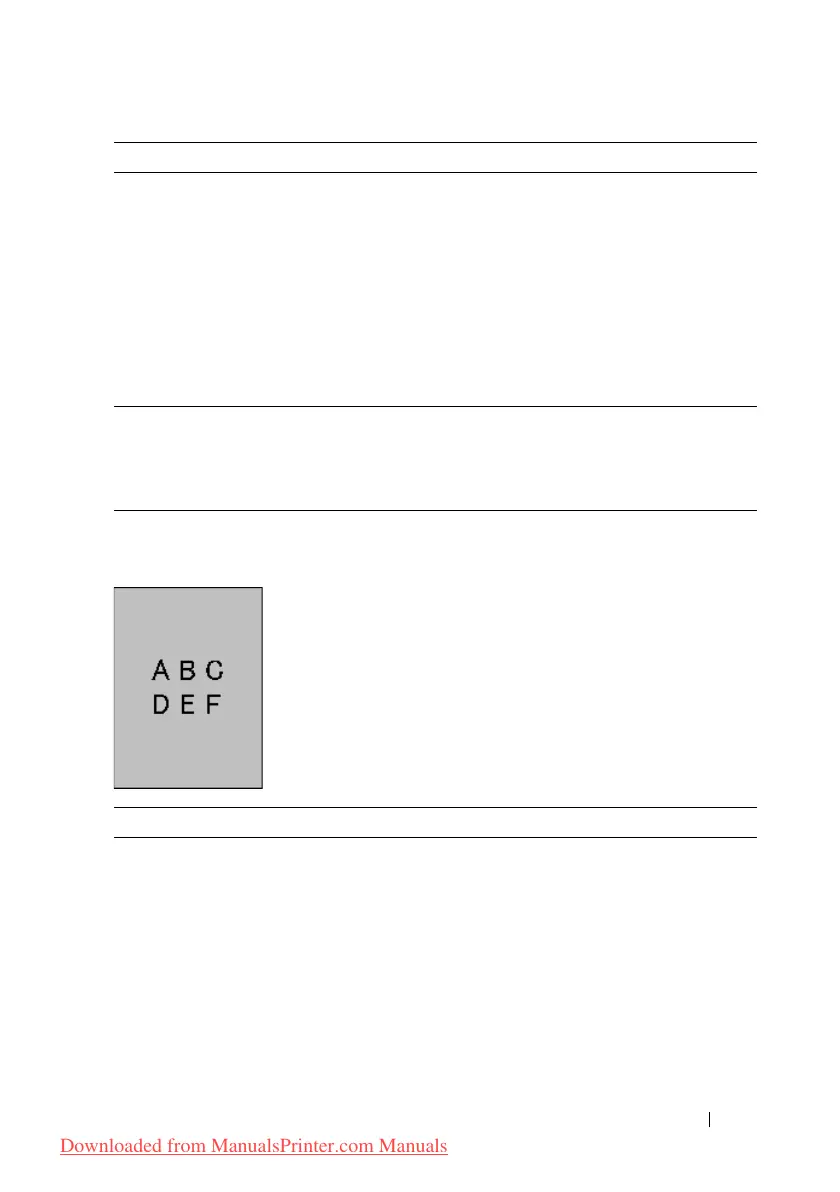
Fog
2 Execute the PHD Refresh Mode.
a
Launch the Tool Box, and click
Refresh
Mode
on the
Diagnosis
tab.
b
After you start the
Drum Refresh Mode
,
click
Chart Print
on the
Diagnosis
tab.
c
Click the
4 Colors Configuration Chart
button.
The 4 Colors Configuration Chart is printed.
Does this solve your problem?
The task is
complete.
Go to action 3.
3 Replace the PHD unit if you have a spare unit.
See "Replacing the Print Head Device (PHD)
Unit" and "
Installing a PHD Unit
."
Does this solve your problem?
The task is
complete.
Contact Dell.
Action Yes No
1 Execute the PHD Refresh Mode.
a
Launch the Tool Box, and click
Refresh
Mode
on the
Diagnosis
tab.
b
After you start the
Drum Refresh Mode
,
click
Chart Print
on the
Diagnosis
tab.
c
Click the
4 Colors Configuration Chart
button.
The 4 Colors Configuration Chart is printed.
Does this solve your problem?
The task is
complete.
Go to action 2.
Action Yes No
Downloaded from ManualsPrinter.com Manuals











 To Next Page