348 Scanning
FILE LOCATION: C:\Users\fxstdpc-
admin\Desktop\0630_UG??\Mioga_AIO_UG_FM\Mioga_AIO_UG_FM\section19.fm
DELL CONFIDENTIAL – PRELIMINARY 9/13/10 - FOR PROOF ONLY
2
Click
Start
Control Panel
Printers and Other Hardware
Scanners
and Cameras
.
3
Double-click the scanner icon. The
Scanner and Camera Wizard
launches.
4
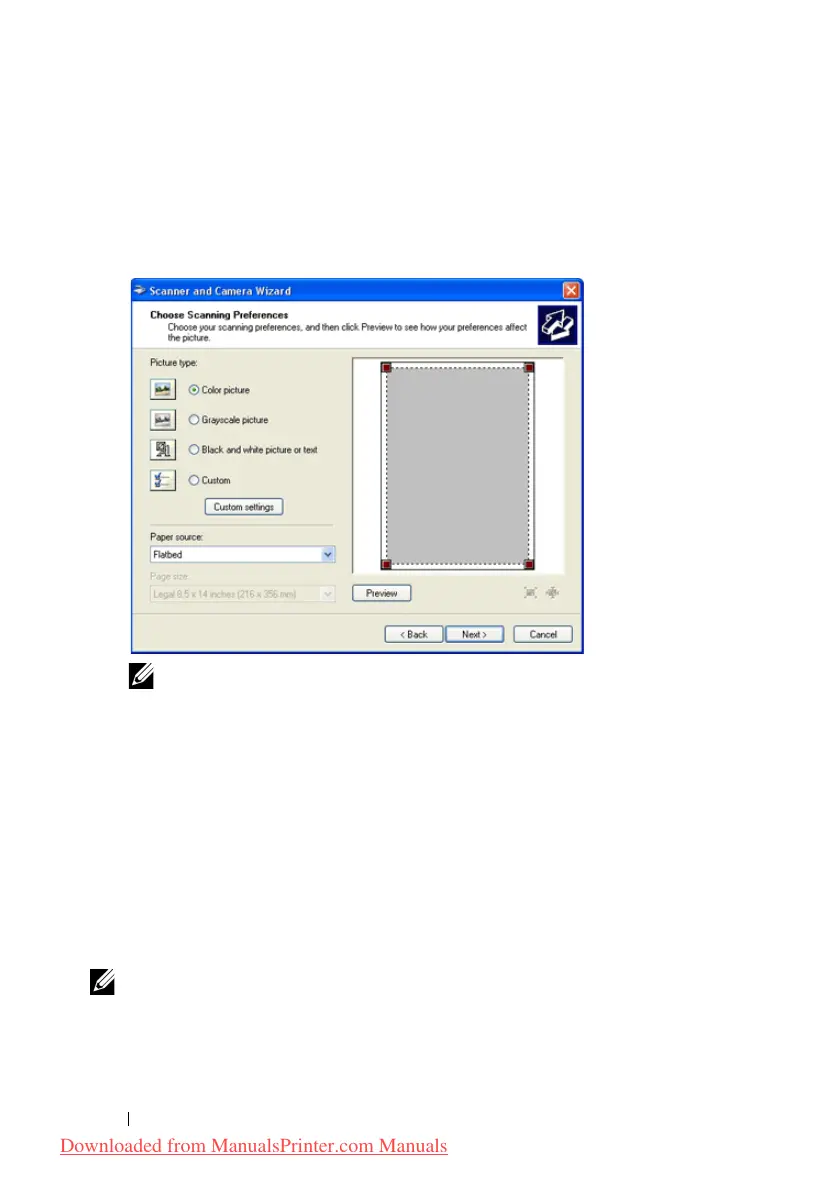
Click
Next
to display the
Choose Scanning Preferences
page.
NOTE: The screen image may vary depending on the operating system.
5
Select your desired type of picture, paper source, and paper size, and click
Next
.
6
Enter a picture name, select a file format, and specify the desired location to
save the scanned document.
7
Click
Next
to start scanning.
8
Follow the on-screen instructions to edit the picture after it is copied to your
computer.
Scanning to Network
NOTE: This feature does not require a network scan driver.
Downloaded from ManualsPrinter.com Manuals











 To Next Page