320 Copying
FILE LOCATION: C:\Users\fxstdpc-
admin\Desktop\0630_UG??\Mioga_AIO_UG_FM\Mioga_AIO_UG_FM\section18.fm
DELL CONFIDENTIAL – PRELIMINARY 9/13/10 - FOR PROOF ONLY
Place a single document facing down on the document glass, and close the
document cover.
For details about loading a document, see "Making Copies From the
Document Glass" and "Making Copies From the ADF."
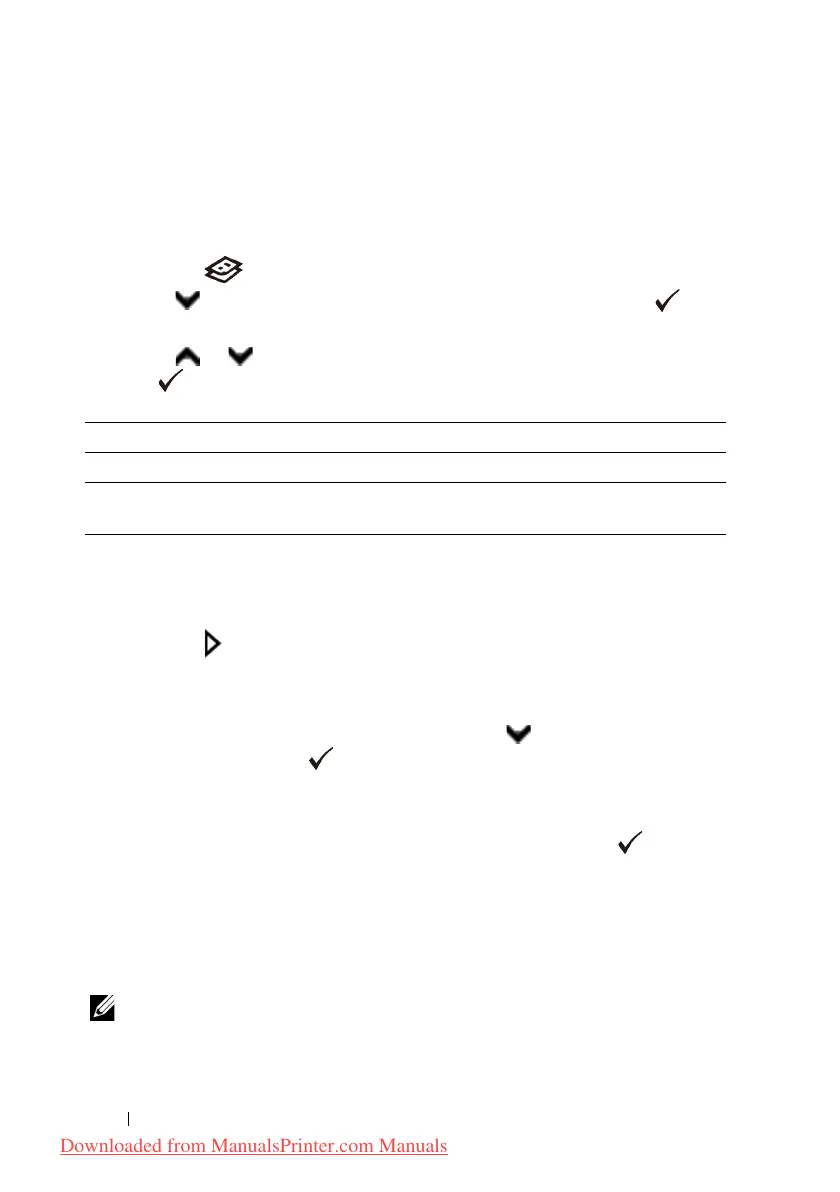
2
Press the
(Copy)
button.
3
Press button until
Collated
is highlighted, and then press the
(Set)
button.
4
Press or button until the desired setting is highlighted, and then press
the
(Set)
button.
* Denotes the factory default setting.
To customize the copy settings including the number of copies, copy size,
contrast, and image quality, see "Setting Copy Options."
5
Press the
(Start)
button to begin copying.
a
When you are using the document glass and it is set to
On
, the display
prompts you for another page.
If you want to place a new document, press button to select
Yes
,
and then press the
(Set)
button.
Another display prompts you for placing next page.
Replace the document with a new document.
Ensure that
Continue
is highlighted, and then press the
(Set)
button.
Reduce/Enlarge
To reduce or enlarge the size of a copied image, from 25 percent to 400 percent
when you copy original documents from the document glass or ADF:
NOTE: When you make a reduced copy, black lines may appear at the bottom of
your copy.
1
Load the document(s) facing up with top edge in first into the ADF.
Off Does not copy in collated order.
On Copies in collated order.
Auto* Only the documents loaded from ADF are copied in collated
order.
Downloaded from ManualsPrinter.com Manuals











 To Next Page