Faxing 391
FILE LOCATION: C:\Users\fxstdpc-
admin\Desktop\0630_UG??\Mioga_AIO_UG_FM\Mioga_AIO_UG_FM\section20.fm
DELL CONFIDENTIAL – PRELIMINARY 9/13/10 - FOR PROOF ONLY
3
Adjust the document resolution. (For details, see "Adjusting the Document
Resolution.")
4
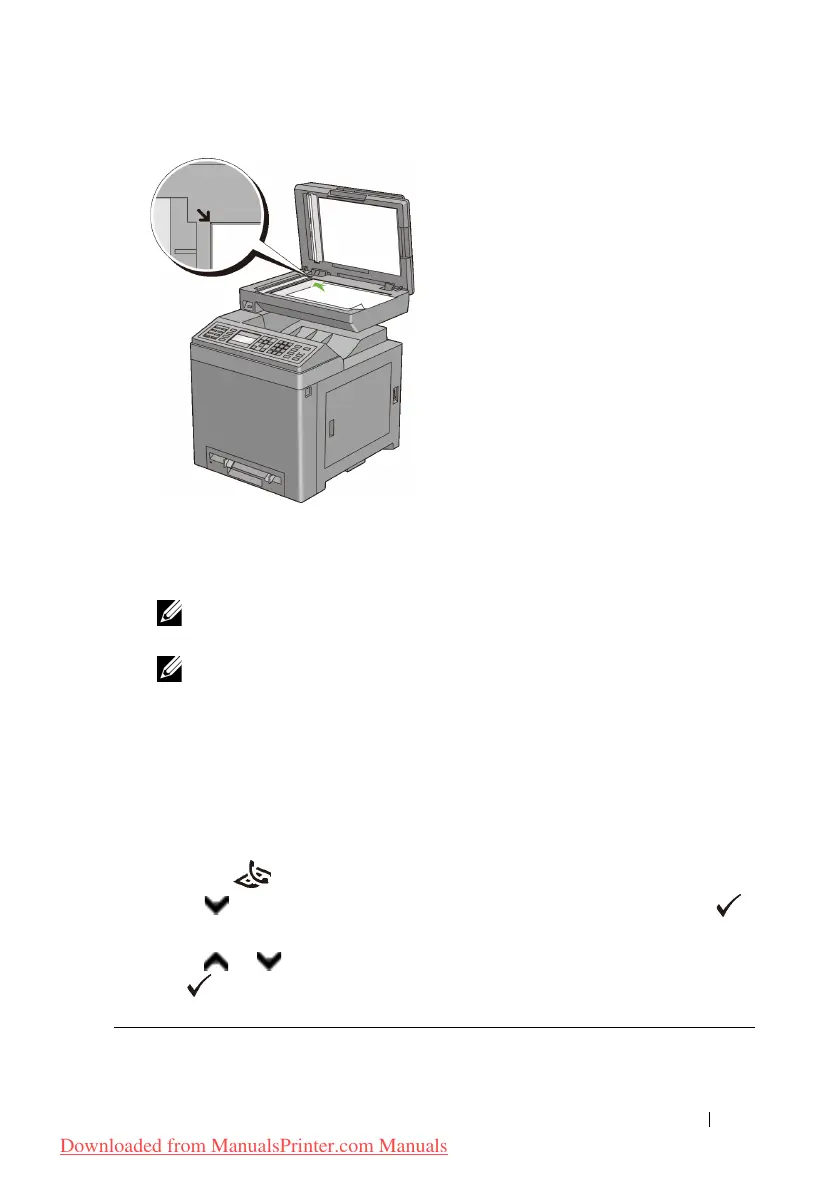
Close the document cover.
NOTE: Ensure that no document is in the ADF. If any document is detected
in the ADF, it takes priority over the document on the document glass.
NOTE: If you are faxing a page from a book or magazine, lift the cover until
its hinges are caught by the stopper and then close the cover. If the book or
magazine is thicker than 30 mm, start faxing with the cover open.
Adjusting the Document Resolution
You can improve the quality of the fax document by adjusting the resolution,
especially for the document in low-quality or containing the photographic
image.
1
Press the
(Fax)
button.
2
Press button until
Resolution
is highlighted, and then press the
(Set)
button.
3
Press or button until the desired setting is highlighted, and then press
the
(Set)
button.
Standard* Used for documents with normal sized characters.
Downloaded from ManualsPrinter.com Manuals











 To Next Page