392 Faxing
FILE LOCATION: C:\Users\fxstdpc-
admin\Desktop\0630_UG??\Mioga_AIO_UG_FM\Mioga_AIO_UG_FM\section20.fm
DELL CONFIDENTIAL – PRELIMINARY 9/13/10 - FOR PROOF ONLY
* Denotes the factory default setting.
NOTE: Faxes scanned in the Super Fine resolution transmit at the highest
resolution supported by the receiving device.
Adjusting the Document Contrast
You can adjust the contrast of the fax document to be lighter or darker than the
original.
1
Load the document(s) facing up with top edge in first into the ADF.
OR
Place a single document facing down on the document glass, and close the
document cover.
For details about loading a document, see "Loading an Original Document."
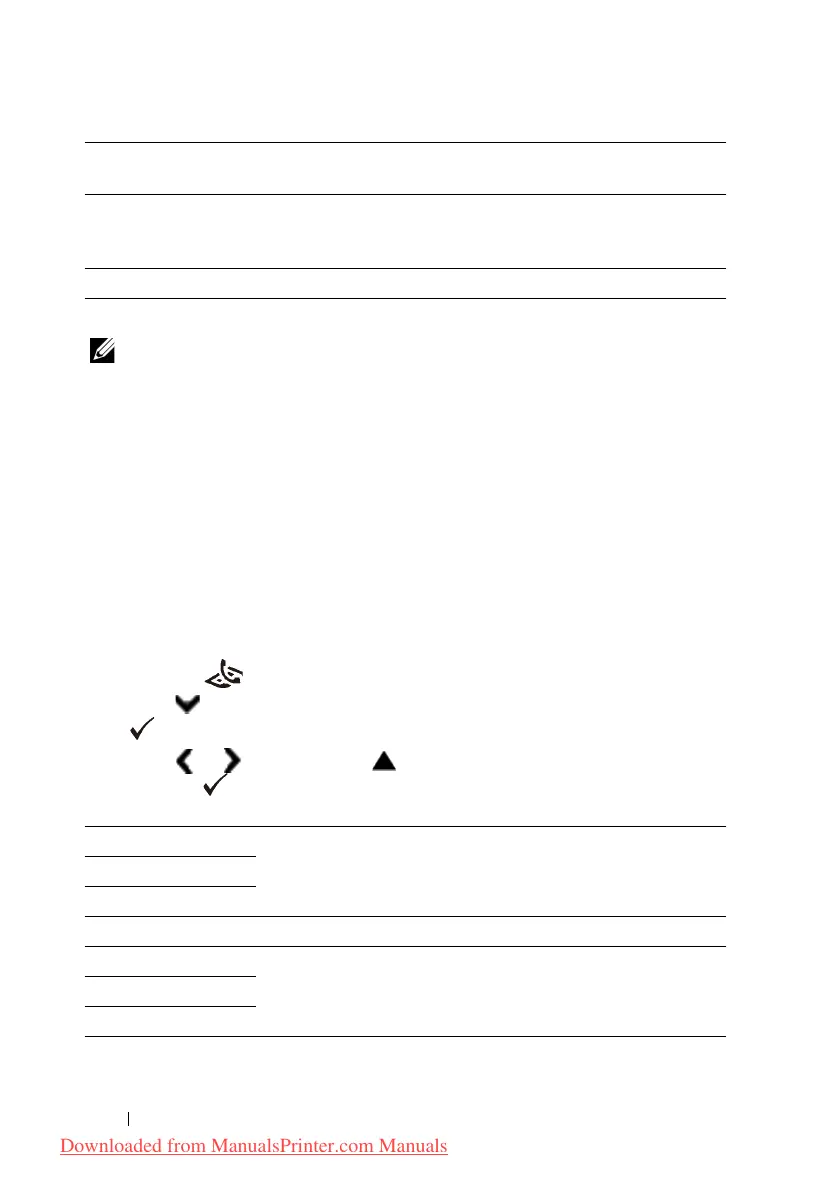
2
Press the
(Fax)
button.
3
Press button until
Lighter/Darker
is highlighted, and then press the
(Set)
button.
4
Press or button to move for adjusting the darkness level, and then
press the
(Set)
button.
* Denotes the factory default setting.
Fine Used for documents containing small characters or thin lines or
documents printed using a dot-matrix printer.
Super Fine Used for documents containing extremely fine detail. The super
fine mode is enabled only if the remote machine also supports
the Super Fine resolution. See the note below.
Photo Used for documents containing photographic images.
Lighter3 Works well with dark print.
Lighter2
Lighter1
Normal* Works well with standard typed or printed documents.
Darker1 Works well with light print or faint pencil markings.
Darker2
Darker3
Downloaded from ManualsPrinter.com Manuals











 To Next Page