Scanning 347
FILE LOCATION: C:\Users\fxstdpc-
admin\Desktop\0630_UG??\Mioga_AIO_UG_FM\Mioga_AIO_UG_FM\section19.fm
DELL CONFIDENTIAL – PRELIMINARY 9/13/10 - FOR PROOF ONLY
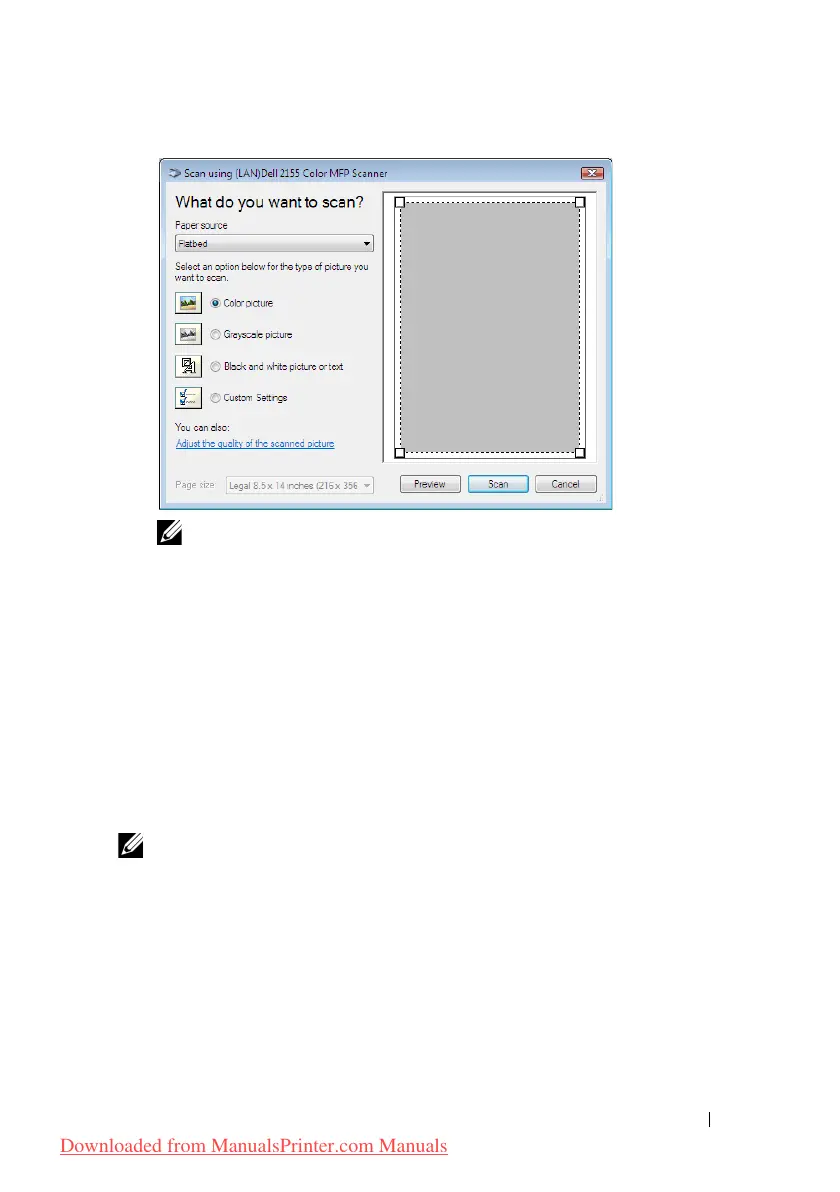
NOTE: The screen image may vary depending on the operating system.
4
Select your desired type of picture that you want to scan, and click
Adjust
the quality of the scanned picture
to display the
Advanced Properties
dialog box.
5
Select the desired properties including brightness and contrast, and then click
OK
.
6
Click
Scan
to start scanning.
7
Click
File
Save
to save your scanned document in your desired location on
your computer.
To scan an image from Control Panel:
NOTE: This feature is supported on Microsoft Window Server 2003 and
Windows XP only.
1
Load the document(s) facing up with top edge in first into the ADF.
OR
Place a single document facing down on the document glass, and close the
document cover.
For details about loading a document, see "Loading an Original Document."
Downloaded from ManualsPrinter.com Manuals











 To Next Page