71
4
4
Other Functions
Edit Function: 90° Rotation
90° Rotation
This function is for rotating documents on the digital scan image.
There are two types of 90° rotation, clockwise 90° rotation and counterclockwise 90°.
This reduces A3-size document placed in the portrait position (to paper feed direction) and
produces A4-size printout in the landscape position (to paper feed direction) by setting “ZOOM”
to AUTO/REDUCTION. A3/A4 drum is recommended to be used for 90° rotation.
If original image has solid black portion, set proper rotation so that the solid black portion comes
to rear part of print.
Example: If A3-size document has solid black
portion in the right side more than the
left side, set clockwise 90° rotation.
Doing this prints out the right part of the
document on the rear part of the ejected
printout.
Master making for 90° rotation requires more time than that for normal master making.
How to Set 90° Rotation
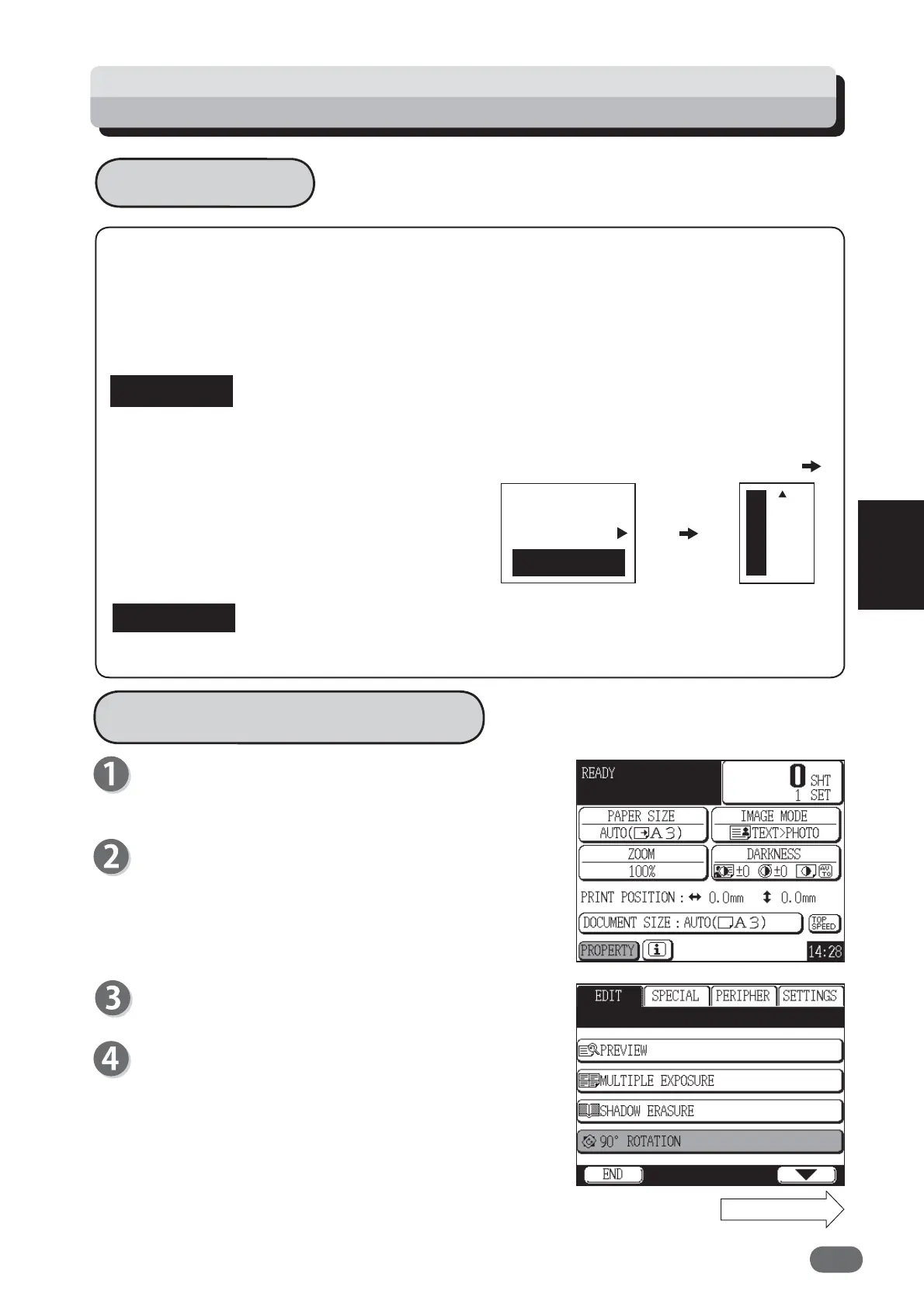
Proceed with steps 1 to 5 of the sequence described
in “Basic Printing”.
(“Basic Printing” → see p.27)
Touch "PROPERTY".
Touch "EDIT".
Touch "90°ROTATION".
A display of rotation directions appears.
A3 原稿
プリント
右 90°回転
Continue Page....
A3 document
Printout
clockwise
90° rotation
REFERENCE
IMPORTANT
V3M0413a



 To Next Page