6.6.3 Rectification of driver problems
If the driver installation is not complete or if the controller has been accidentally connected to the PC before the
execution of the installation program, the following instructions will provide you with information for how the
problem can be rectified:
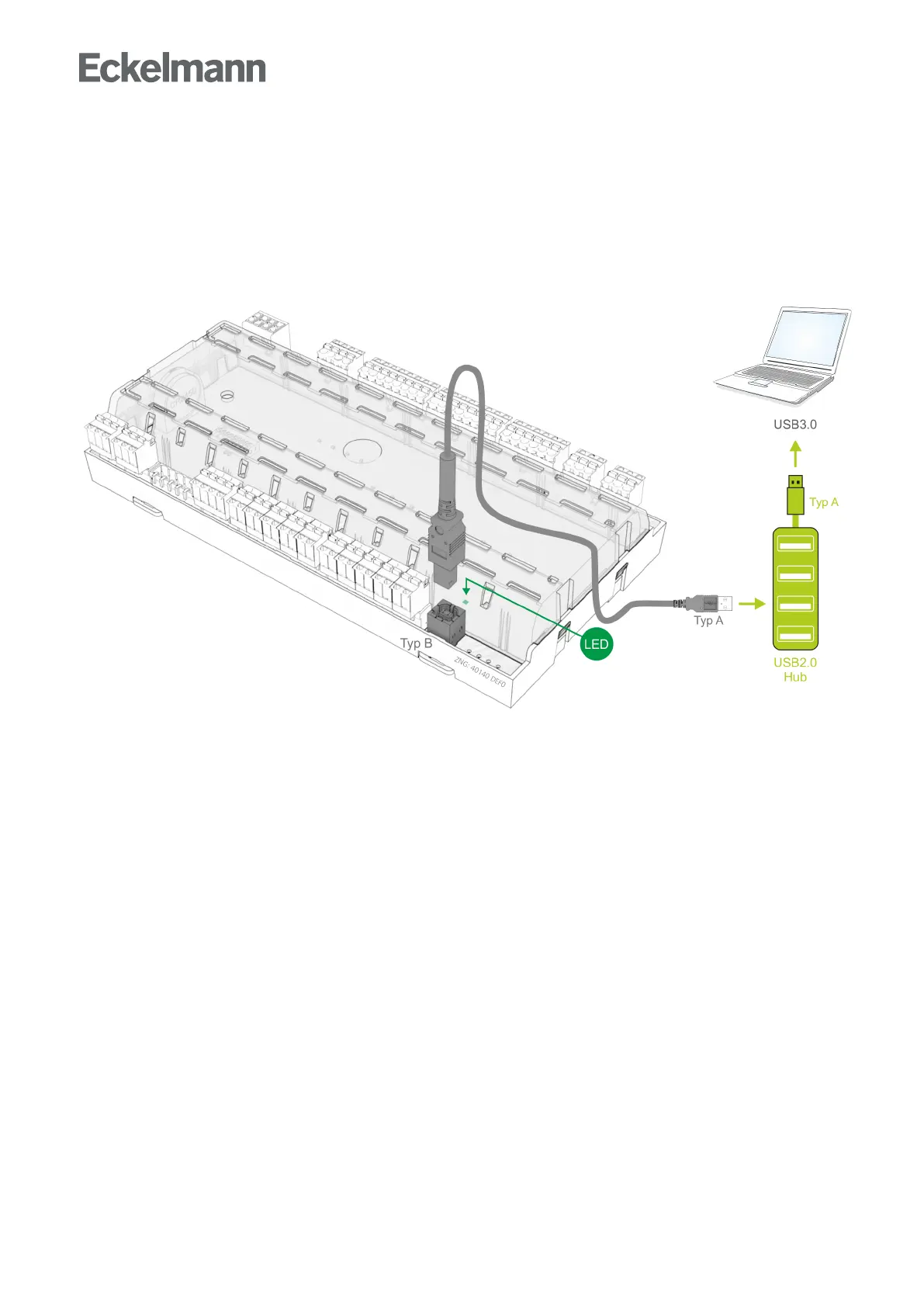
Problems with USB connections: Problems with the detection of controllers on the USB3 port may occur.
Interconnection of a USB2 hub can be a possible approach for the solution. This usually enables Windows to
detect the controllers:
Windows XP / Vista: If the controller has been accidentally connected to the PC before the execution of the
installer, the driver mustbeupdatedintheControlPanel.
For this, it must first be ensured that the installation program for the firmware upload has been executed: in the
Start menu, call "Settings" - "Control Panel" - "Management" - "Computer Management"" - "Device Manager" -
"Ports (COM and LPT)" and using the right mouse button select the not correctly installed COM port ("UA 400
COM Port" or "WR 300 COM Port"). Then click on "Update Driver" and follow the instructions in the dialogue
that opens; then the driver should be correctly installed.
Windows 7 / Windows 8 / Windows 10: Open "Control Panel", under "Device Manager" there, select "Ports
(COM & LPT)". Then proceed as described above.
Special features under Windows 7/10: When executing the program, the request “Do you want to allow the
following program from an unknown publisher to make changes to this computer?” must be confirmed with
YES. If this request should be permanently suppressed, the following procedure is recommended:
In the directory "C:\Program Files\firmupl", click on the file “firmupl.exe”withtherightmousebutton.Selectthe
entry "Allow" under "Properties" in the drop-down context menu. The request should no longer be displayed
during the next start.


 To Next Page