Titanium Interfaces User Guide
Using the Resource Assigner
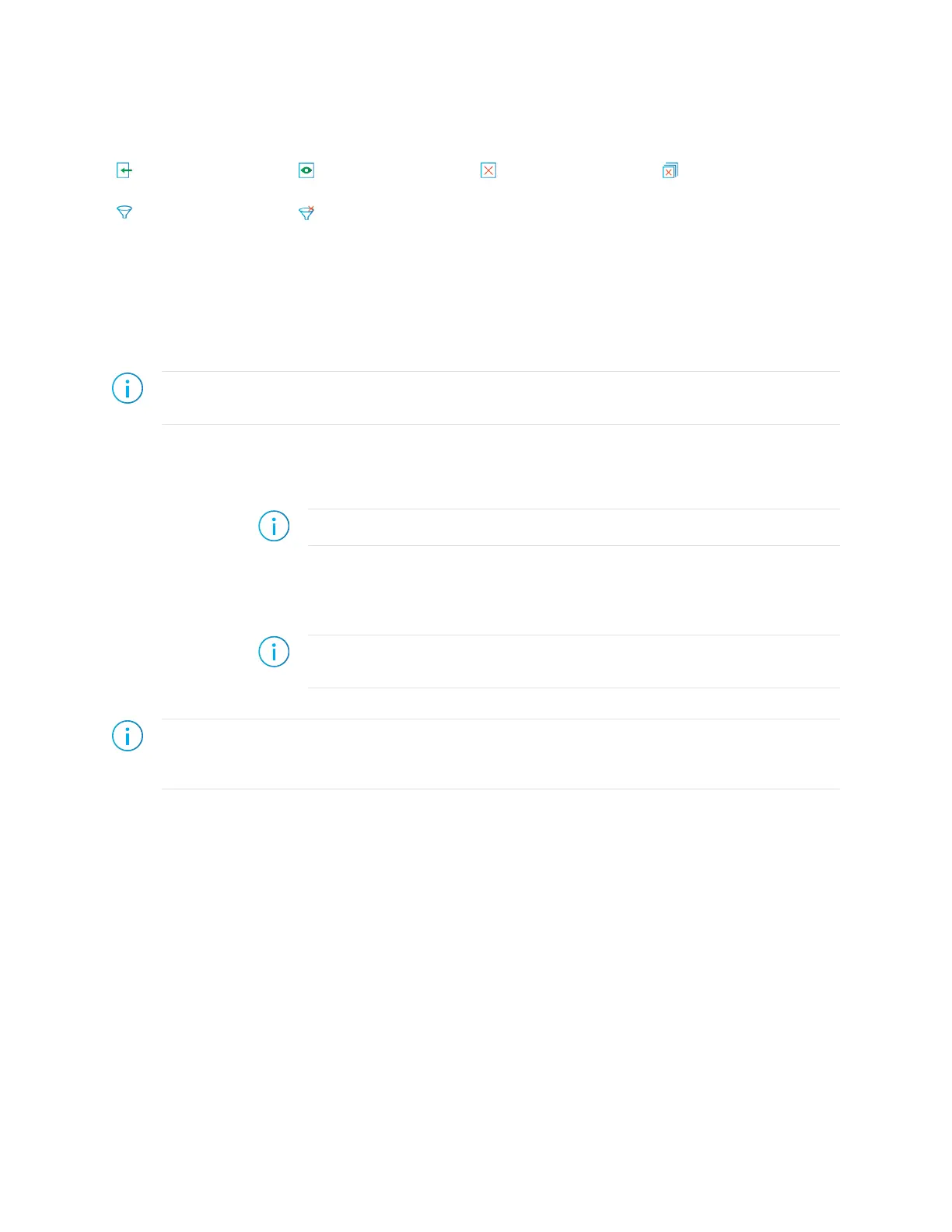
Resource Assigner Switch View Clear Selected
Resource
Clear All Resources
Show/Hide Filter Clear Filter
The Resource Assigner provides a tabular view of all GPIO resources in your chosen FPGA
and information about them, such as whether they are used, the I/O bank, pad, and package
pin, and the instance assigned to the resource.
• The GPIO: Instance View shows all GPIO instances in your project.
• The GPIO: Resource View shows all GPIO, LVDS, and MIPI RX or TX lane resources
and the resources to which you assigned them.
Note: In the Efinity
®
software v2021.1, you can only view the resources used for LVDS and MIPI lanes in
the Resource Assigner. You cannot change or assign resources in this view.
To assign a resource:
1. Open the Resource Assigner by clicking the Show/Hide Resource Assigner button. The
software opens to the Instance View, which lists all instances in the design.
Note: Click Switch View to toggle between instance view and resource view.
2. In instance view, you can assign pins or resources to the instance. Double-click in the
table cell for the item you want to assign. The software displays a drop-down list of
available selections.
3. Select an unused resource, instance, or pin.
Note: If you select a used resource, instance, or pin, the software makes the new
assignment, which replaces the previous assignment.
4. Press Enter.
Note: Titanium: When using HSIO pins as GPIO, make sure to leave at least 1 pair of unassigned HSIO
pins between any GPIO and HSIO pins in the same bank. This separation reduces noise. The Efinity
software issues an error if you do not leave this separation.
www.efinixinc.com 11



 To Next Page