Titanium Interfaces User Guide
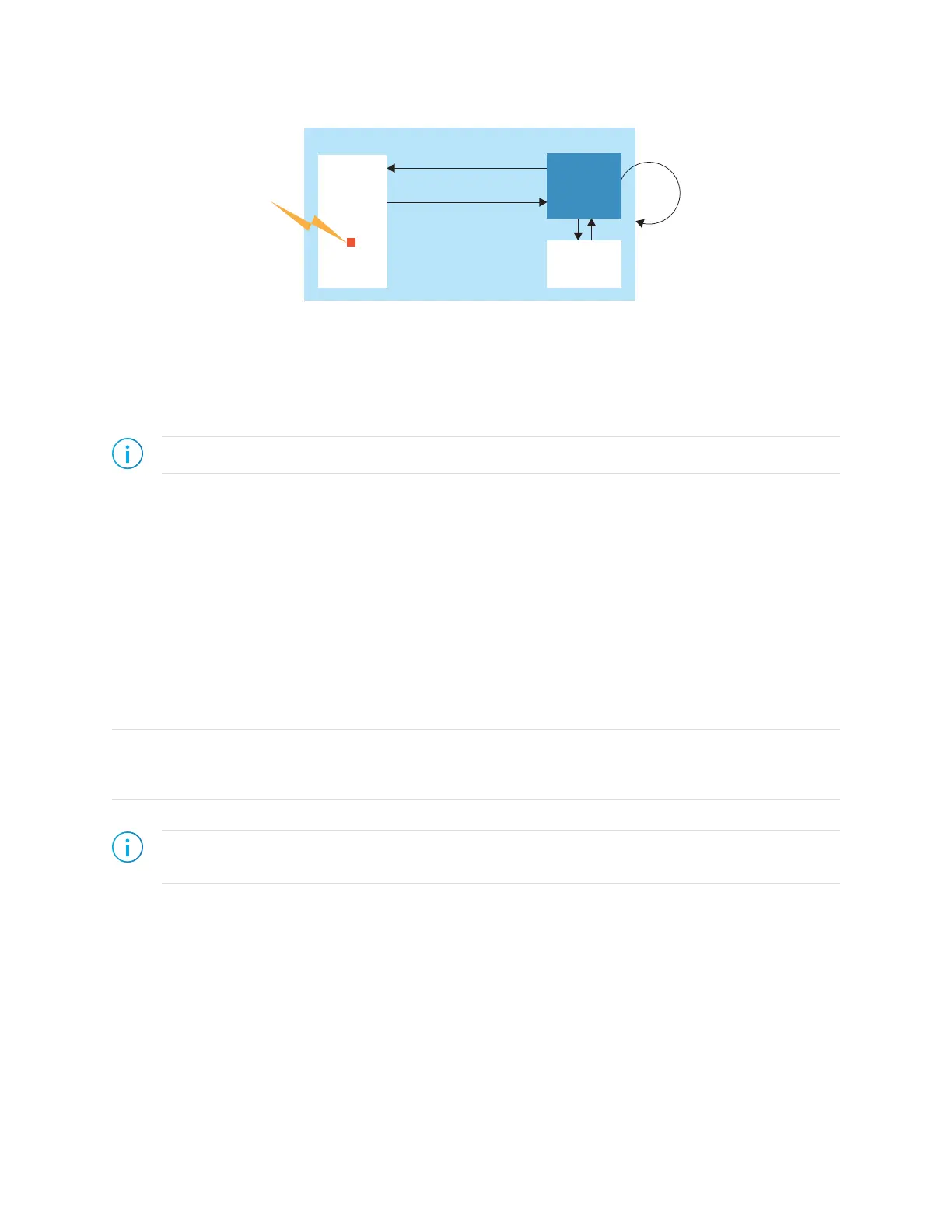
Figure 6: SEU Detection Circuitry
Error found
Trigger
Reconfiguration
User
Logic
Titanium FPGAs can monitor the CRAM while the FPGA is operating normally in user
mode; When the SEU detection circuitry is triggered, it calculates a 32-bit CRC value based
on CRAM values and compares it to a CRC computed by the Efinity software and stored in
the configuration bitstream. If the values are different, the SEU circuit determines an error
has occurred and sends an error signal to the user logic. You can trigger the SEU detection
circuitry automatically on a set interval, or manually using a signal.
Note: For Ti35 and Ti60 FPGAs, your design should be in an "idle" state before performing an SEU check.
Enable SEU Detection
To enable the SEU feature in the Efinity software:
1. Click Device Setting > Configuration.
2. Click the SEU Detection tab.
3. Turn on Enable SEU Detection.
4. Choose the mode, auto or manual.
• In auto mode, you can specify the amount of time between SEU error checks in
microseconds. Allowable values are 1 to 1650000.0 (default).
• In manual mode, you specify the pin name that controls when the SEU error check
happens.
Tip: For environment that have a higher risk of SEUs, you can set a shorter wait interval. However, the shorter the
wait interval, the more power the system consumes. To use less power, choose a longer wait interval. To save even
more power, you can use manual mode to only trigger the SEU detection circuitry when conditions require it.
5. Save.
Note: The software issues an error if you turn on SEU detection for Ti60ES FPGAs because they do not
support SEU checking.
www.efinixinc.com 18



 To Next Page