Operating of the Machine
4-82 © Essemtec AG Paraquda Startup & Safety
0000003/11 / November 4, 2014
Create Barcode
First of all, the above created component has to be saved.
Teach
Barcode
The dialog pops up to save the created component.
Yes to save the new created component with the typed in component name.
Create a barcode which defines the physical size
of the barcode and the code typ
e.
Barcode
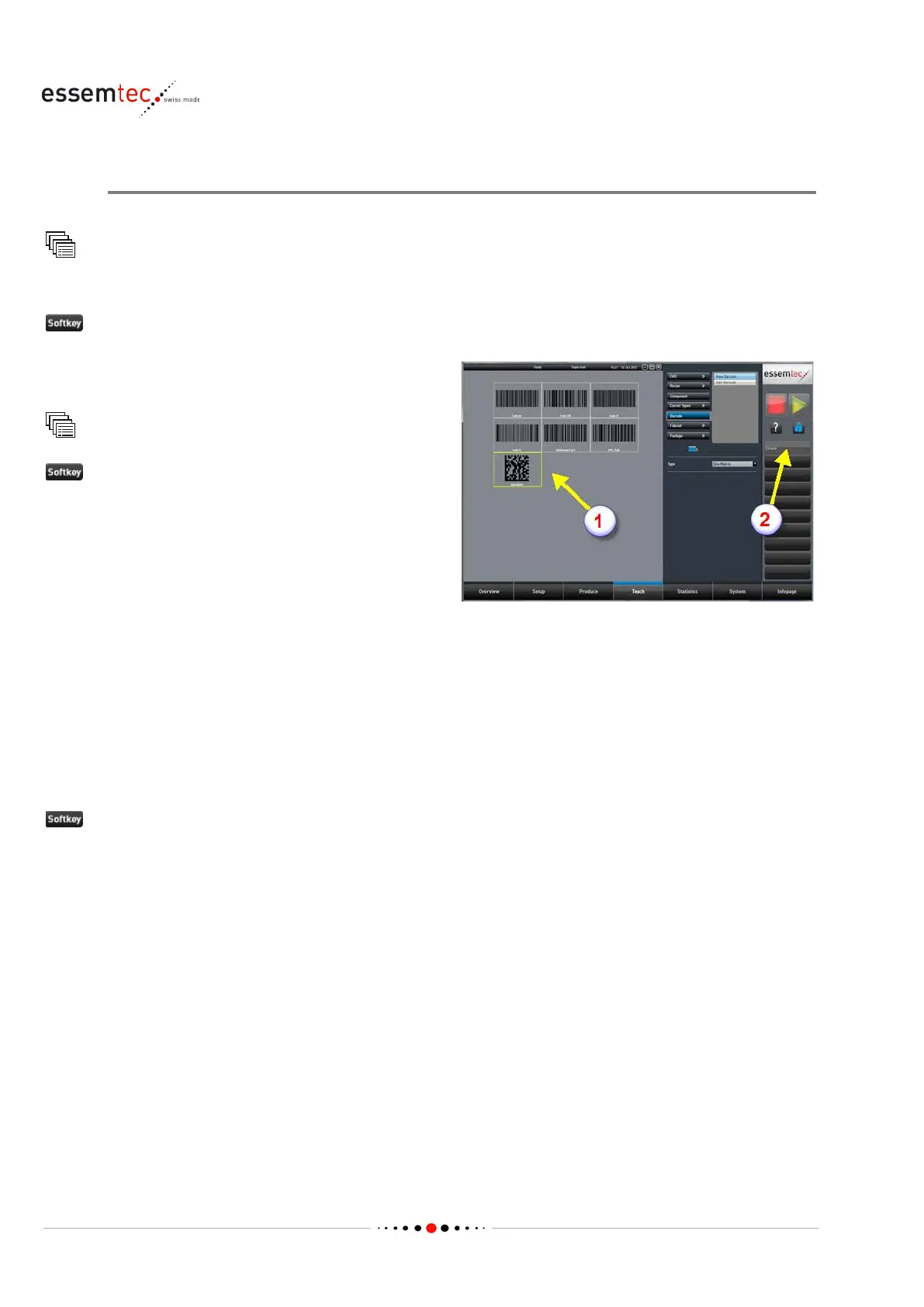
to create a new barcode. The screen Teach
Barcode - New Barcode opens.
Select the desired barcode type (1) and press
Create
to create a new barcode (2), the screen
Teach - Barcode - Edit barcode
fine the following data (see online context
• X length [mm], the barcode length in X
• X width [mm], the barcode width in Y
• Light profile
• Background, the background of the barcode
If the ideal light profile is not known, do the following (barcode must be present on the PCB):
Find best light profile
The machine is searching the best light profile for the current barcode. The found settings are
compared with existing light profiles. The machine lists the existing light profiles which are close to
the found settings. Choose one of the found profile.
The created barcode will be stored in the next step.


 To Next Page