Operating of the Machine
Paraquda Startup & Safety © Essemtec AG
4-83
0000003/11 / November 4, 2014
Add Component to Recipe
First of all, the above created barcode has to be saved.
Teach
Recipe
The dialog pops up to save the created barcode.
Yes to save the new created barcode.
In the Save as dialog, type in a name for the barcode and press Save
Add the component to the recipe at the position
where it
shall be placed.
Recipe
In the parameter section, select the desired
Recipe and press
Edit.
Recipe
Components
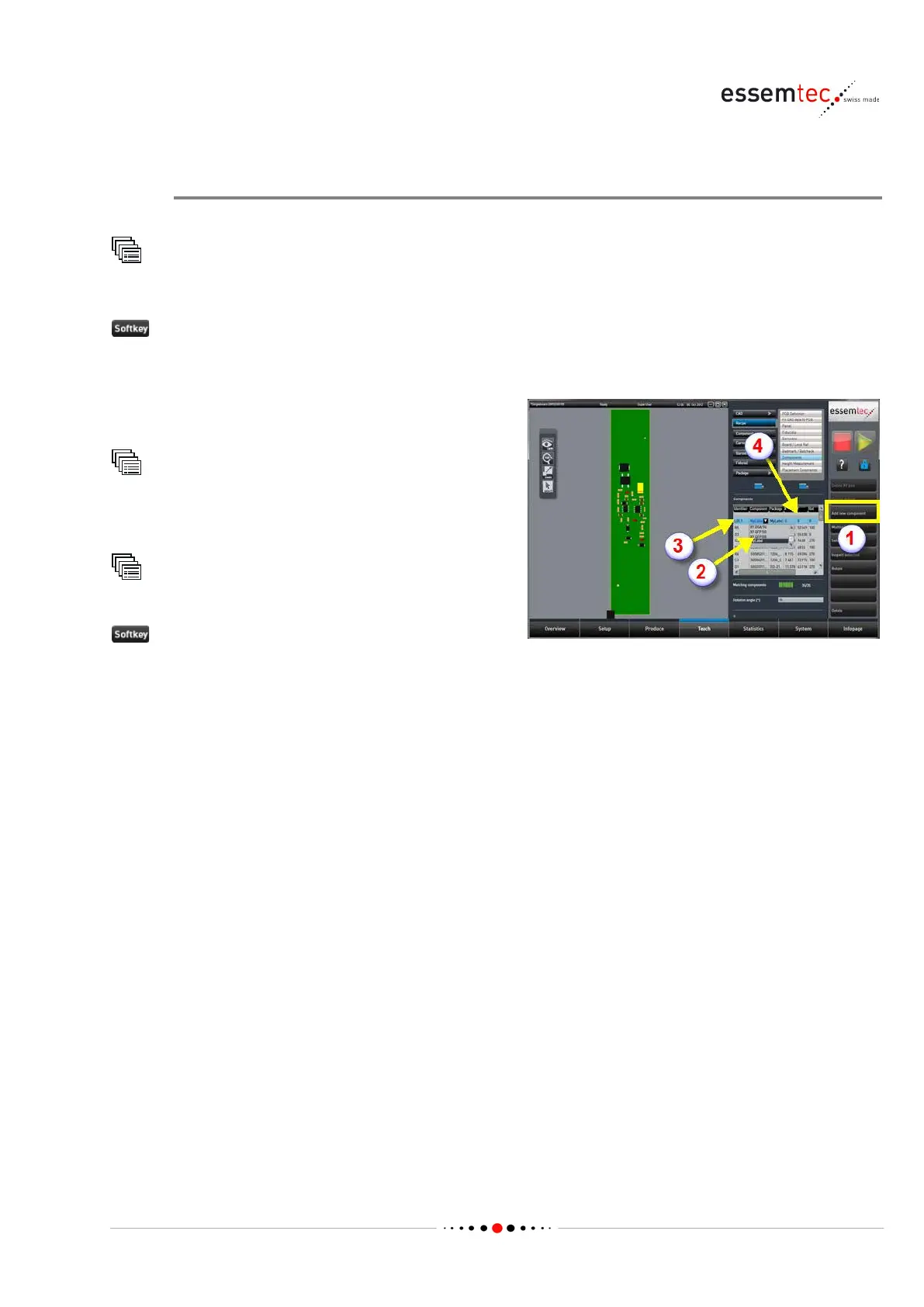
(1) to add the label to the
component list and to define the location of the
component on the PCB.
the column 'Component' (2), select the
created component (label).
In the column 'Identifier', type in the desired
identifier (e.g. LBL1).
In the columns 'X', 'Y', 'Rot', type in the necessary
coordinates to place the label at the correct
position on the
PCB (the label is visualized in the
The recipe will be stored in a later step.


 To Next Page