316 Eos Operations Manual
External Monitor Arrangement
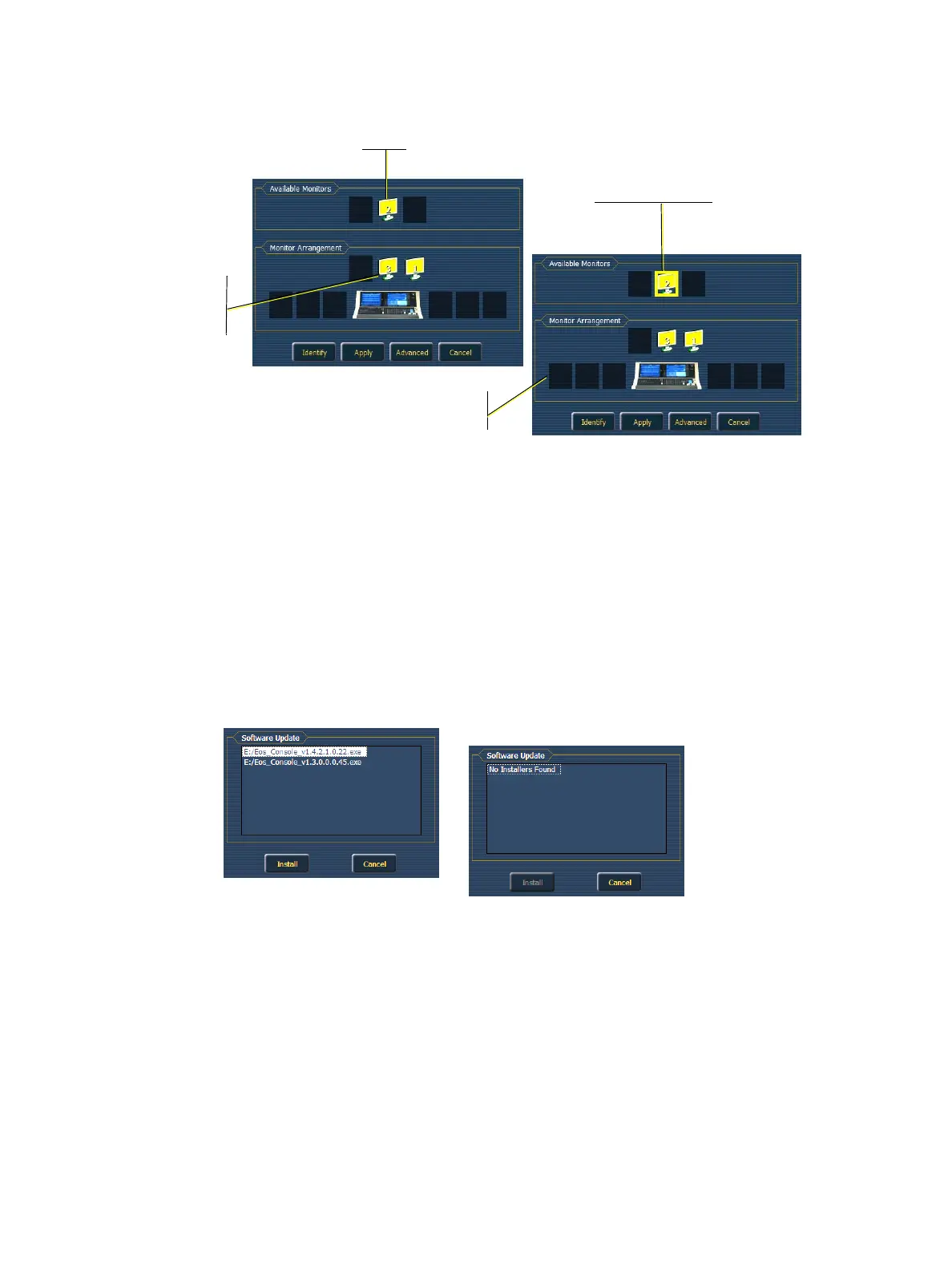
External monitors should be placed in a logical manner around the console. This will dictate how
and where the pointer moves from one screen/monitor to another. Generally speaking, you will
want the logical placement on this screen to match your physical placement.
Click the Identify button to display the video port numbers that your monitors are connected to on
the physical monitors to confirm where you placed them (They should match this configuration
screen).
{Apply} will save and use your settings.
{Cancel} will not save your changes and will close the utility.
(Eos) Software Update
This option is used to update the software of the Eos console itself. It does not affect or update the
software in any other networked device such as a Net3 Gateway.
When you click on {Software Update}, the Eos console looks at the root directory of any connected
USB drive for an Eos console software update file.You will be shown the names of any updater files
found on the drive. Select the file you would like to install and click the {Install} button, or click
{Cancel}.
You will also receive a message if no software update file can be found.
Available
Click an available monitor
once to select it...
...Then click on a location
around the Eos console
to place it.
The number on the
monitors matches the
number of the video port
on the rear of the console.



 To Next Page