Section 5: 9500B Procedure Mode - Access Guide 5.3-1
Final Width = 215mm
Descriptions assume 9500B/1100
5.3 Procedure Mode — Access Guide
5.3.1 Introduction
Page
5.3.2 Mode Selection. 5.3-1
5.3.2.1 'Mode' Key. 5.3-1
5.3.2.2 'Mode Selection' Display. 5.3-1
5.3.3 Selection of Procedure Mode —
Entry Menus Common to All Procedures. 5.3-1
5.3.3.1 PROC Key. 5.3-1
5.3.3.2 Procedure Mode Display at Entry. 5.3-1
5.3.3.3 Is Your Name on the List?. 5.3-1
5.3.3.4 Select and Insert the Procedure Card which
contains the Procedure for the
Subject UUT Model. 5.3-2
5.3.3.5 Select the Subject UUT Manufacturer. 5.3-3
5.3.3.6 Select the Subject UUT Model. 5.3-3
5.3.3.7 Enter the Serial Number of the
Subject UUT. 5.3-3
5.3.3.8 Select the Procedure for the Subject
UUT Model. 5.3-4
5.3.3.9 Procedures — Card-Based Operating
Instructions. 5.3-4
5.3.3.10 'ABORT'. 5.3-5
5.3.3.11 'END'. 5.3-5
5.3.3.12 User Options Following
'ABORT' or 'END'. 5.3-6
5.3.3.13 Common Operations in Procedure Mode —
Summary of Actions. 5.3-6
5.3.2 Mode Selection
(A flow chart summarizing the access to Procedures
is given at paras 5.3.3.13 — Fig. 5.3.2)
5.3.2.1 'Mode' Key
The five 'Modes' are accessed by pressing the
'Mode' key at the right of the front panel.
5.3.2.2 'Mode Selection' Display
At power-on, the system defaults into either
Procedure mode or Manual mode as previously
programmed in 'Configure' mode. When
'Procedure' mode is required and the Configure
default is 'Manual' mode, it will be necessary to
transfer via the 'Mode' display.
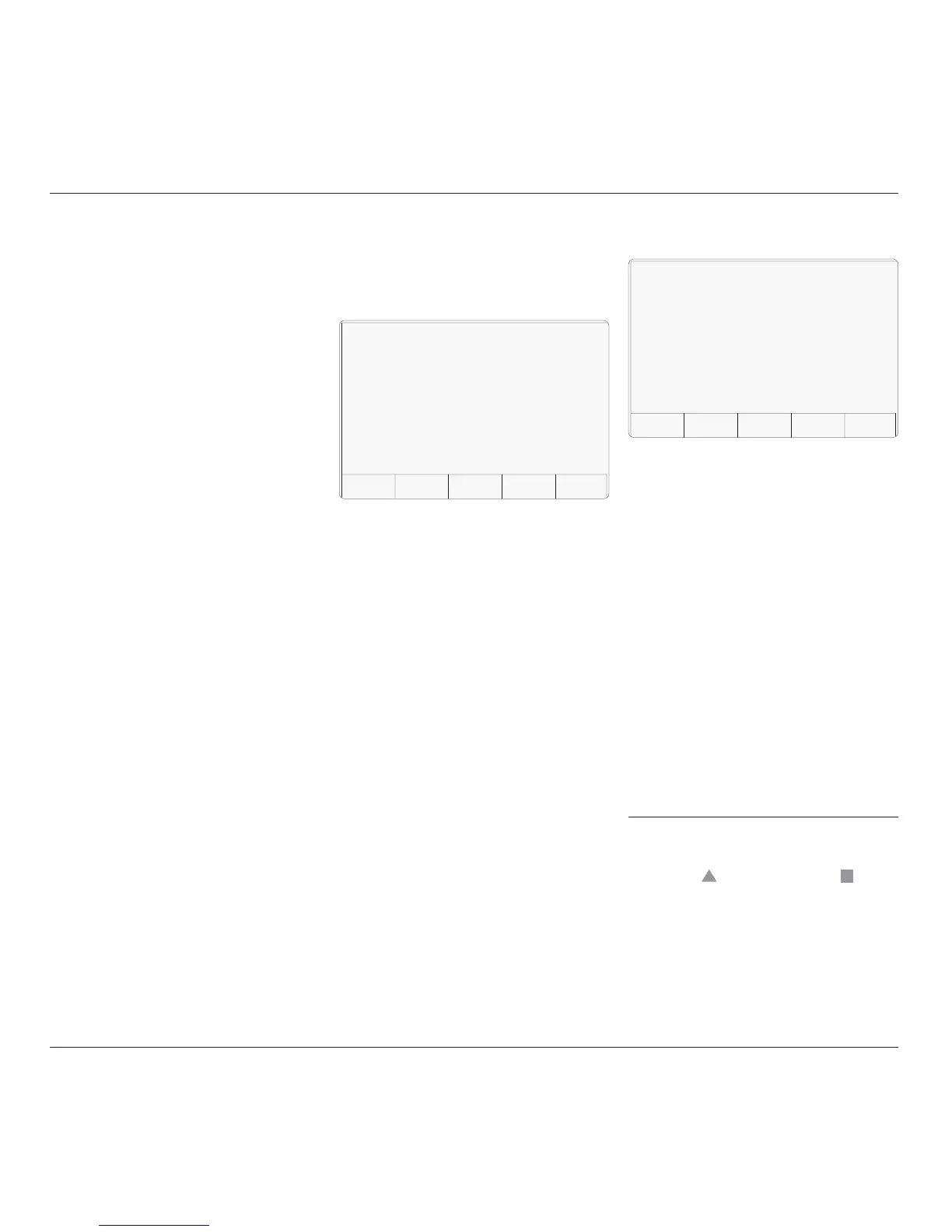
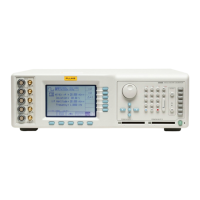
Fig. 5.3.1 Mode Selection Menu
5.3.3.3 Is Your Name on the List?
If you are on the list, use cursor keys to select
your name, then press the 'OK' screen key.
If Your Name is NOT on the List:
Use the alpha-numeric keypad to write your
name (12 characters max.) on the screen
[1]
. It
will appear at the bottom of the screen as you
type, together with a shift key icon. Then press
the '↵' key or the 'OK' screen key, after which
the screen will change to select the manufacturer
or model to be tested, except that further
progress will require a procedure card to be
inserted into PCMCIA SLOT 1 (refer to paras
5.3.3.4).
The list can be cleared only by entering
CONFIG Mode, using the password and
pressing the 'MORE' screen key, then using
the 'CLEAR USER LIST' facility.
Sub-section 5.3 is a guide to access to Procedure
Mode. The following topics are covered:
[1] Writing Alphabetical Characters
For alphabetical characters, there are two
shift keys: '
' (blue — left) and ' ' (red—
right) on the bottom row of the keypad. The
numeric keys have colour-coded alphabetical
characters printed on left and right. Press and
release the appropriate shift key then the
alphabetic character key in order to spell out
the words.
Only UPPER CASE characters are available
from the keypad.
The required mode is selected by pressing its
appropriate screen key on the bottom row;
then the 'Mode Selection' screen will be replaced
by the mode's first menu screen (or in the case
of Configure or Calibration mode, the password
entry screen).
Press the Mode key on the right of the front
panel to obtain the 'Mode Selection' menu
screen
5.3.3 Selection of Procedure
Mode — Entry Menus
Common to All
Procedures
5.3.3.1 PROC Key
Procedure mode is entered by pressing the
'PROC' screen key on the bottom row of the
Mode Selection menu screen (or after Power
On when the Procedure mode is set as the
power-on default in Configuration mode).
5.3.3.2 Procedure Mode Display at
Entry
When Procedure mode has been successfully
entered, the 9500B starts by presenting the
'Select USER NAME ...' display:
TODAY'S DATE TIME
PROC MANUAL CONFIG CALIB TEST
Mode Selection
Select required mode using softkeys
TODAY'S DATE TIME
Select USER NAME from list or type
in a new name using the keypad.
C F BARNES
F J BLOGGS
J K FLIPFLOP
OK
By pressing the 'Mode' key, the system will
present the Mode Selection menu screen for
selection from the five modes (Fig 5.3.1).


 To Next Page