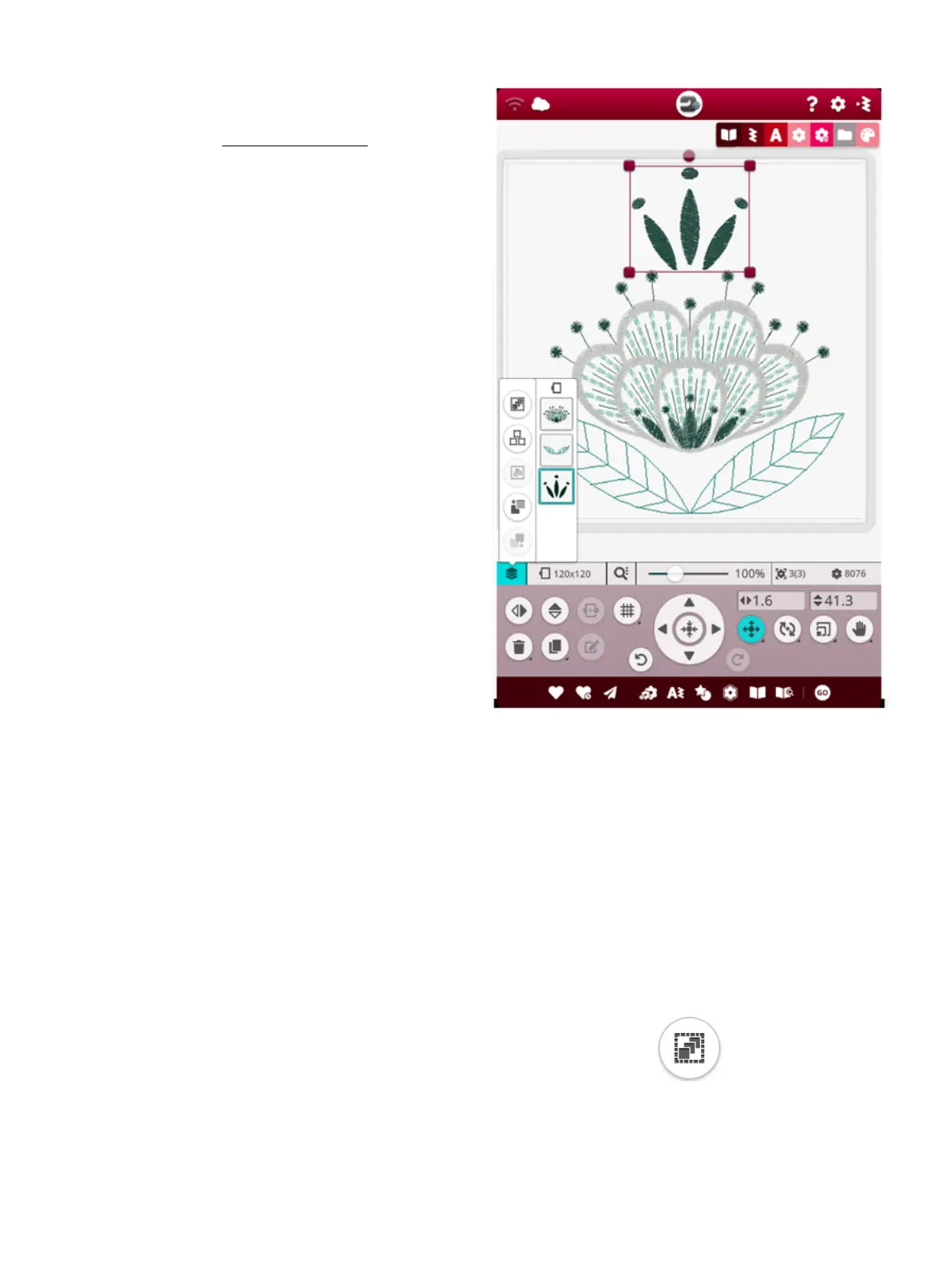
Select One Design
To select one design you can either touch the design on the
screen or open arrange and touch the thumbnail image in the
selection window. To see the order your designs will be
embroidered, read about design stitch out order.
Select Design Exercise
1. In embroidery edit, touch the design menu.
2. Touch & hold a design in the design menu to activate it,
then drag to the embroidery area and release to load it.
Do this four times with different designs.
3. The last design will be surrounded with a design
selection frame which means that it is selected.
4. If you want to select the first design you inserted, touch
the design on the screen. Alternatively touch arrange
and select the thumbnail image for the first design in
the selection window.
5. To select more than one design, touch the multi-select
button. Touch the designs you want to select.
6. Once you have selected the design(s), you can delete,
duplicate, position, scale, mirror and/or rotate them.
Only the design(s) that are selected will be affected by
your changes.
8 Embroidery 111




 To Next Page