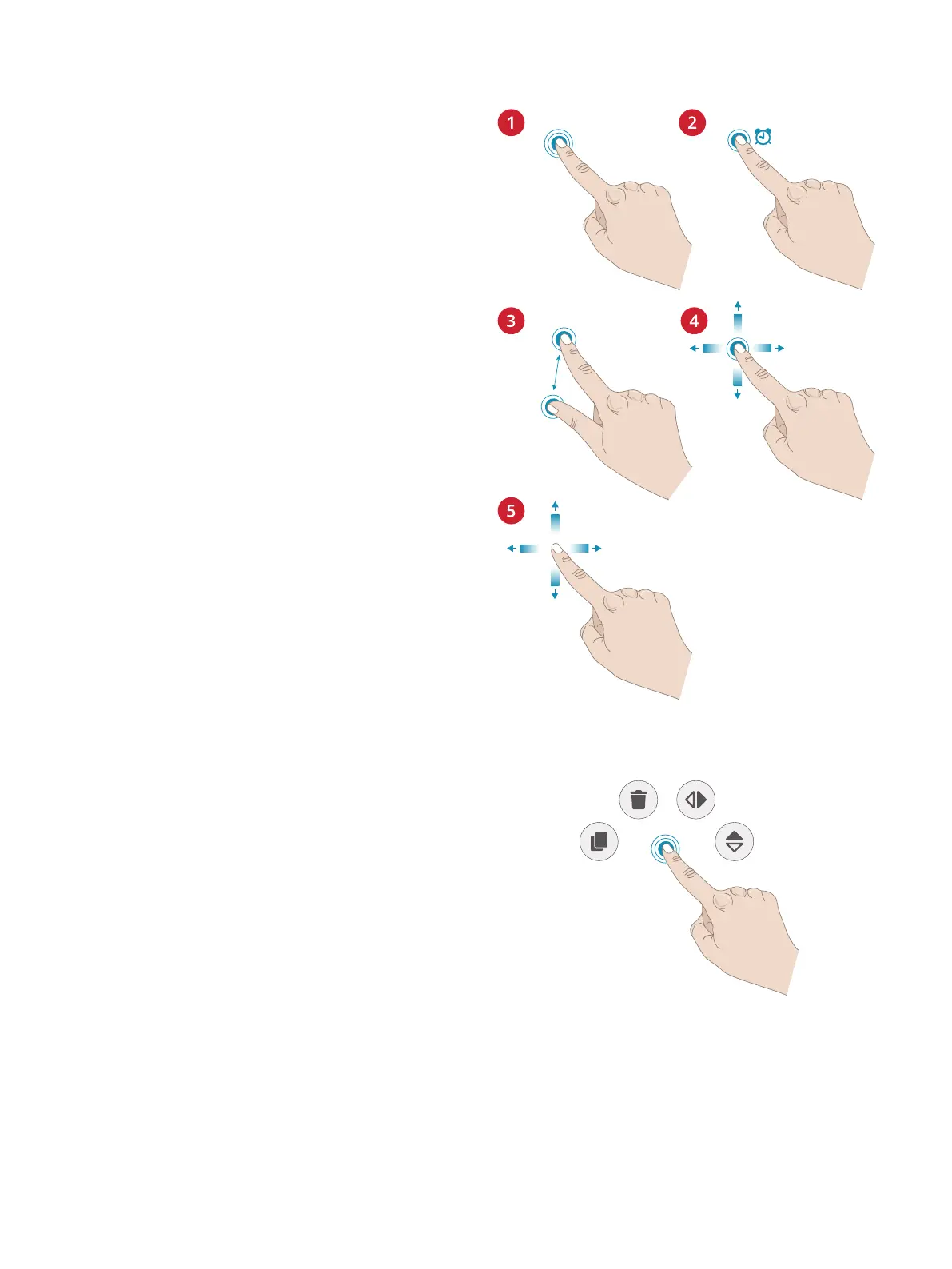
Basic Gestures for the Multi-Touch
Screen
Easily navigate on the multi-touch screen with the gestures
described below.
1. Touch — Touch once on a button or setting on the screen
to select.
2. Touch & Hold — Touch once without releasing for a few
seconds to touch & hold. Used on some buttons and
screen areas to access more options.
3. Pinch/Stretch — Touch with two fingers at the same time
and without releasing increase/decrease the distance
between the fingers to stretch (zoom in) or pinch (zoom
out).
4. Touch and Move — Touch once on a selected design and,
without releasing, move your finger to a different
position on the screen. Used e.g. for moving a design in
the embroidery area.
5. Swipe — Touch, move and release your finger in a swift
gesture to swipe. Left-right/right-left swipe is used e.g. to
scroll between stitch menus. Top-bottom/bottom-top
swipe is used e.g. to scroll within a stitch menu.
Smart Toolbox
Smart toolbox is available on a stitch or program in the
sewing area or on a design, stitch or program in the
embroidery area. Touch & hold on a stitch program or design
to open the smart toolbox, move your finger to highlight the
option you want to use and release to select the option.
The options included in the smart toolbox varies depending
on where and on what it is used. Examples of options are
duplicate, delete, mirroring and edit.
1 Introduction 27




 To Next Page