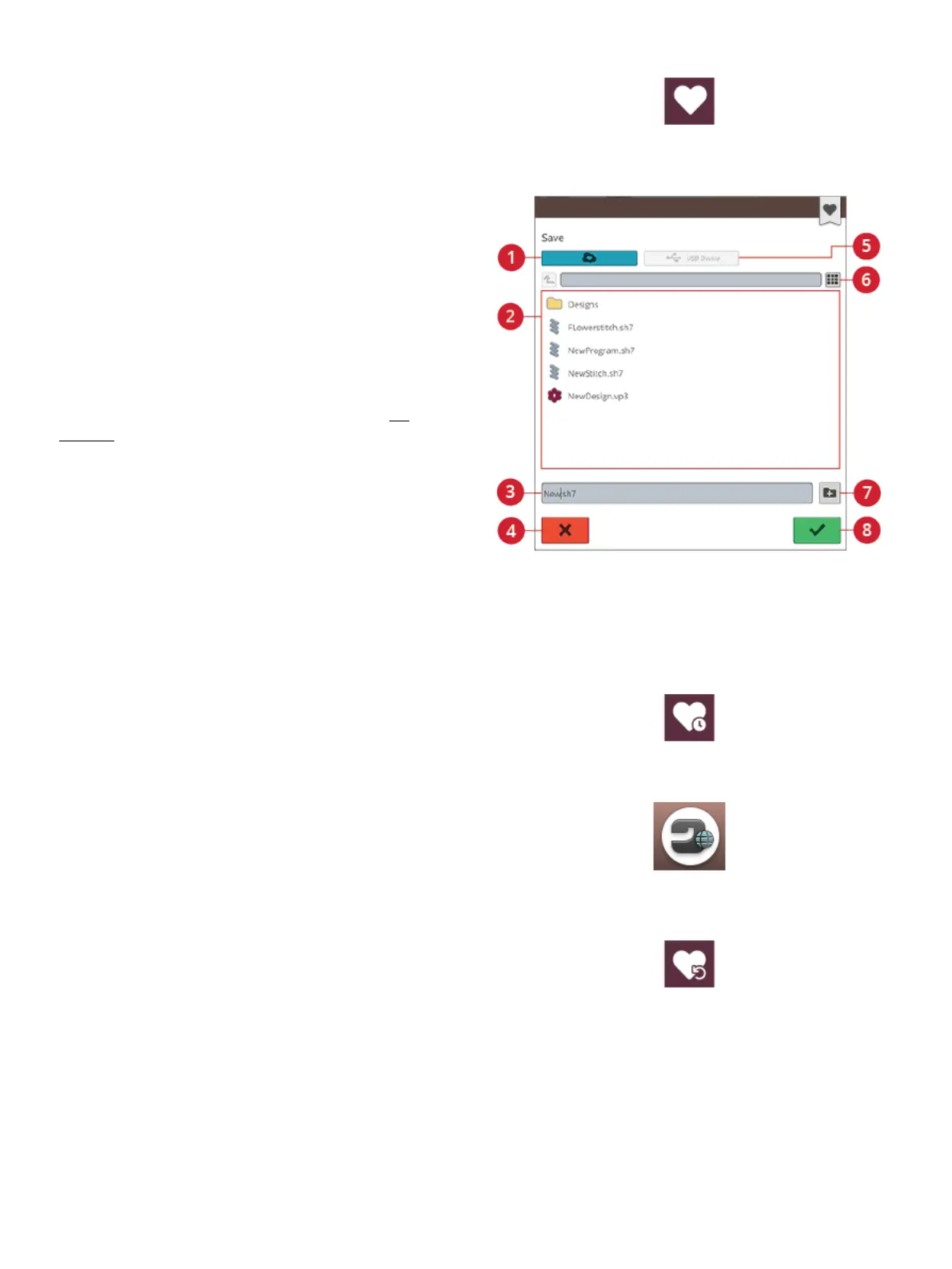
Save Stitch
Save button
1. Save to mySewnet™ cloud
folder
2. Selection area
3. File name
4. Cancel
5. Save to USB device
6. List and thumbnail view
7. Create new folder
8. Confirm
To save your file, touch the save button. You can choose to
save the file to the mySewnet™ cloud folder or to a USB
device. Previously saved designs, stitches, programs and/or
fonts are shown. Name your file and touch the OK button.
If you want to save to a folder, simply touch & hold on the
folder to open it, then name your file and touch OK. To
create a new folder, simply touch the create new folder
button, name the folder with the keyboard and touch OK.
Then touch & hold on the folder to open it and save into the
new folder.
Touch the list and thumbnail view button to toggle between
showing the files in a list or as thumbnail icons.
To cancel the save process, close the pop-up window by
touching cancel. The save pop-up will close and you will
return to sewing mode.
Read more about organizing your saved stitches in file
manager.
Smart Save
Smart save button
If you want to stop sewing and save your current stitch and
settings, touch the smart save button. A pop-up will indicate
that a smart save has been done and you can now turn off
the machine.
Home screen button
Load smart save button
Smart save remembers and stores the stitch, embroidery and
settings as they were when smart save was last performed.
This makes it possible to turn off your machine and continue
sewing later. To load smart save, touch the load smart save
button in the JoyOS ADVISOR™ feature.
Your smart save will be saved until you touch the smart save
button again and replace it.
92 7 Sewing




 To Next Page