Home Screen — Common Functions
Search
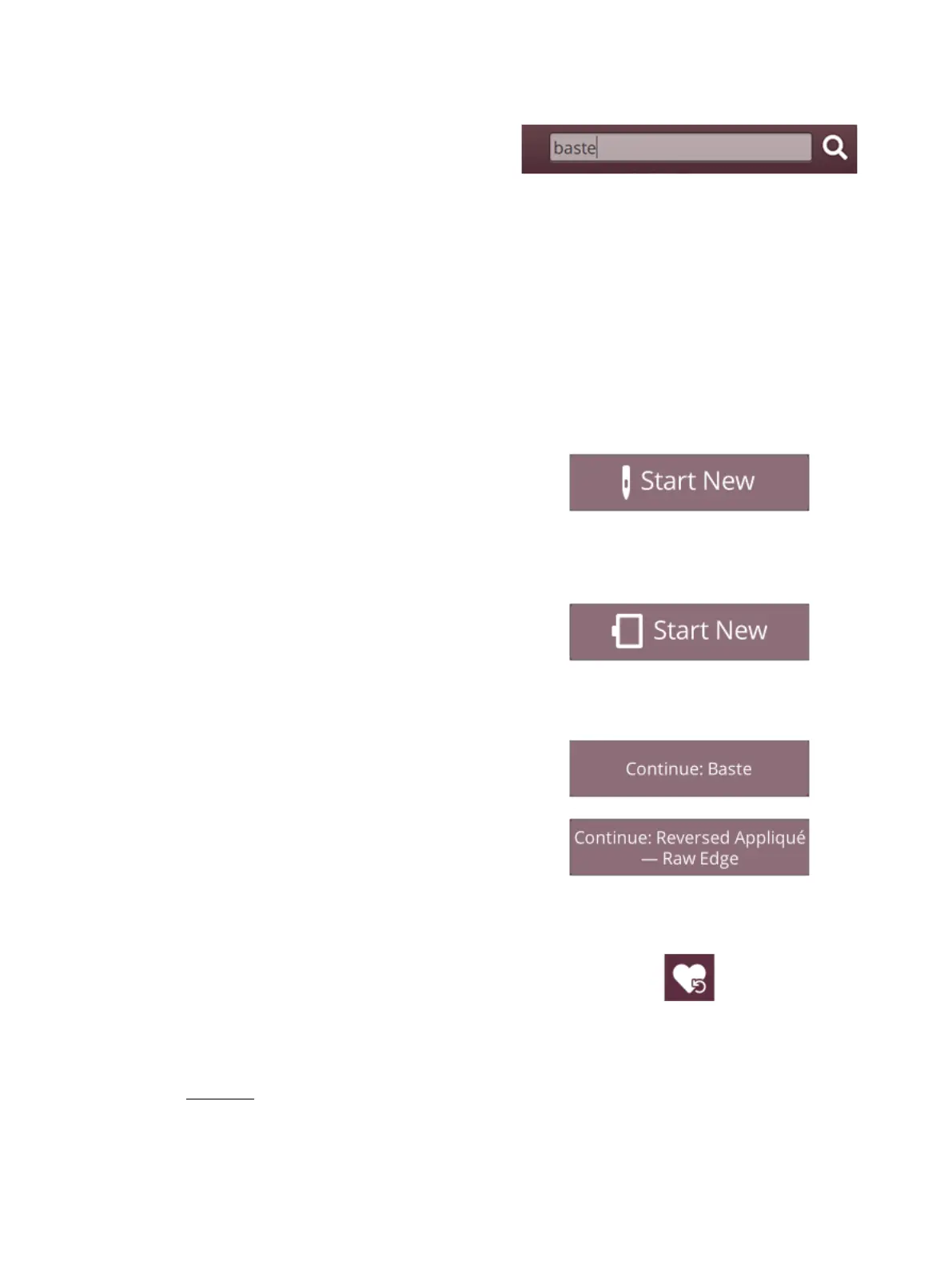
Touch the search tab and a window will open allowing you to
search within the JoyOS ADVISOR™. Enter your search
and touch OK. The machine will display the search results.
You can also find the search tab in the User’s Guide to
enable you to search within the User’s Guide.
Minimize/Expand Project files
Touch to expand the view of all available project files.
In this view, select fabric and select technique will not be
visible.
Touch minimize/expand project files again to go back to
default view.
Start New
Always start with selecting the fabric you will sew on. If you
want to start sewing without loading any sewing technique,
touch the start new button in the bottom right corner. You
will enter sewing mode with the selected fabric and a straight
stitch will be loaded by default. In sewing mode you can view
and select all built-in stitches in the machine from the stitch
menu.
If you want to start embroidering without loading an
embroidery technique, touch the start new button in the
bottom right corner. You will enter embroidery edit. All
built-in designs will be shown in the design menu.
Continue
If a technique is loaded and you re-enter the home screen, a
continue button with the current loaded JoyOS ADVISOR™
project will be shown. In sewing you can select another fabric.
Touch continue button to load the selected fabric into your
current JoyOS ADVISOR™ project.
Load Smart Save
Smart save remembers and stores all sewing and embroidery
adjustments and settings. This makes it possible to turn off
your machine and continue sewing later.
Simply go to the home screen and touch load smart save
button. The machine will load the stitch, embroidery and
settings as it were when smart save was last performed.
Read about how to smart save.
72 6 Home Screen




 To Next Page