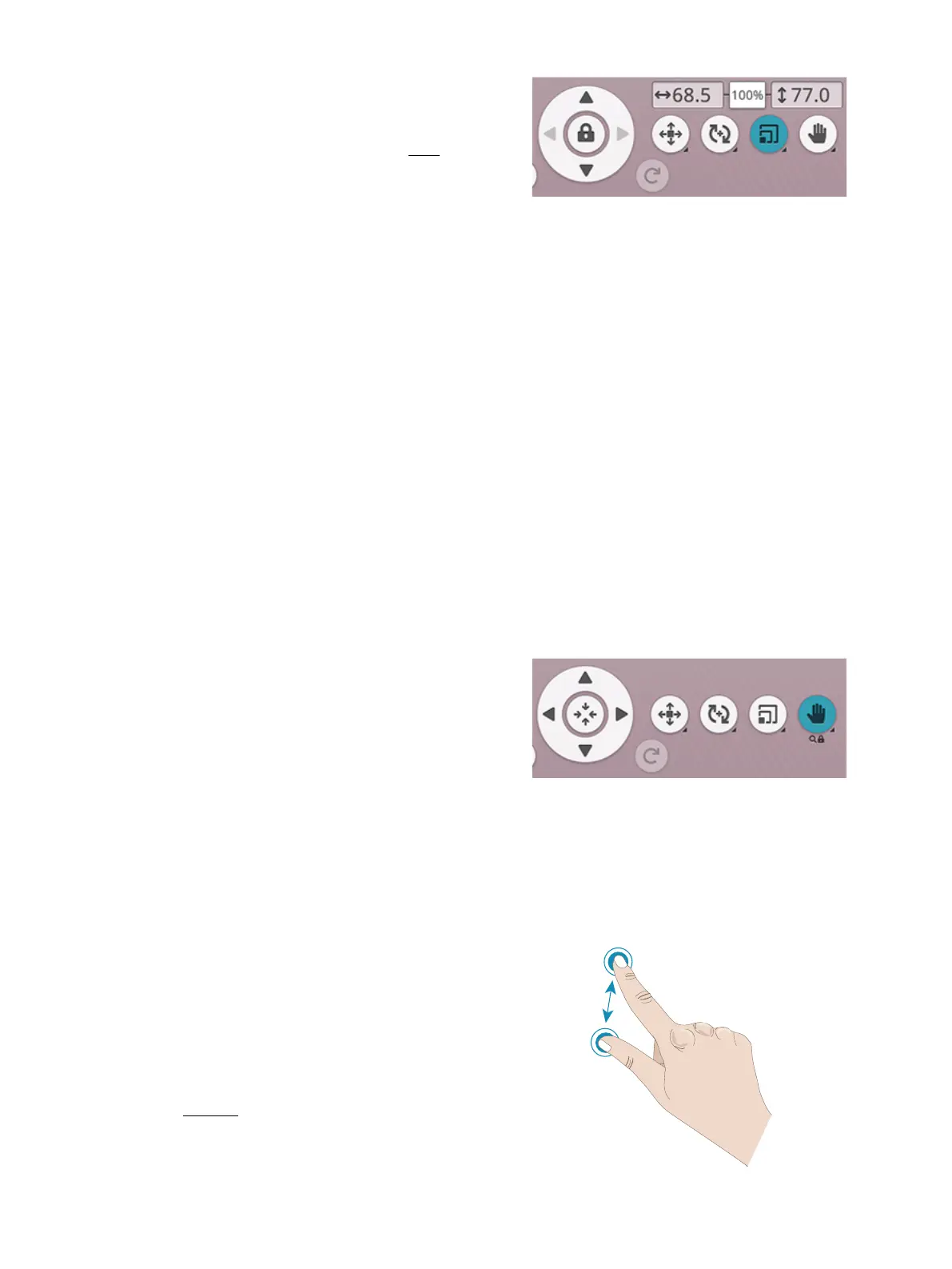
Scale
With the touch function, scale, you can increase or decrease
the size of the selected design(s) up to +/- 20% without
changing the number of stitches.
Note: To increase or decrease a design more than 20%, use the resize
function.
Scale the selected design(s) by touching one of the scale
handles in the corners of the design selection frame and
move your finger on the screen. The touch function, scale,
will automatically be activated. When scaling a design the
100% button will be enabled. Touch the button to scale the
design to the default size.
Touch in the number field to enter a custom value. If an
invalid value is entered, the color of the numbers will change.
Use the wheel arrows to adjust the size of the selected design
(s). The numbers above the scale button show, in
millimeters/inches, the current width and height.
By default the proportions are locked. This is indicated with
a closed padlock in the center of the control wheel. Touch
the padlock in the center of the control wheel to unlock and
activate individual scaling of width and height.
Note: In design shaping and design appliqué the numbers above the
touch function scale, relate to the shape line and not the shape/appliqué
design.
Pan
Touch and move anywhere in the embroidery area, except on
a selected design, to pan the embroidery area in zoomed view.
If you touch and move on a selected design this will activate
the position function and you will move the design instead of
panning the embroidery area.
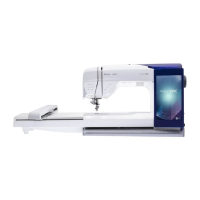
Touch & hold to lock pan and prevent activation of position
by mistake. A padlock and a magnifying glass below the
button indicates that the function is locked. You can now
only pan and zoom. Select any touch function to unlock.
You can also use the control wheel to adjust the view of the
embroidery area.
Zoom
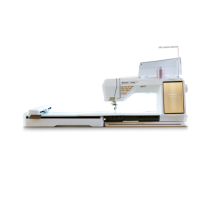
Zoom in by touching with two fingers at the same time on
the screen and, without releasing, increase the distance
between the fingers to stretch. Zoom out by touching with
two fingers at the same time on the screen and, without
releasing, reduce the distance between the fingers to pinch.
If you zoom on a selected design, this will activate the
position function and move the design instead of zooming.
Touch and hold to lock pan and prevent activating position
by mistake. A padlock below the button indicates that the
function is locked. You can now only pan and zoom. Select
the button again to unlock.
8 Embroidery 115




 To Next Page