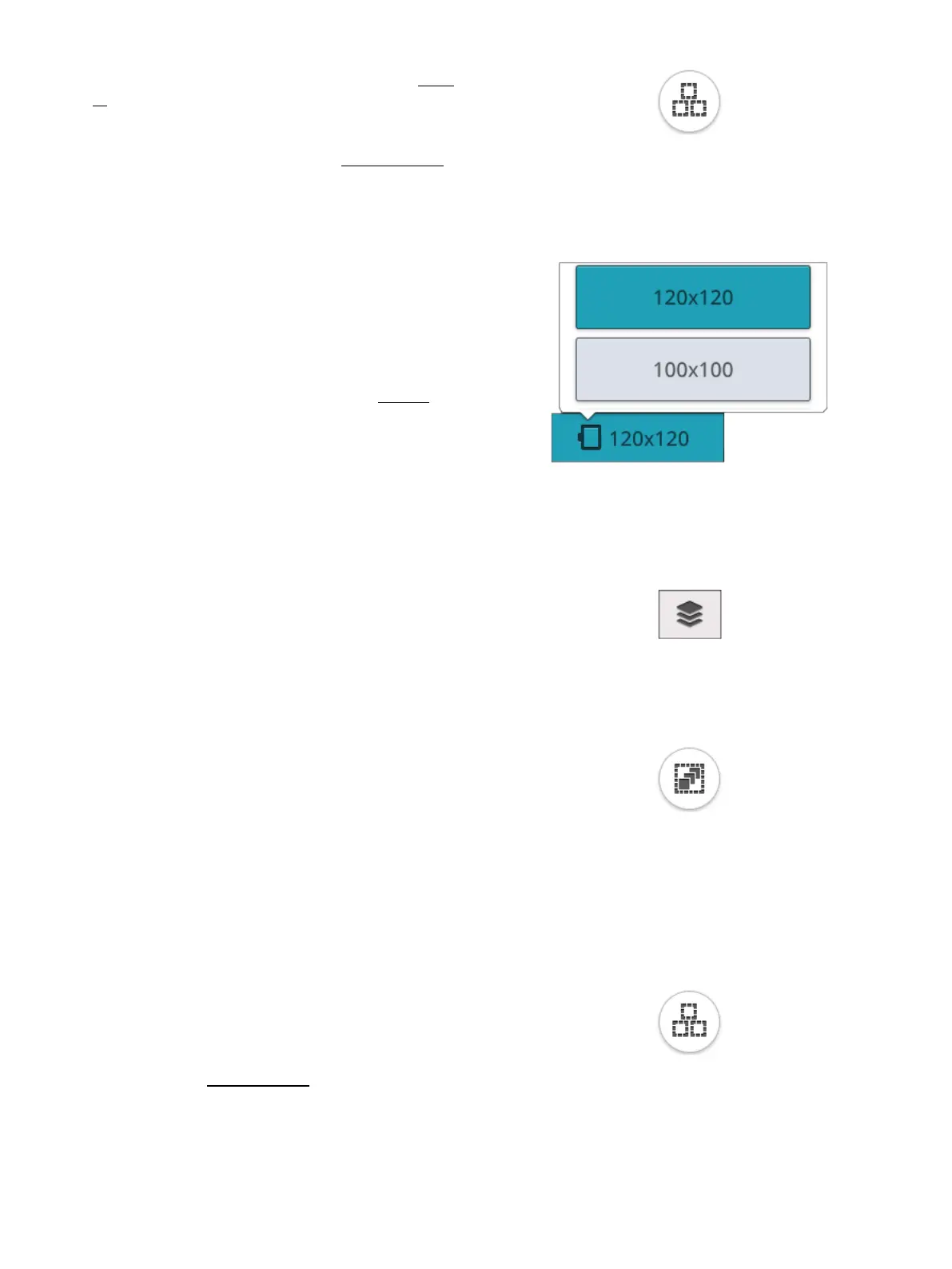
Select All
7. If you want to select all designs, simply touch the select
all button. All designs on your screen will be selected,
indicated by a design selection frame. You can now
make changes to all designs. If you want to combine all
the designs into one design, touch the group/ungroup
button.
Hoop Selection
The machine will choose the most suitable hoop for the
loaded design. To select a different hoop size, touch the hoop
selection button. A list will appear with hoop choices,
including hoops that are available to purchase from your
authorized HUSQVARNA® VIKING® retailer.
After selecting your hoop size, the list will close automatically.
Note: You can adjust the list by choosing specific hoops in my hoops in
default embroidery settings. The selected hoops will be shown at the top
in the hoop selection list.
Note: In the hoop list you will find that some hoop sizes are followed by
a letter. These are specialty hoops. For example, E stands for endless
hoop, T for texture hoop and M for metal hoop.
Arrange
Arrange button
Touch the arrange button to find several functions that will
help you arrange the stitch out order of your designs.
Touch the button again to close.
Multi-Select
Multi-select allows you to select two or more of the designs
on your screen at the same time. Touch the multi-select
button and then touch the designs on the screen you want to
select. Alternatively select the thumbnail pictures in the
selection window. A design selection frame will surround the
selected designs; both the thumbnail pictures in the selection
window and the designs in the embroidery area. To deselect,
touch the designs again and the design selection frame will
disappear.
Select All
If you want to select all designs, simply touch the select all
button. All designs on your screen will be surrounded by
design selection frames. You can now make changes to all of
the selected designs. If you want to combine all the designs
into one design, touch group/ungroup button.
112 8 Embroidery




 To Next Page