174
Coloring Cuelist Items
Applying a colored border to a Cuelist Item
You may color code Cuelists, which will be displayed by a thicker and colored border around the Cuelist
item in pools and magic sheets.
● Press the [Name]-key twice. The command line will read Appearance.
● Select the Cuelist Item using the touchscreen or by using the numberblock. Alternatively, you can
also select an executor or fader that is linked to this Cuelist.
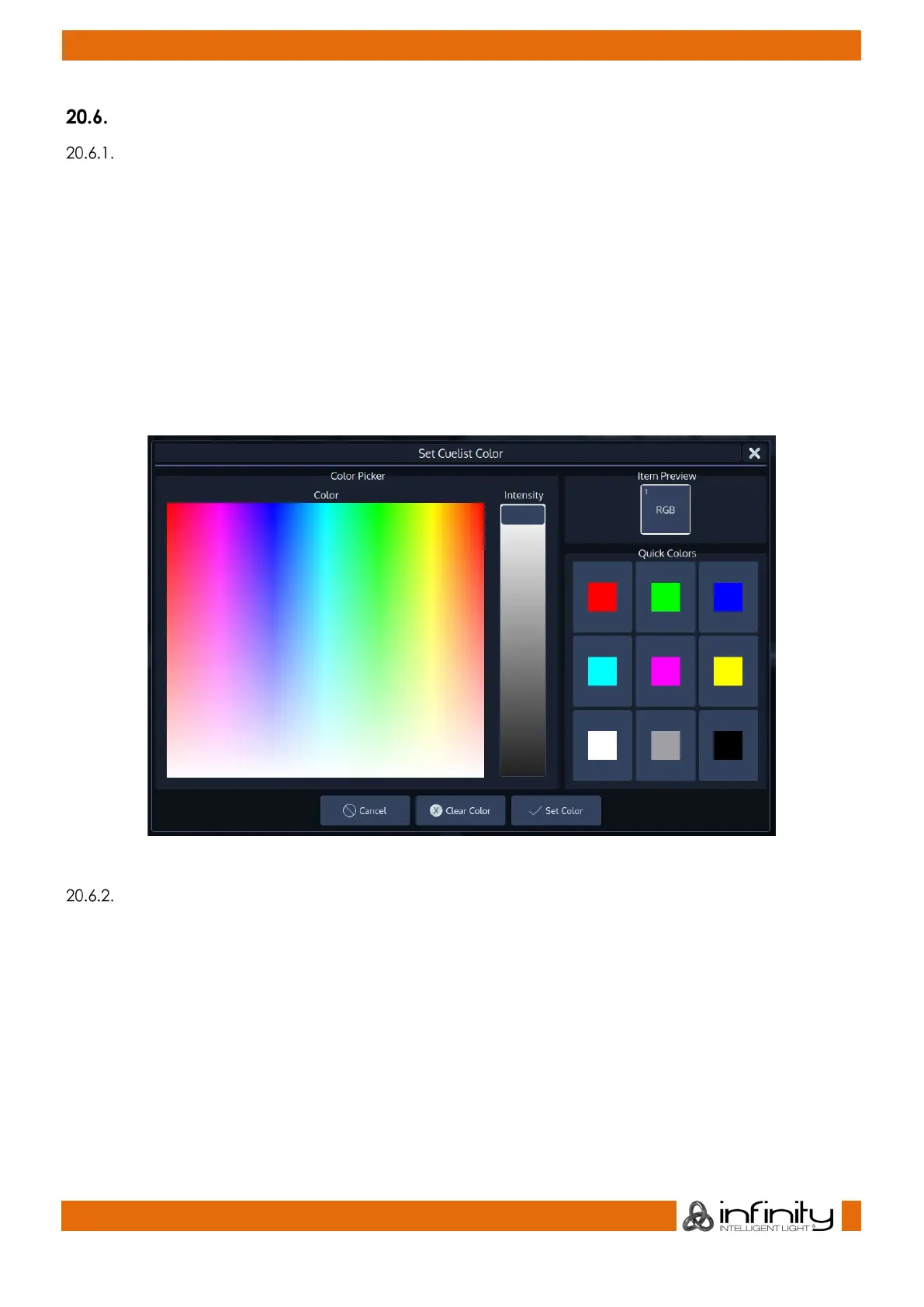
● A dialog window asking for the color will be opened.
● Click on Set Color when done.
If you use the numberblock you may also color multiple Items at once using the [+], [-] and [thru]
keys. Complete the numberblock command by pressing the [Enter]-key.
For example: [Appearance] [Cuelist] [1] [thru] [10] [Enter]
Fig. 150: Set Cuelist Color Dialog
Resetting User Colors for a Cuelist Item
● Press the [Name]-key twice. The command line will read Appearance.
● Select the Cuelist Item using the touchscreen or by using the numberblock. Alternatively, you can
also select an executor or fader that is linked to this Cuelist.
● A dialog window asking for the color will be opened.
● Click on Clear Color when done.
If you use the numberblock you may also color multiple Items at once using the [+], [-] and [thru]
keys. Complete the numberblock command by pressing the [Enter]-key.
For example: [Appearance] [Cuelist] [1] [thru] [10] [Enter]


 To Next Page