182
Opening the Cuelist View Window
Open the Cuelist View Window Using Cuelist Pool
Press the [Open] key and select a Cuelist from within the Cuelist Split Widget.
Open Cuelist View Window Using Command Line Interface
Press the [Open] key followed by the Cuelist key. Now type the number of the cuelist followed by
[Enter]
For example: [Open] [Cuelist] [1] [Enter].
Open Cuelist View Window Using Masters or Executors
To open the cuelist window for a Cuelist that is assigned to a Master, press [Open] followed by the Play or
Pause / Back Key or simply hit the Executors Button.
Open Cuelist View Window Using the fader label
You may quickly open up a cuelist view and settings dialog for any cuelist assigned to a fader by clicking
into its fader label.
Cuelist View Window – Title Bar Buttons
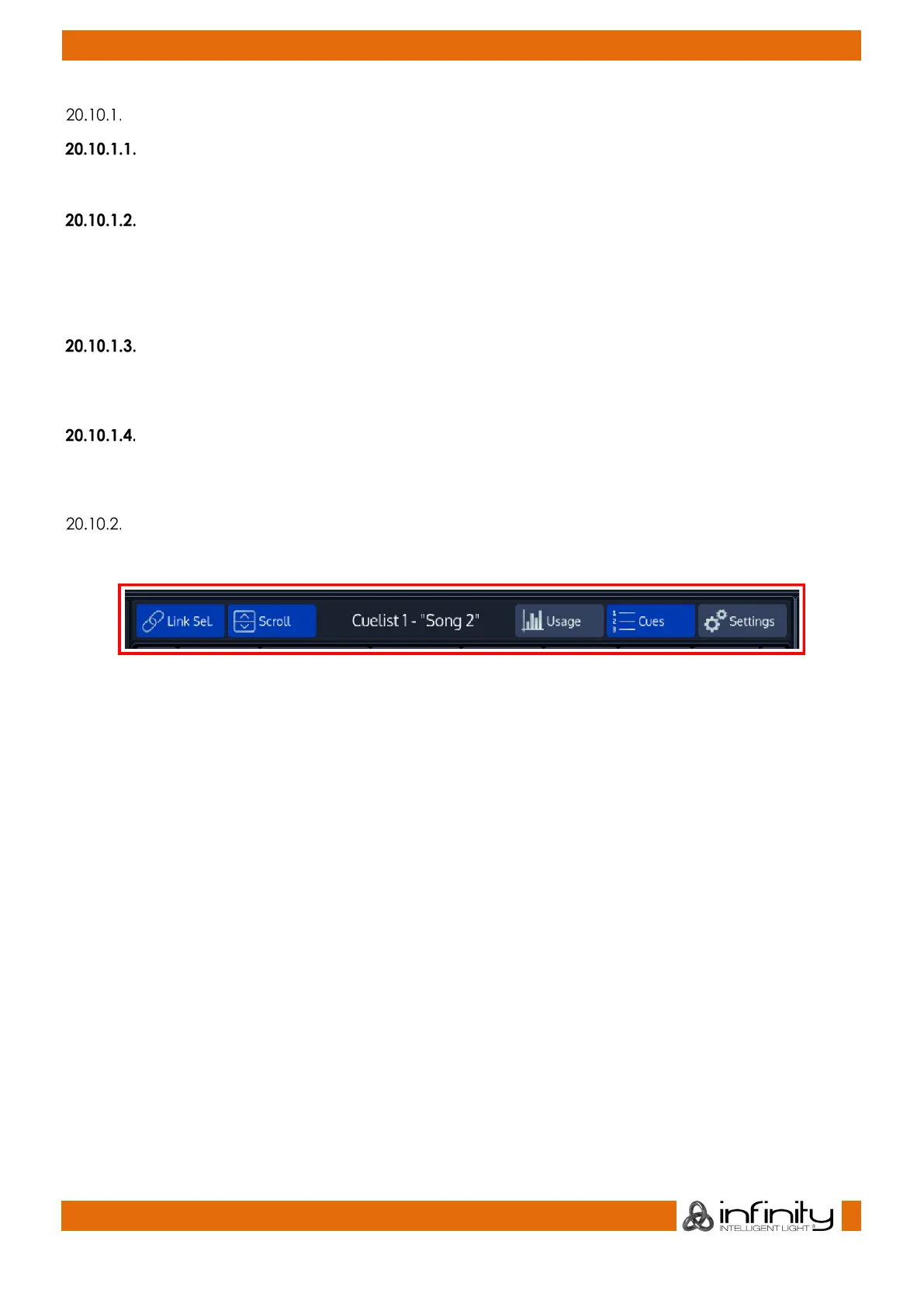
Fig. 154: Cuelist View - Title Bar Buttons
Link Selected links the Cuelist shown in the Cuelist view to the selected Cuelist.
Scroll automatically scrolls the windows contents if the current Cue is advancing the end of the active
display area.
The Usage Button is used to display a dialog that indicates where this cuelist is used in the showfile.
The Cuelist Button is used to show the Cue Sheet for this Cuelist.
The Settings Button is used to show and alter the Settings of this Cuelist.


 To Next Page