183
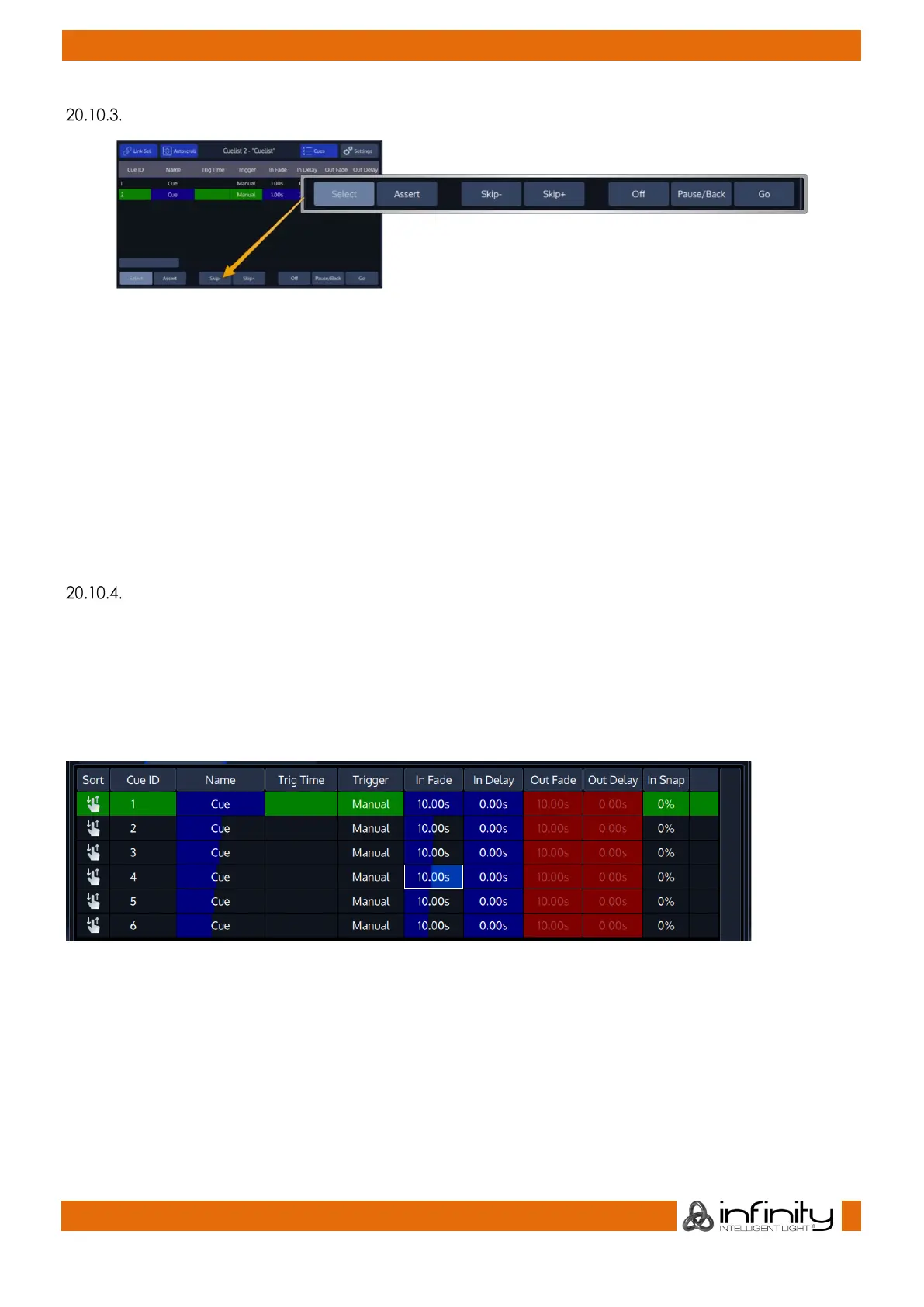
Cuelist View Window – Playback Bar Buttons
Fig. 155: Cuelist View - Playback Bar Buttons
Select will select the Cuelist shown in the Cuelist View.
Assert issues an assert to the shown Cuelist and brings it on top of the priority stack.
Skip+ is used to jump to the next cue without any timings.
The Skip- Button is used to move to the previous cue ignoring any timings.
Off will switch the Cuelist off.
Pause/Back will pause or issue a back command (Go to the previous Cue including timings).
The Go Button is used to issue a go command to the next Cue in the list.
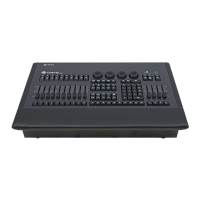
Cue Crossfade Status Display
The Cuelist View Window also shows live status information in the background of the columns for running
Cues. Live Status Data includes Fade and Delay information for Cue In- and Out- Timing and wait time
countdown for starting of the next Cue.
Fader and Executor as well as the Cuelist Pool Items show a summarized timing information for the visible
Cues inside their Cue Information rows. For running Cues the summarized timing of In- and Out- Timing will
be displayed. Fader items show a countdown to the next Cue in the last row, if available.
Fig. 156: Cuelist View – Crossfade Status
If multiple Cues are active simultaneously then timing will be diplayed in multiple rows as well.
The timing is always calculatd based on the values inside each Cue. Empty Cues (Cues without Values)
will not display any status information. The timing information also takes MiB into account.


 To Next Page