47
Delete” Toolbar
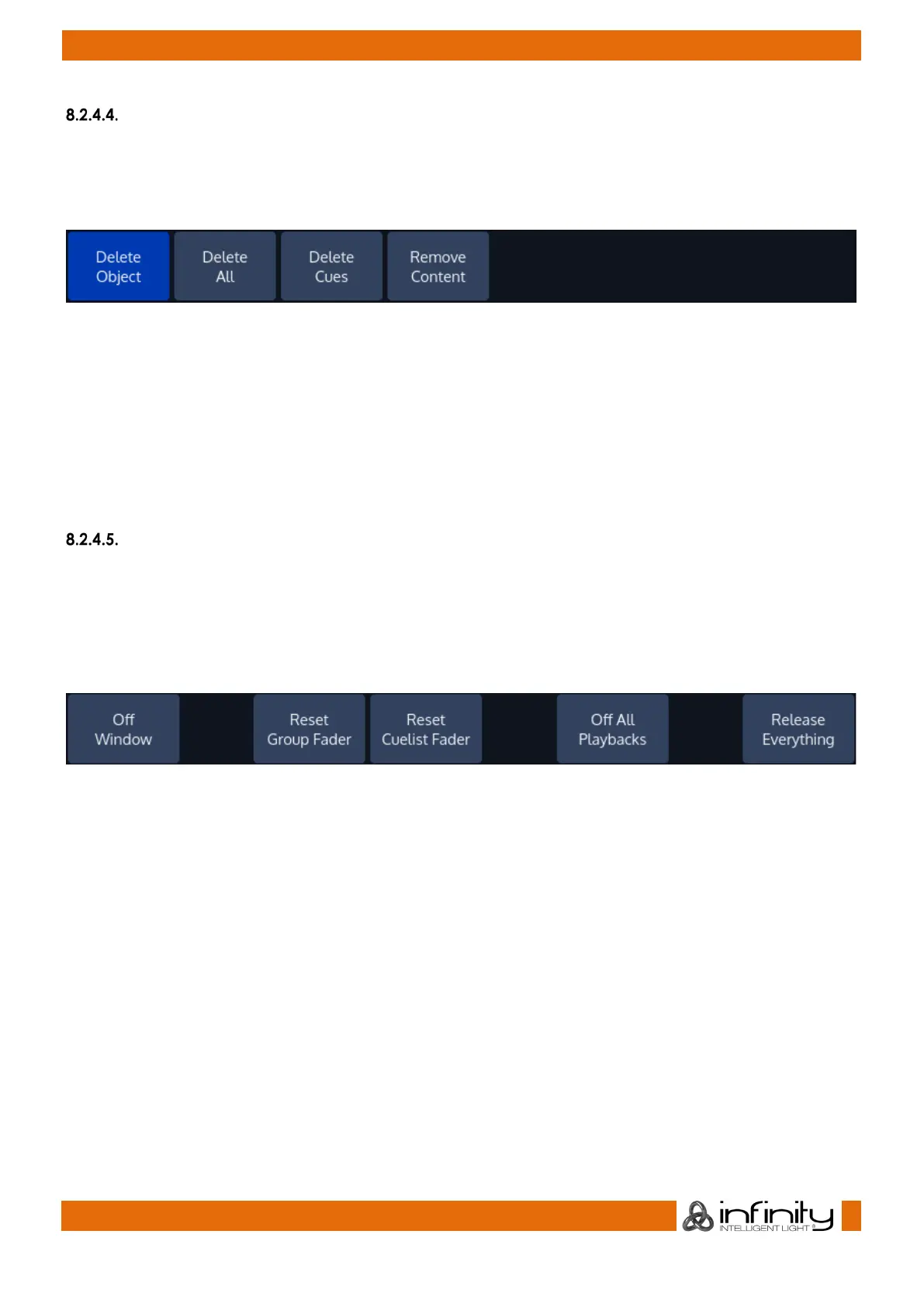
The “Delete” –Toolbar, like the “Record” –Toolbar shows several options useful for deleting objects. The
toolbar is shown after pressing the [Delete] hard key.
You may cycle through the options by holding the [Infinity] while pressing the [Rec] -key.
Fig. 25: Delete Toolbar
Delete Object: Only deletes the selected Object
Delete All: Deletes the selected Object and all directly connected Objects. Example: When Delete All is
selected while deleting a Fader Assignment, the assigned Object will be deleted as well.
Delete Cues: Is used to delete Cues from a Cuelist
Remove Content: Will remove all touched Values (if applied to a Preset or Cue) from the Preset or Cue, or
selected Fixtures (if applied to a Group) from the Group.
“Off” Toolbar
The “Off” –Toolbar is shown after pressing the [Off] hard key. It can be used to quickly “Off” all running
Cuelists, to reset all Sub (Fixture & Group Masters)- or assigned Grandmasters back to 100%.
The console will ask for confirmation when any of the “Reset” or “Release” buttons is pressed. However
you may omit the Confirmation Screen by holding the [Infinity] button pressed while clicking on any
of these buttons.
Fig. 26: Off Toolbar
Off Window will open the “Off”-Window” which provides you with a more detailed view of Cuelist states
and a quick way off switching off playbacks across all playback pages.
Reset Group Fader will reset all Group Master back faders to 100%.
Reset Cuelist Fader will reset all Cuelist Faders back faders to 100%.
Off All Playbacks wills switch off all running Playbacks (Faders and (Virtual) Executors.
Release Everything will off all Cuelists and reset all Fixture & Groupmasters as well as the Grandmaster to
100%.


 To Next Page