- 148 - - 149 -
Windows utilities Windows utilities
4
5
1
3
2
4
5
1
2
3
Convenient print
functions
Appendix Index
Checking and
Changing Printer
Settings Using
the Control Panel
Network
Setup
Matching
Colors
Using Utility
Software
Convenient print
functions
Appendix Index
Checking and
Changing Printer
Settings Using
the Control Panel
Network
Setup
Matching
Colors
Using Utility
Software
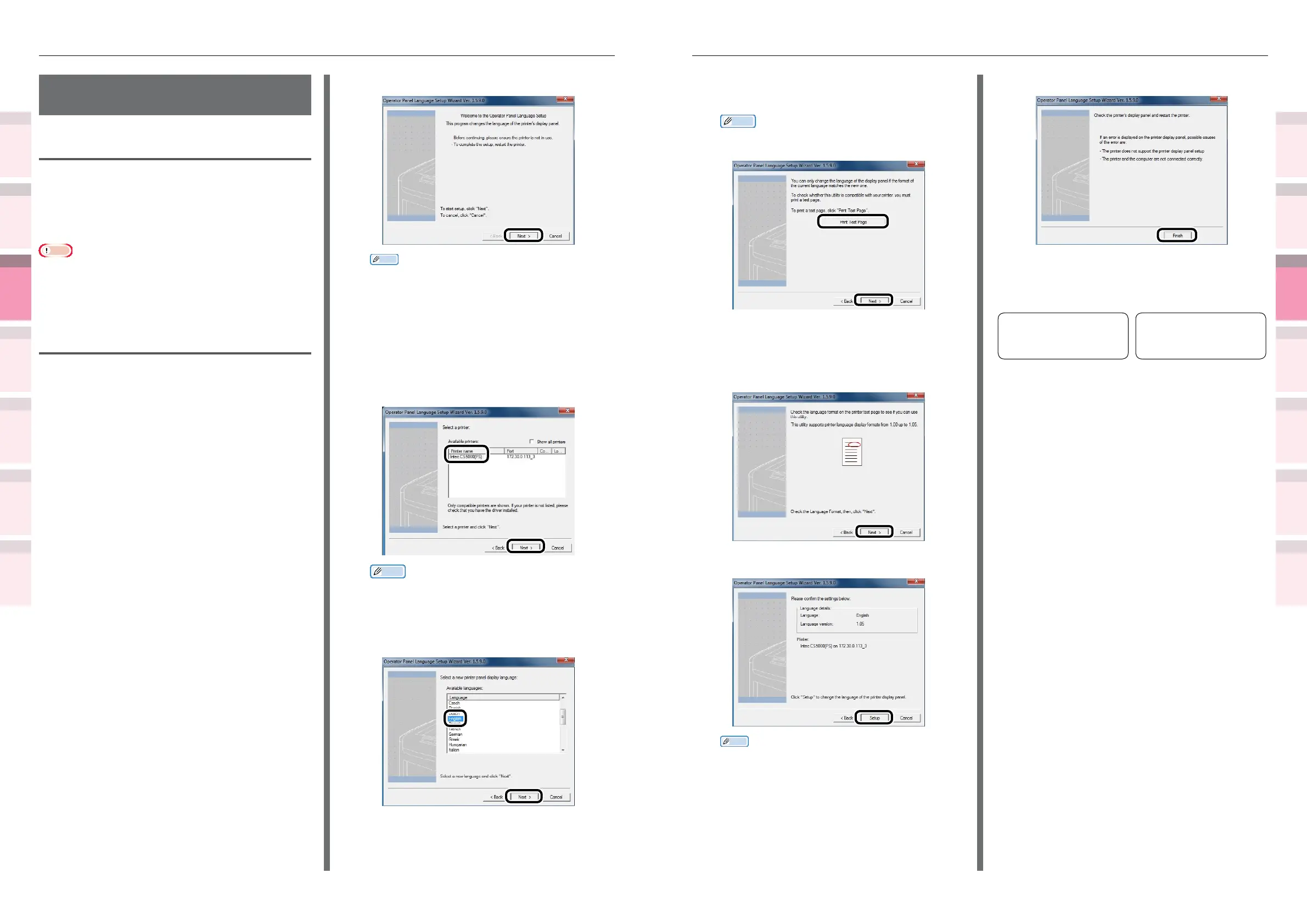
12
Click [Print Test Page] to print the
menu. Click [Next].
Memo
z
The menu print results are used in the subsequent
window.
13
Check that the "Language format"
in the menu print results is within
the numerical range displayed in the
window, and click [Next].
14
Select the details to be set up, and click [Setup].
Memo
z
The [Language version:] window displays the
language version of the language le included in the
tool.
15
Click [Finish].
16
Look at the device control panel to
verify that the download was successful,
and restart the device.
Power OFF/ON
Message Data Received
OK
Restart the device
Finished writing message
data
English display image
Japanese display image
Change the Printer Display
Language
Operations environment
PCs running Windows 8.1/Windows 8.1 (64-bit
version)/Windows 8/Windows 7/Windows Vista/
Windows XP/Windows Server 2012 R2/Windows
Server 2012/Windows Server 2008 R2/Windows
Server 2008/Windows Server 2003 Versions
Note
z
This program uses the printer drivers. Install the latest
printer drivers beforehand. For details, see “Flow for
Installing Drivers on the PC” in “Basic”.
Switching the control panel
language
1
Turn ON the device power supply.
2
Set the “Software DVD-ROM”. The setup
program will start.
3
Read the “Software License Agreement”,
and click
“
Agree
”
.
4
Read the environment advice, and click
“
Next
”
.
5
Select the printer to be set, and then
click
“
Next
”
.
6
Select the printer connection method,
and click
“
Next
”
.
7
Click “Advanced Device Setup”.
8
Click [Next].
Memo
z
The tool version will be displayed after “Printer
display language setup wizard Ver.” in the title bar.
9
Select the printer whose language is to
be changed, and click [Next].
Memo
z
Printers supported by the tool will be displayed in
the [Usable printers] list.
10
Select the language to be set up, and
click [Next].
11
If a verication message is displayed,
click [Yes].



 To Next Page