- 150 - - 151 -
Windows utilities Windows utilities
4
5
1
3
2
4
5
1
2
3
Convenient print
functions
Appendix Index
Checking and
Changing Printer
Settings Using
the Control Panel
Network
Setup
Matching
Colors
Using Utility
Software
Convenient print
functions
Appendix Index
Checking and
Changing Printer
Settings Using
the Control Panel
Network
Setup
Matching
Colors
Using Utility
Software
Checking/deleting/
transferring jobs
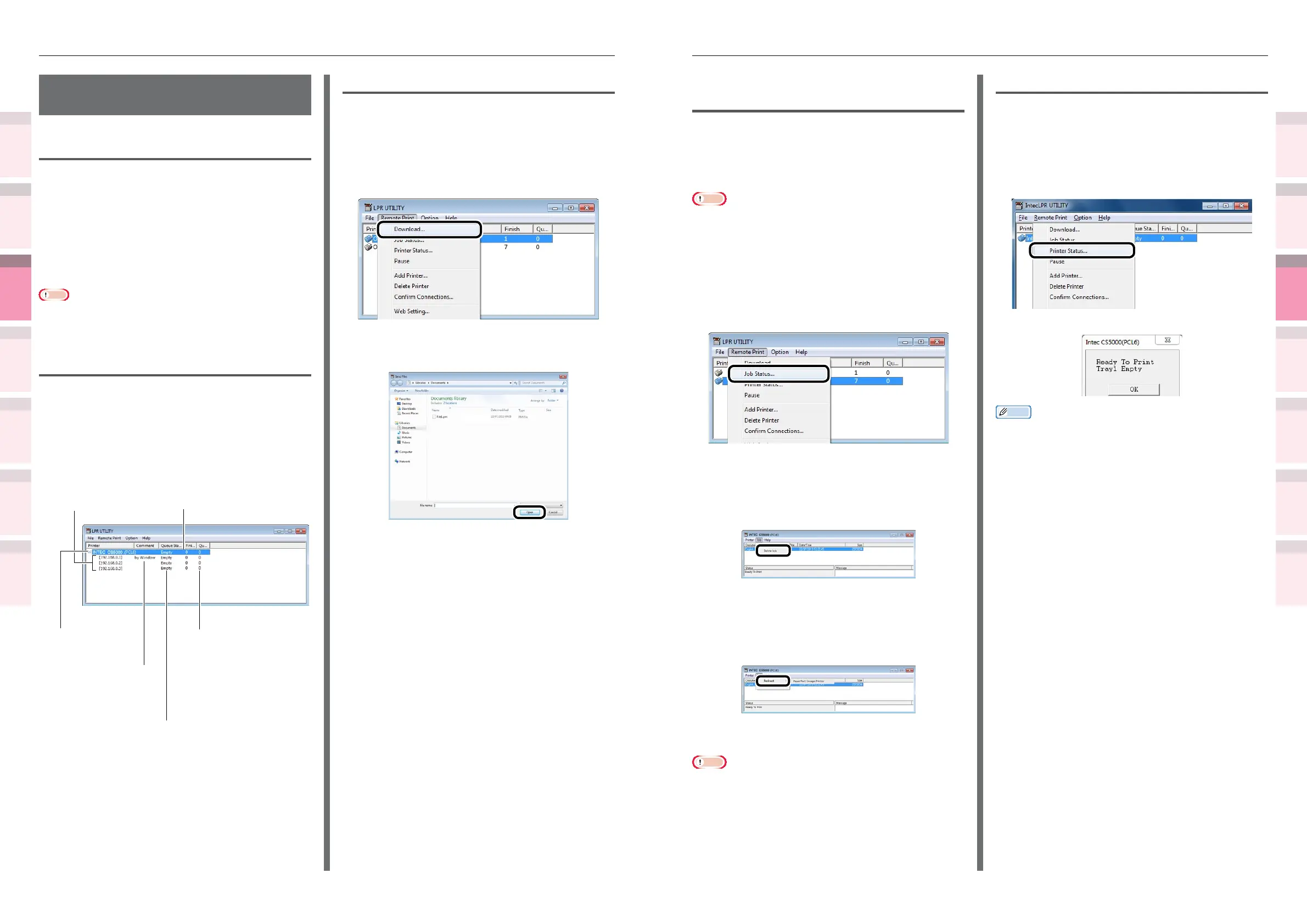
You can display and delete print jobs.
If you cannot print as the printer is in use,
ofine, or there is no paper, you can send the
print job to another printer.
Note
z
You cannot send to printers manufactured by other
companies.
z
Forward to the same model name.
1
Select the device.
2
Select [Job Status] from the [Remote
Print] menu.
The job will be displayed.
3
Select the print job to be deleted, and
select [Delete Job] from the [Job]
menu.
The job will be deleted.
4
Select the print job to be forwarded,
and select the destination printer using
[Redirect] in the [Job] menu.
The job will be sent to the destination
printer.
Note
z
For a printer to implement forwarding, it is necessary
to set up the Direct Network Printing Utility (LPR)
beforehand.
Checking the printer status
You can display the device status.
1
Select the device.
2
Select [Printer Status] from the [Remote
Print] menu.
The device status will be displayed.
Memo
z
You can also check using "Status" in the job display dialog
box.
Direct Network Printing
Utility (LPR)
Operations environment
PCs running Windows 8.1/Windows 8.1 (64-bit
version)/Windows 8/Windows 7/Windows Vista/
Windows XP/Windows Server 2012 R2/Windows
Server 2012/Windows Server 2008 R2/Windows
Server 2008/Windows Server 2003 Versions
PCs operating using TCP/IP
Note
z
PC administrator privileges are required for the setup.
z
Print method functions cannot be used.
Starting up
1
Select [Start]>[All
Programs]>[Intec]>[Direct Network
Printing Utility (LPR)] to start the Direct
Network Printing Utility (LPR).
The following window will be displayed.
Displayed if “Printing using
multiple printers simultane-
ously” (P.153) has been set.
The number of jobs (data)
that have nished
sending will be displayed.
The number of
jobs (data) that
have not yet
been sent will be
displayed.
The status of the Direct Network
Printing Utility (LPR) data will be
displayed. (This is different from the
actual printer status.)
Displayed if "Display
comments" has been
set using “Adding
comments” (P.155).
Printers registered
to the LPR utility
Downloading les to the printer
Files can be downloaded to the device.
1
Select the device.
2
Select [Download] from the [Remote
Print] menu.
3
Select the le to be downloaded, and
click [Open].
The le download will start.



 To Next Page