6-19
Sending > Specifying Destination
Specifying a New PC Folder
Specify either the desired shared folder on a computer or an FTP server as the destination.
1
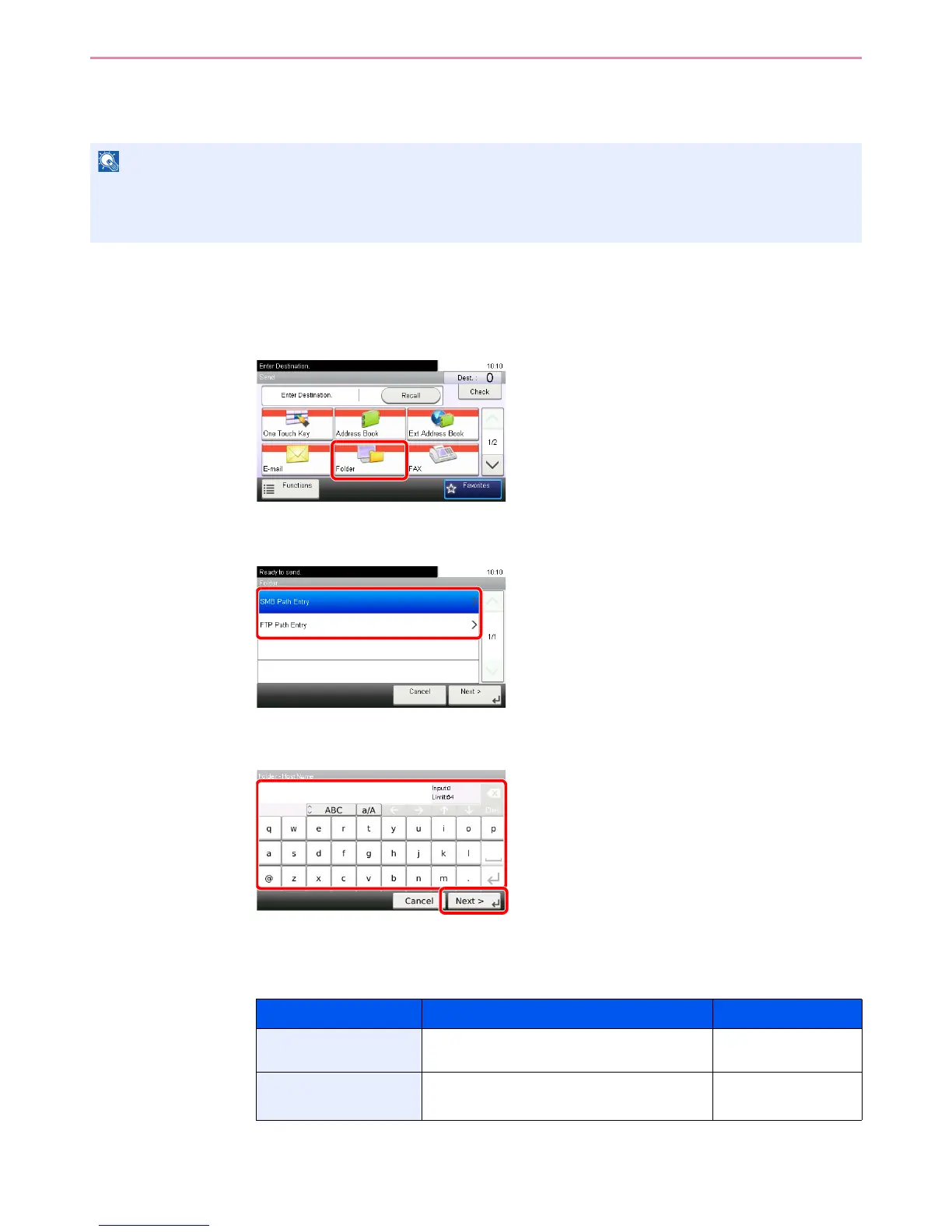
Display the screen.
1 Referring to Basic Operation on page 6-2, display the screen.
2
2
Select the folder type.
3
Enter the destination information.
Enter the next information. Once you have entered one item, press [Next] to advance to the
next item.
For send to folder (SMB)
Refer to Creating a Shared Folder on page 6-7 for details on how to share a folder.
Be sure that SMB Protocol or FTP in the COMMAND CENTER is On. For details, refer to the KYOCERA COMMAND
CENTER Operation Guide.
Item Data to be entered Max. characters
Host Name Host name or IP address of the PC to receive
the data.
Up to 64 characters
Path Path to the receiving folder such as follows.
For example, \User\ScanData.
Up to 128 characters






 To Next Page