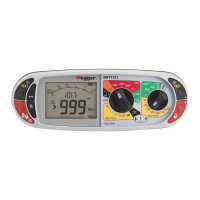
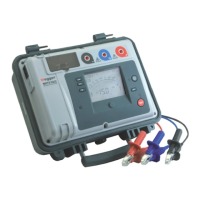
The Hot keys only have two options. These will not have an associated rotary knob option.
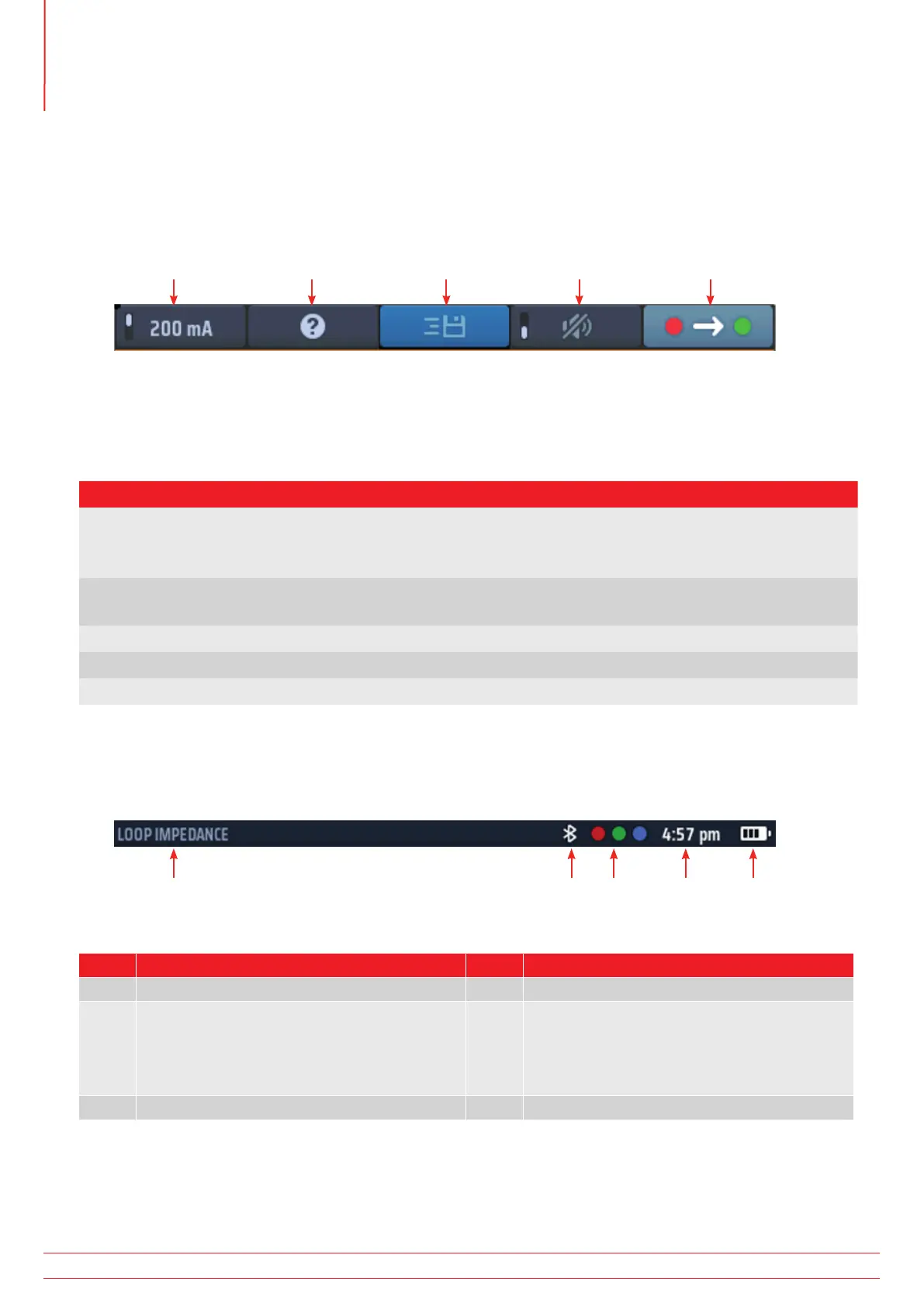
The Hot key bar at the top of the screen shows the available Hot keys with an icon representing the type of function
they perform.
For example:
In continuity measurement mode the hot keys show the following:
Hot key 1 Hot key 2 Hot key 3 Hot key 4 Hot key 5
Fig 2: Example of Hot keys
These functions change according to the type of test you are performing. In this case, the insulation test has four
types of action:
Hot key Action
1 Multi-function Hot key – these have more than two options.
This type of Hot key will also allow the operator to use the right range knob to access the multiple
options more quickly
2 Help key – This can change to position two in Volts and Continuity.
It allows access to the help screen for the test mode being run
3 Active or not active – This can be locked or unlocked
4 On or OFF – these usually have a switch indicator in the Hot key
5 Fixed, the Hot key cannot be changed
4.3.3 Information bar
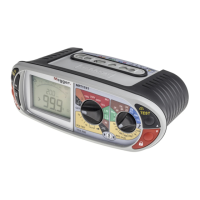
At the base of the screen is the information bar, as below:
1 32 4 5
Fig 3: Example of information bar
Item Description Item Description
1 Test mode selected 4 Time
2 Bluetooth® status
(OFF – Bluetooth
®
disabled):
(Flashing – Bluetooth
®
on but not connected)
(ON – Bluetooth
®
connected to mobile device)
5 Battery status
3 Required test-lead connections
NOTE : Test results are time stamped with the time and date. The time is displayed permanently in the
INFO bar. The format can be changed. Refer to 15.5.4 Setting the date on page 79.
www.megger.com
MFT-X1
20
Instrument Controls



 To Next Page