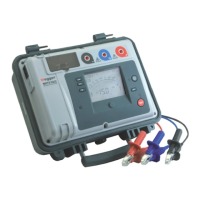
16.7 Sending test results to CertSuite™
Once the MFT-X1 and CertSuite™ are connected, results can be transferred to the mobile device. Most results will be
sent to the circuits tab in the Schedule of Test page in CertSuite™.
If necessary, follow guidance on the CertSuite™ website CertSuite.info to learn how to use CertSuite™ and access
the Schedule of Test page.
To send a result follow the example below:
1. Open a Schedule of Test in the CertSuite™ application
2. Choose a test type in the MFT-X1 (initially an insulation test is a good example)
3. Perform the test normally on the instrument, as explained in the insulation test section above.
4. On successful completion of the test the help icon (Hot key 3) in the display will change to the save icon (
).
5. Press Hot key 3 to initiate the send process. The instrument will show some wheels in the right hand side of the
display. These allow the user to allocate some tags to control where the result appears in the CertSuite™ page.
6. Navigate between the wheels using the left and right buttons (Hot keys 1 and 5).
Use the right range knob to select the required option within each of the wheels.
The wheel settings need to state the location where the result needs to appear in the schedule.
Example: For the insulation test result to appear in circuit 1, on Phase 1 and was tested between phase and
Earth, select the following:
Left Wheel – Select the circuit number (eg 1)
Centre wheel – Select the phase being tested (eg L1)
Right wheel – Select the measurement type (eg L-PE)
7. When complete press the green check Hot key (Hot key 3) to send the result.
8. The MFT-X1 will acknowledge a successful send and CertSuite™ should show a green bar through
circuit 1L1, indicating a value has been received.
9. The value should appear in the L-PE column as selected on the instrument.
10. If the value is replacing an existing value, CertSuite™ will display an MFT confirm page and ask for confirmation
to over-write the existing value.
NOTE : Once a result has been sent to CertSuite™ the send option on the MFT is removed.
16.8 Re-sending test results to CertSuite™
If the test result that have been entered into the schedule needs to be changed the measurement can be repeated
and re-sent to the same location in the schedule.
In this case CertSuite™ will warn that a saved value Is being over-written and ask for permission.
Only one value can be entered into a single location in CertSuite™.
16.9 Further CertSuite information and support
Further information on how to use CertSuite™ is available from the website:
www.CertSuite.info
www.megger.com
MFT-X1
92
Download results to a remote device



 To Next Page