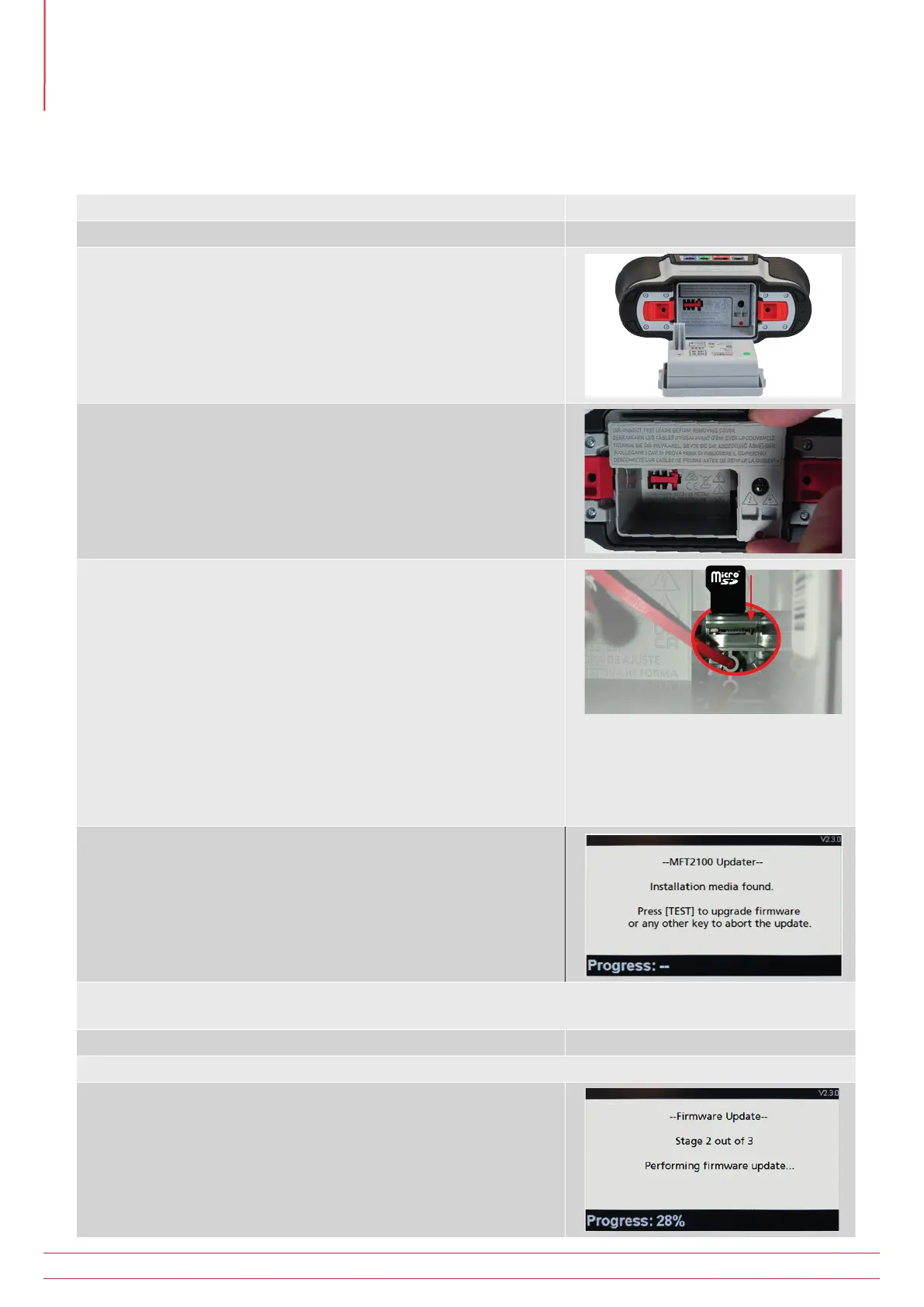
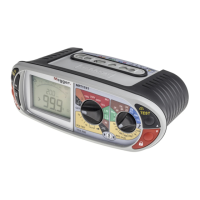
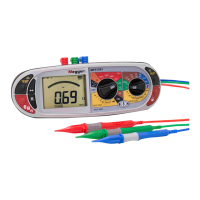
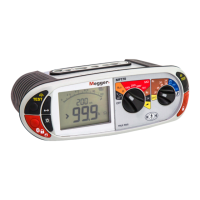
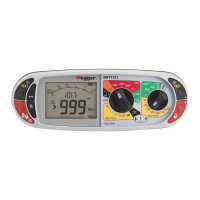
17.1.2 Installing the latest operating system to your instrument
Before updating the instrument operating system ensure there is at least 50% battery charge. If battery status is low
recharge or replace the battery before updating the instrument.
1. Turn the left-hand rotary knob to the off position.
2. Disconnect and unplug any test-leads.
3. Remove the battery pack.
4. Remove the fuse cover in the base of the battery compartment.
5. Install the new microSD card (with the latest operating system
.BIN file), observing the correct orientation. The card should click
into place.
NOTE : The microSD card is inserted into a spring loaded
socket
The first press should engage the card.
The second press should release the card.
DO NOT force the card into the slot.
Always check correct orientation of the card in the SD slot as shown
on the image and Refer to 18.3.1 Battery and fuse assembly on
page 98.
6. Replace the fuse cover and secure in place.
7. Reinstall the battery pack.
8. Switch on the instrument.
9. The instrument will display an advisory screen as below, indicating
the new file has been located and ready to be used:
CAUTION : Ensure the instrument has at least 50% charge remaining before attempting to update the
operating system
10. Press one of the TEST buttons to start the update process.
CAUTION : Do not switch off the instrument during the update process.
The update process is fully automated. No user intervention is
required.
www.megger.com
MFT-X1
94
Updating the operating system



 To Next Page