106491_C User manual AVIOR-2 MIP-2_En.docx
MIRION TECHNOLOGIES (Canberra) S.A.S, BP249, ZI de Vauzelles, 3760
Press the or key to display the « USB Mode » screen.2.
Note: The line « PC Connect » is selected by default. Press the or keys to select the
line
Press the key to turn on the USB mode. When the USB cable is connected, the message 3.
on the screen changes from « USB disconnected » to « USB Connected ».
For computers with Windows 7 or later (with no user restrictions), the device driver installation is done
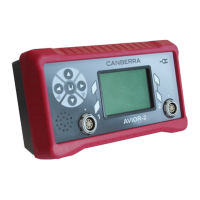
automatically and the AVIOR-2 / MIP-2 appears in the file explorer as an external storage device .
To modify the prefix of LOG files:
From the file explorer open with a text editor the file /MIP_AVIOR/config/deviceSettings.cfg. In the
[LOG] section, replace the value of the prefix field, up to 10 characters.
To disable the USB mode:
Press the key , the « USB Mode » menu is displayed.1.






 To Next Page