USER MANUAL
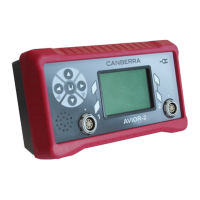
AVIOR-2/AVIOR-2 I/O & MIP-2/MIP-2 I/O
106491_C User manual AVIOR-2 MIP-2_En.docx
MIRION TECHNOLOGIES (Canberra)S.A.S, BP249, ZI de Vauzelles, 37602
To enter the password:
x Select the column with the or keys,
x Change the number with the keys or
x Confirm the password with the key to return to the « Security » menu.
If the operation was successful, the user's line is checked.
The default passwords are defined in the table below
Press the key to return to the main menu.4.
15 USB MODE
USB mode connects the AVIOR-2 or MIP-2 to a computer with a USB port using the USB / mini USB
cable or to a USB key using the mini USB / USB adapter female.
This feature allows you to transfer files or access files from the AVIOR-2 / MIP-2 to a computer or USB
flash drive. The possibilities are:
x Import and export event logging log files during measurements,
x Update of the AVIOR-2 / MIP-2 software,
x Import and export configuration files.
x Import and export configuration files to facilitate the identical upgrade of all devices of the
same park and to save the nominal configuration. This configuration file contains all the
modifiable parameters described in § 14 with the exception of "date and time", as well as
the validity date of the IPC and CPC of AVIOR-2 or MIP-2. The name of this file is
DeviceSettings.cfg
15.1 COMPUTER CONNECTION
Press the key to access the main menu.1.
Note: The « Measure Mode » line is selected by default. If necessary press the or
keys to select the « USB Mode » line






 To Next Page