92
C
ONFIGURING SOFTKEYS SPEED DIAL/CONF
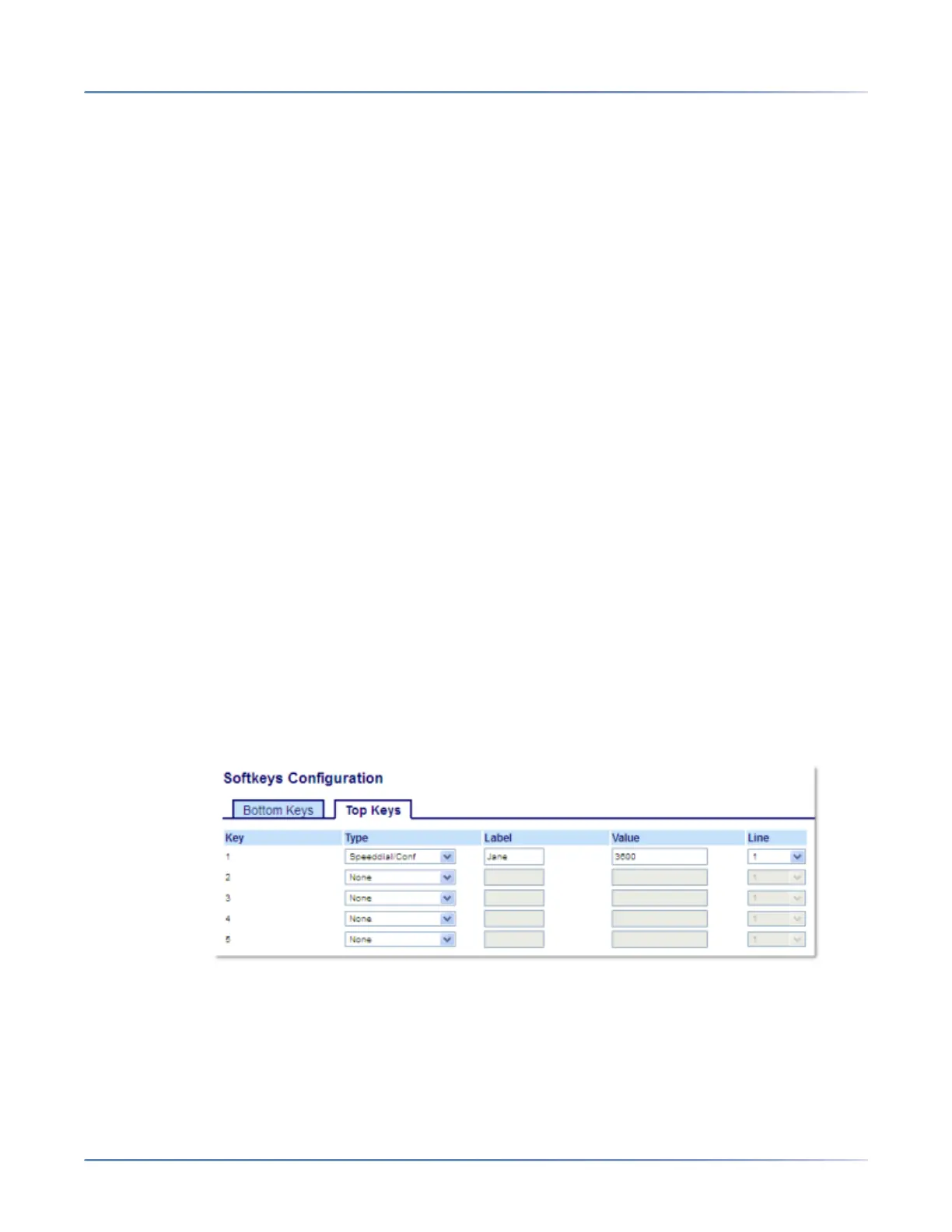
9. In the Type field, select Speed Dial/Xfer.
10. In the Value field, enter the speed dial extension or the extension to transfer calls to (for example,
3600).
11. In the Line field, select the line for which you want to use the key functionality.Valid values are:
– global
– 1 through 24
12. Click Save Settings.
Speed Dial/Conf
The 6920 allows you to configure a softkey or expansion module key to be used as a speed dial confer-
ence key (Speed Dial/Conf key) while remaining in the current call. This key allows a user on a call to
conference another party at a pre-defined number while remaining in the call.
For example, while on an active call, an user can use the Speed Dial/Conf key to dial a recording service
and have the resulting conference recorded.
NOTE: If currently in a conference, the Speed Dial/Conf key is disabled on the active call.
If you configure a softkey or expansion module key as a Speed Dial/Conf key and you press this key
while on an active call, the focused line changes to the dialing line. A Cancel softkey displays on the
phone allowing you to abort the conference speed dial if required.
NOTE: This feature is not compatible with centralized conferencing.
Configuring a Speed Dial/Conf Key Using the Mitel Web UI
1. Click on Operation > Softkeys and XML.
or
Click on Operation > Expansion Module <N>.
Softkeys
2. Select from Key 1 through Key 20 on the Top keys.
or
Select from Key 1 through Key 18 on the Bottom keys.
3. In the Type field, select Speed Dial/Conf.



 To Next Page