49
C
USTOMIZING YOUR PHONE LOCK
3. At the Lock the phone? prompt, navigate to the Yes button and press the select button.The message
Phone is locked and lock icon displays on the Home screen. Additionally the Message Waiting Indi-
cator (MWI) will turn on.
NOTE: Alternatively, if configured, you can lock the phone by simply pressing a Lock softkey.
Unlocking the Phone Using the IP Phone UI
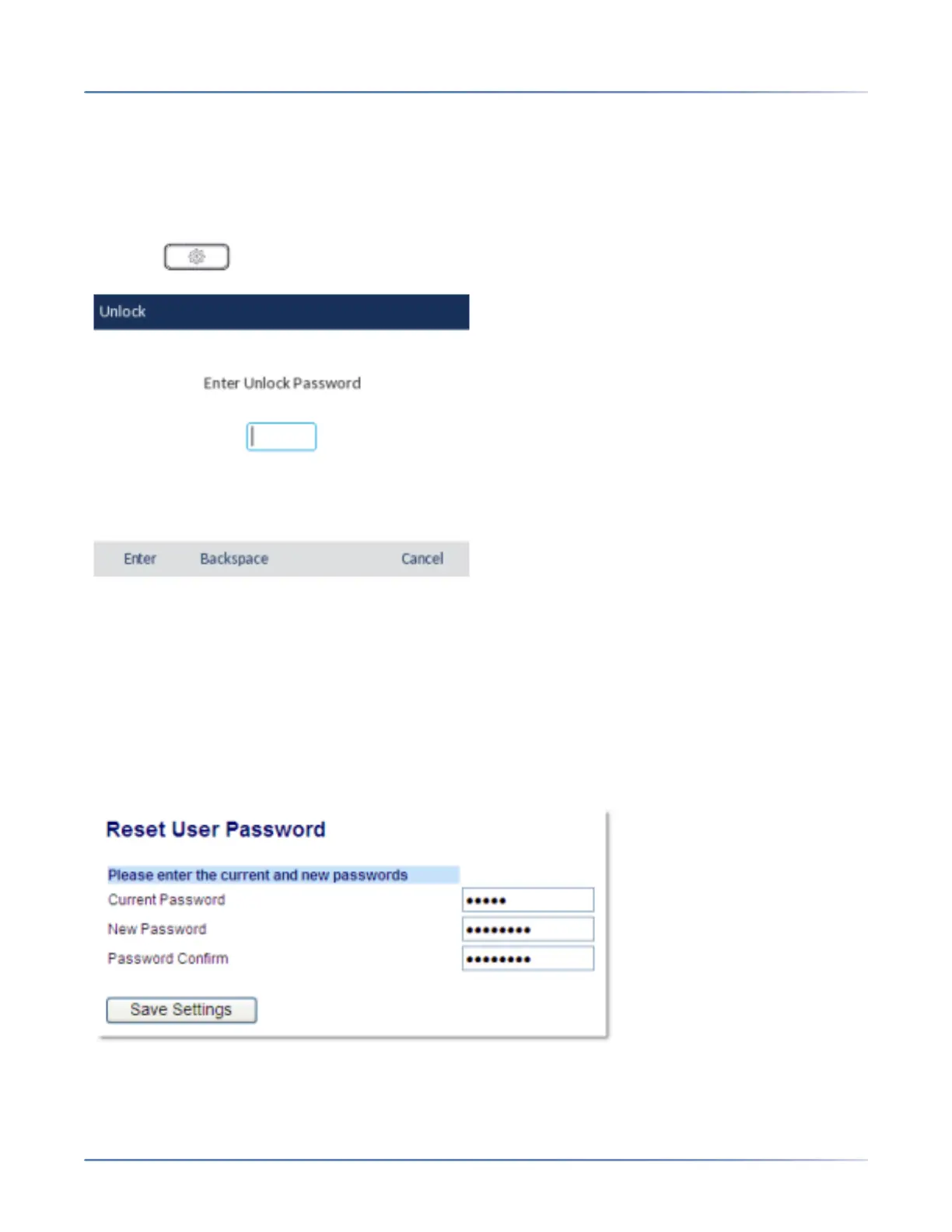
1. Press on the phone to enter the Options List (or press a configured Unlock softkey).
2. At the Enter Unlock Password prompt, enter your user password and press the Enter softkey or
select button.
3. At the Unlock the phone? prompt, navigate to the Yes button and press the select button.
Configuring Lock Settings Using the Mitel Web UI
Setting a User Password
1. Click on Operation > User Password.
2. In the Current Password field, enter the current user password.
NOTE: By default, the user name is user (all lowercase) and the password field is left blank.



 To Next Page