48
C
USTOMIZING YOUR PHONE LOCK
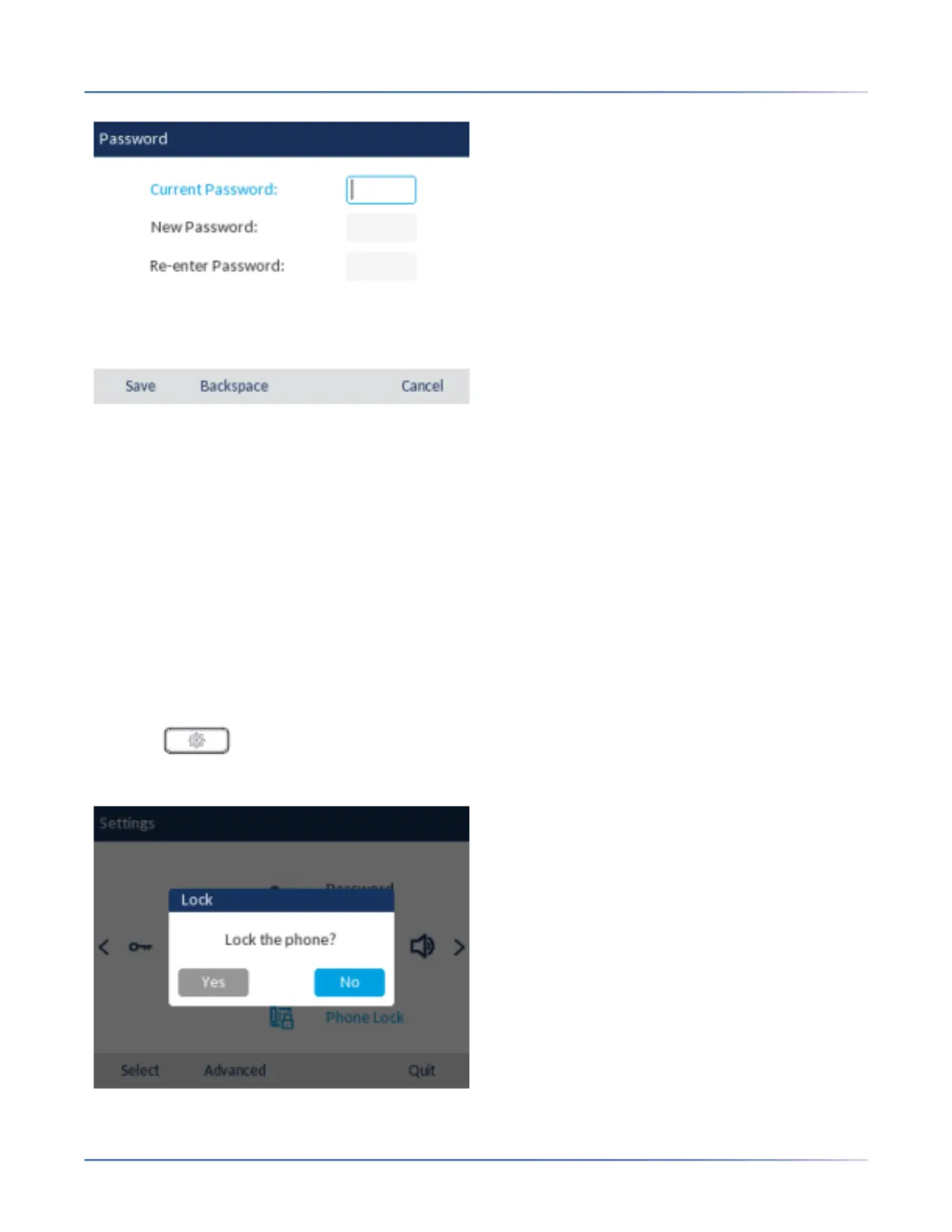
3. In the Current Password: field, enter the current user password.
4. In the New Password: field, enter the new user password.
5. In the Re-enter Password: field, re-enter the new user password.
6. Press the Save softkey to save your changes. A Password Changed confirmation message displays
on the screen.
Phone Lock
You can lock your phone to prevent the phone from being used or configured. You can lock the phone
using the IP phone UI, Mitel Web UI or by configuring a Lock softkey on your phone. For more information
about configuring a Lock/Unlock key on your phone, see “Phone Lock Key”.
Locking the Phone Using the IP Phone UI
1. Press on the phone to enter the Options List.
2. Navigate to the Lock > Phone Lock option and press the select button or Select softkey.



 To Next Page