23
C
USTOMIZING YOUR PHONE PHONE OPTIONS VIA MITEL WEB UI
Using the IP Phone UI
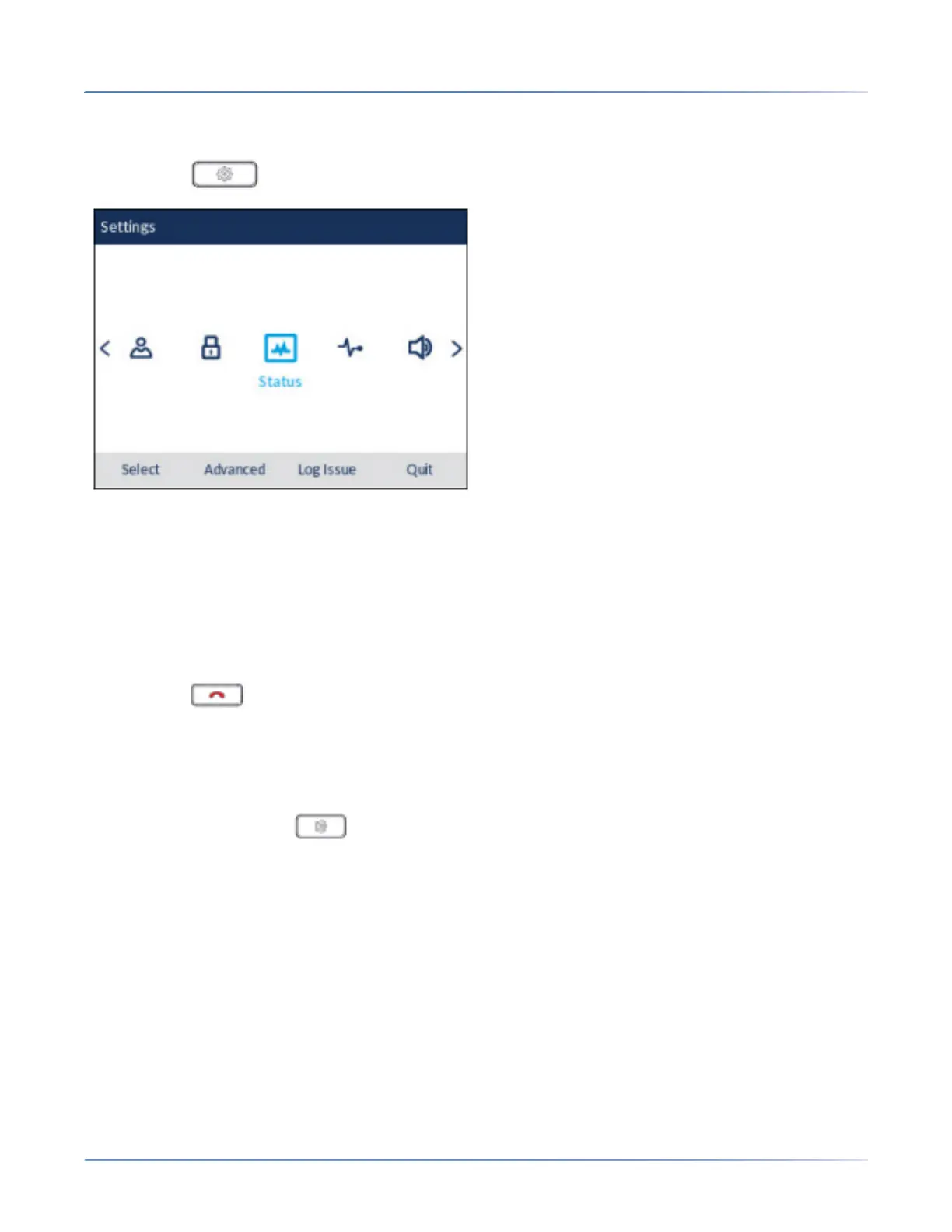
1. Press the (Settings) key on the phone to enter the Settings menu.
2. Use the left and right navigation keys to highlight an option and the up and down navigation keys to
scroll through the sub options.
3. Press the select button or Select softkey to select an option.
4. Use the navigation keys, dialpad keys, and softkeys that display for each setting to make any appli-
cable changes.
5. Press the Save softkey to save your changes.
6. Press the (Goodbye) key or the Close softkey at any time to exit without saving changes.
NOTE: For more information about Advanced options, contact your System Administrator.
Log Issue Key
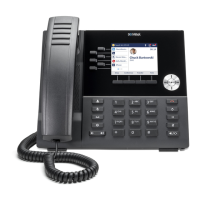
To collect and upload logs to the diagnostic server from your 6920 SIP phone
1. Press the Settings key on your phone.
2. Press the Log Issue softkey, and wait five minutes for log processing to occur.
The phone UI displays 'Logging the issue - Please wait...'.
Phone Options via Mitel Web UI
In addition to the IP phone UI options, you can customize options on the IP phone using the Mitel Web
UI. In order to access your phone using the Mitel Web UI, you need to know your phone’s IP address.



 To Next Page