73
C
ONFIGURING SOFTKEYS SPEED DIAL KEY
Speed Dial Prefix
The speed dial feature also allows you to specify a preset string of numbers followed by a + that the phone
dials automatically after pressing the speed dial key. You can use this feature for numbers that contain
long prefixes.
For example, if you had the following speed dial configuration in the Mitel Web UI:
Key 1
Type: Speed Dial
Label: Europe Office
Value: 1234567+Line: 2
Then, after you press key 1 on the phone, the prefix number displays on the phone screen. The phone
proceeds to dial the prefix number automatically and pauses for you to enter the remaining phone number
using the dialpad on the phone.
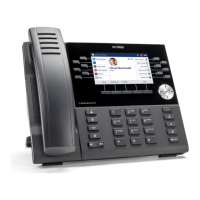
Use the following procedures to set speed dial on the 6920 IP phone.
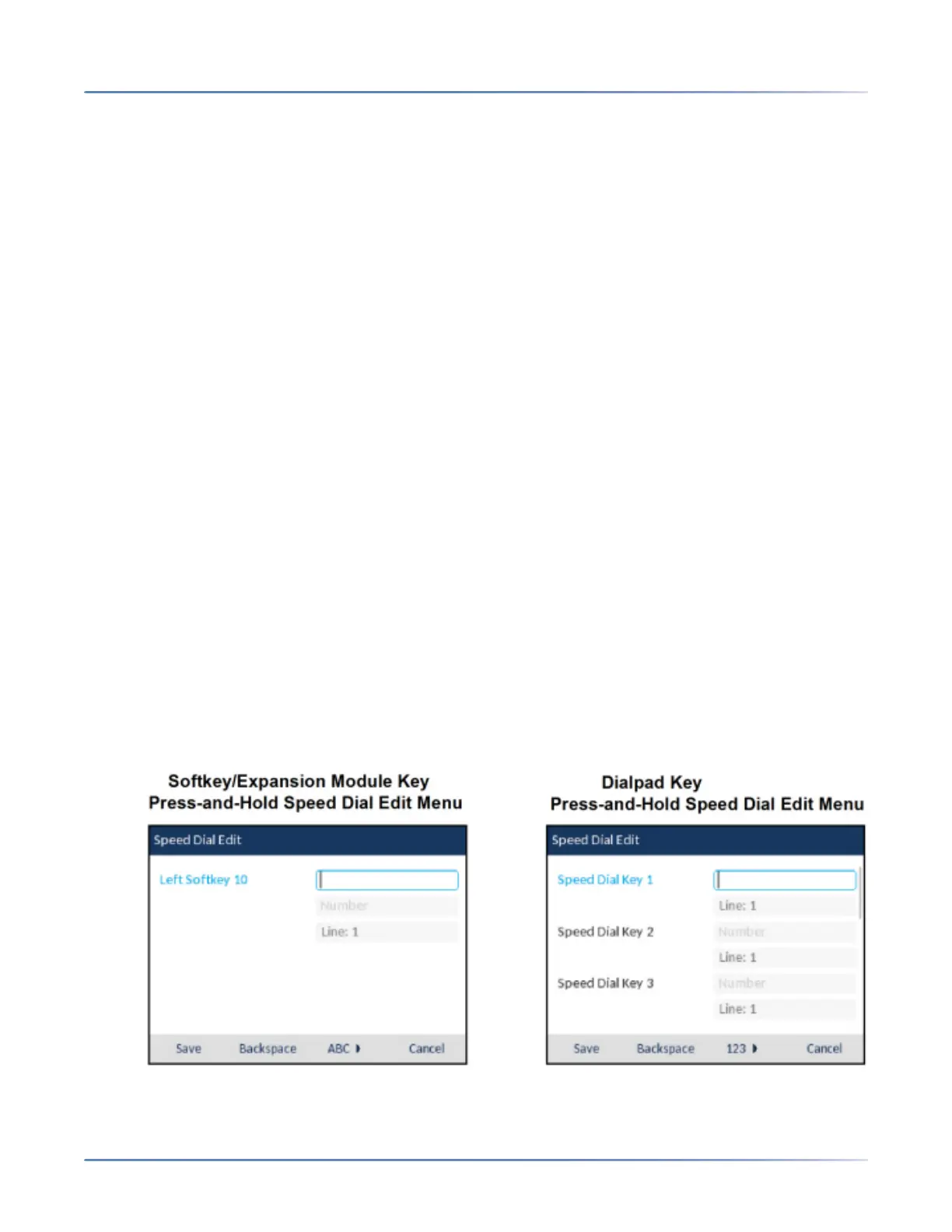
Press-and-Hold to Create a Speed Dial (applicable to softkeys, dialpad keys,
expansion module keys)
Pressing and holding down a softkey, dialpad key, or expansion module key on the phone initiates a
speed dial feature.
NOTE:
1. When creating a Speed Dial key from the IP phone UI, you must select a softkey, dialpad key, or
expansion module key that has no preassigned function (key must be set to None or Empty).
2. If there are no empty softkeys on the home screen, you can press and hold the More softkey to
configure the next available softkey with speeddial functionality. If a More softkey is not available, use
the Dialing > Speed Dial Edit option in the Options List to configure a new speeddial key.
1. Press and hold an non-configured softkey, dialpad key, or expansion module key for three seconds.



 To Next Page