77
C
ONFIGURING SOFTKEYS DO NOT DISTURB (DND) KEY
3. In the input box, enter the phone number, extension, or speed dial prefix to apply to this digit key. If
you enter a speed dial prefix, you must enter the + character at the end of the prefix number (for
example, 123456+).
4. In the Line field, select a line for which to apply the speed dial to. Valid values are 1through 24.
5. Click Save Settings.
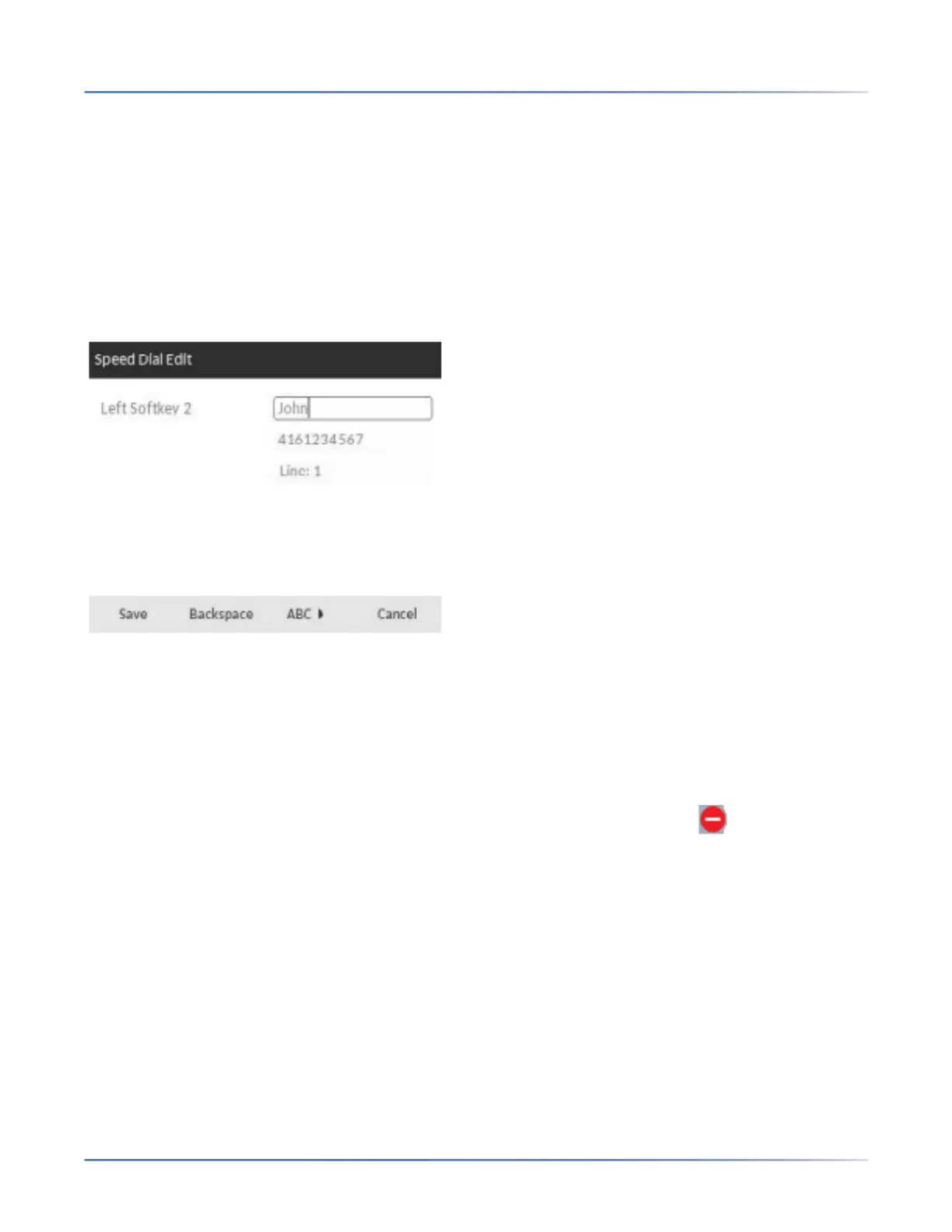
Press-and-Hold to Edit a Speed Dial
The users can now edit the previously configured speed dial softkey using the "Press and Hold" feature.
Do Not Disturb (DND) Key
The IP phones have a feature you can enable called Do Not Disturb (DND). Configuring a DND softkey
allows you to quickly turn the DND feature on or off.
If DND is enabled, callers calling into the phone hear a busy signal or a message, depending on how your
System Administrator set up the configuration server. When DND is enabled, the icon is displayed
on screen in both the status bar and beside the corresponding softkey.
If the phone shares a line with other phones, only the phone that has DND configured is affected.
For more information about DND and DND modes, see “DND Configuration”.
Configuring a DND KeyUsing the Mitel Web UI
1. Click on Operation > Softkeys and XML.
or
Click on Operation > Expansion Module <N>.



 To Next Page