43
C
USTOMIZING YOUR PHONE TIME AND DATE
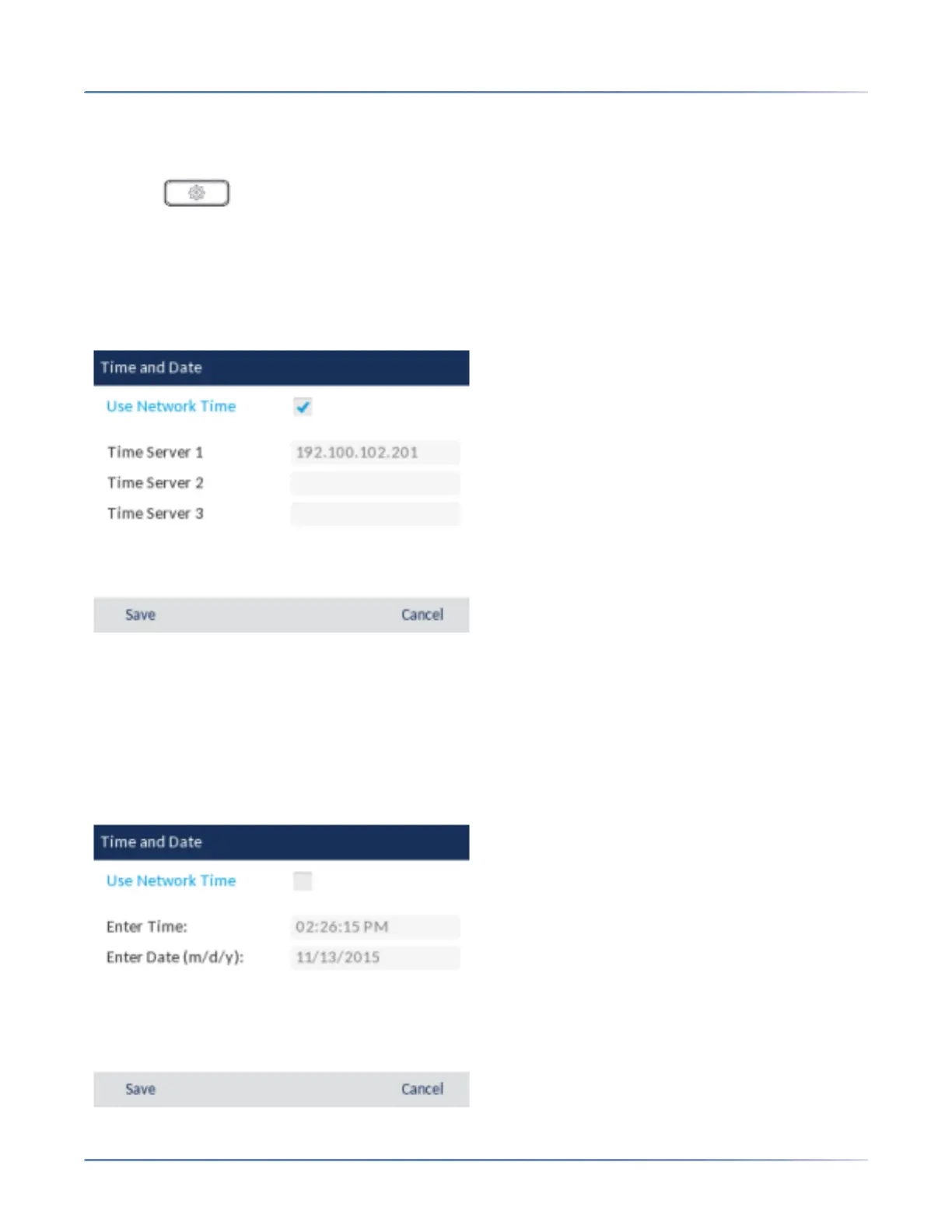
With a valid time server enabled your IP phone will synchronize the time displayed with the specified
configuration server. The phone will use the time from Time Server 1 unless it is not configured or unavail-
able, in which case it will move on to Time Server 2, and if necessary Time Server 3.
1. Press on the phone to enter the Options List.
2. Navigate to the Time and Date > Set Date and Time option and press the select button or Select
softkey.
3. If you want to synchronize the time and date using a time server, ensure there is a checkmark in the
box corresponding to the Use Network Time setting. If there is no checkmark, press the select button
to enable the Use Network Time setting.
a. Press the down navigation key to highlight Time Server 1, Time Server 2, or Time Server 3.
b. Using the keys on the dialpad, enter an IP address or domain name for the time server.Use the
Backspace key to move back a space and delete a character. Use the Dot softkey to enter dots
within the IP address or domain name. Use the 1234 softkey to toggle between entering numbers
and entering letters.
4. If you want to manually set the date and time, press the select button to clear the checkmark from the
Use Network Time box and disable the setting.



 To Next Page