SW
5
Innovation. Quality. Performance. Best in Industry. Worldwide.
Selecting the Driver
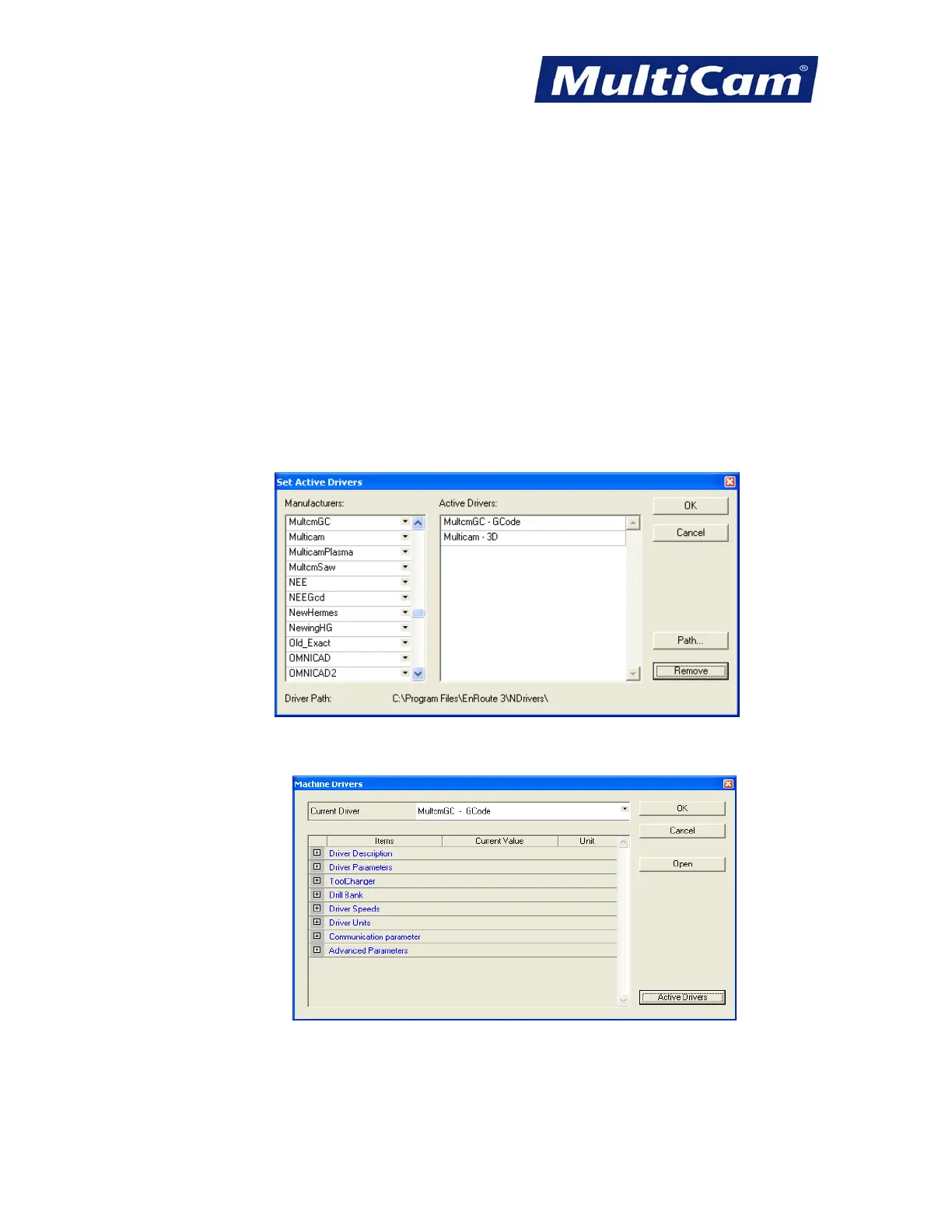
1. Select the appropriate driver based on the system requirements (e.g., Multicam - 3D Driver [HPGL]).
a. Multicam – 2D uses the
MultiCam 2D Driver for machines that do not support 3D and will override all
cut parameters set at the keypad.
b. MultiCam – 3D uses the
MultiCam 3D Driver for machines that do support 3D and can be used for cutting
bridges, multiple-pass cuts, or 3D machining. This driver will output all cut parameters (e.g., X,Y,Z cut
speeds, depth, lift, spindle speed, and dwell) and will override any parameters set at the keypad.
c. MultiCam – No Depth can be used on 2D and 3D
MultiCam machines and will only output the tool path
without outputting any cut parameters (e.g., X,Y,Z cut speeds, depth, lift, spindle speed, and dwell)
regardless of their settings in EnRoute. All settings must be set on the keypad pendant. This driver will not
output 3D.
2. Highlight the default driver (e.g., A.R.T. 3D [All]) and select Remove.
3. Select OK to accept the appropriate MultiCam GC/GCode driver.
4. Select OK to return to the Machine Drivers dialog. The selected driver should be listed at the top.
Routers * Lasers * Plasma * WaterJets * Knife Cutters
www.MultiCam.com v. 11 10


 To Next Page