FS
12
Innovation. Quality. Performance. Best in Industry. Worldwide.
7. Set Home at the center of the material.
8. Check settings in Params_2D (see Rastering an Image – Basic Operation). Operators can make any
adjustments to Pen 16 (e.g., Feedrate, Cut Height) and then press Four
to move back to Pen 1 and adjust
the settings for cutting. During the regular operation sequence, the cut file will apply the settings entered at the
keypad for each tool individually.
9. Press DNC
to pull up the file on the laser.
10. Press Start
twice to begin the cutting sequence.
Changing the Start Position
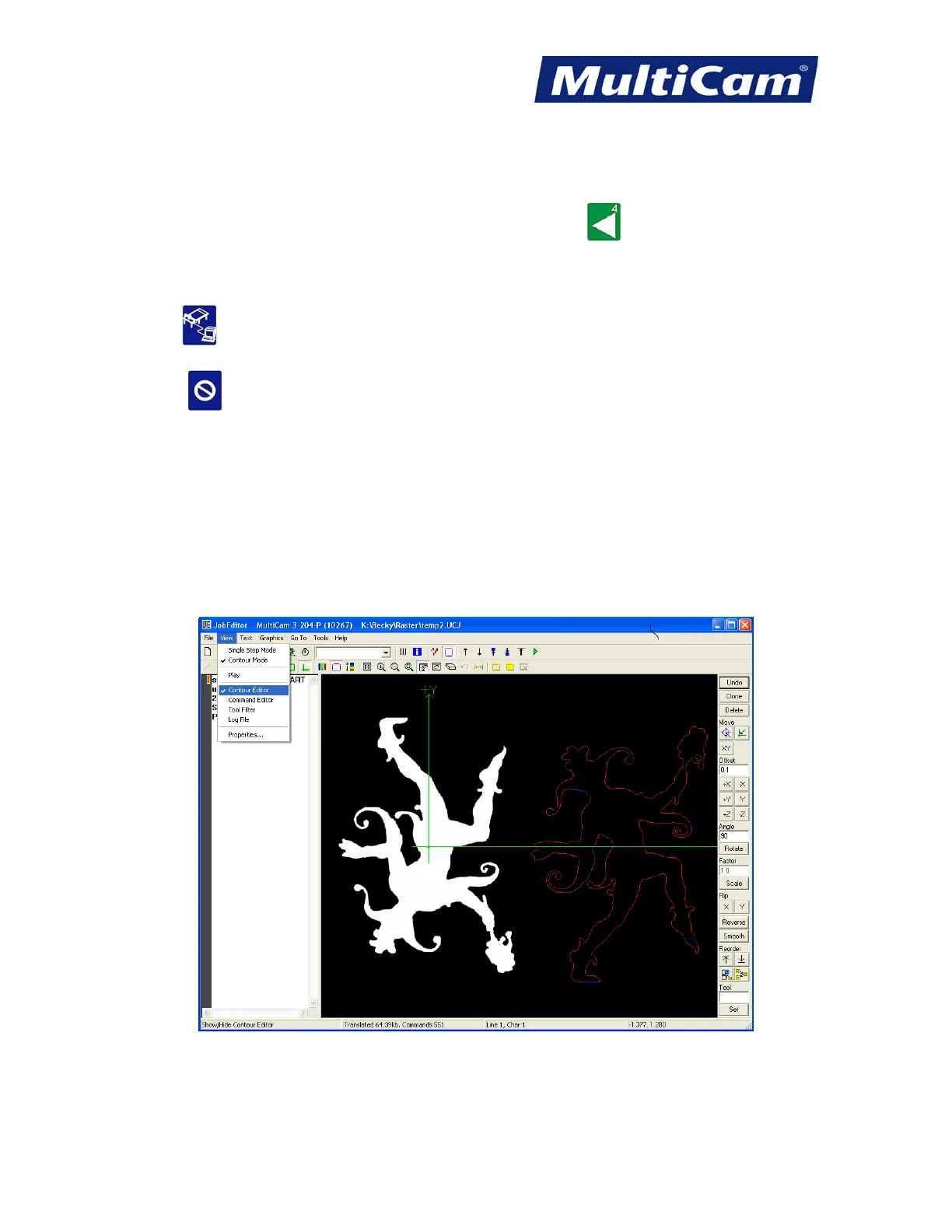
JobEditor sets the start position for raster files at the center of the image by default. Operators may change the
start position in JobEditor by reconfiguring the file as described below.
1. Select View >> Contour Editor in JobEditor. This will open a toolbar on the right side of the computer screen.
(Operators can make several changes to the cut file from this toolbar, but these directions will only discuss
changing the start position.)
Routers * Lasers * Plasma * WaterJets * Knife Cutters
www.MultiCam.com v. 11 10


 To Next Page