1
2
BASIC PLAYBACK
,S_??I¸¸¸'K'r?_¸¸ir_(17¸¸!:_IT7_¸¸¸¸=¸¸¸¸__?:71__i_?_7%.....
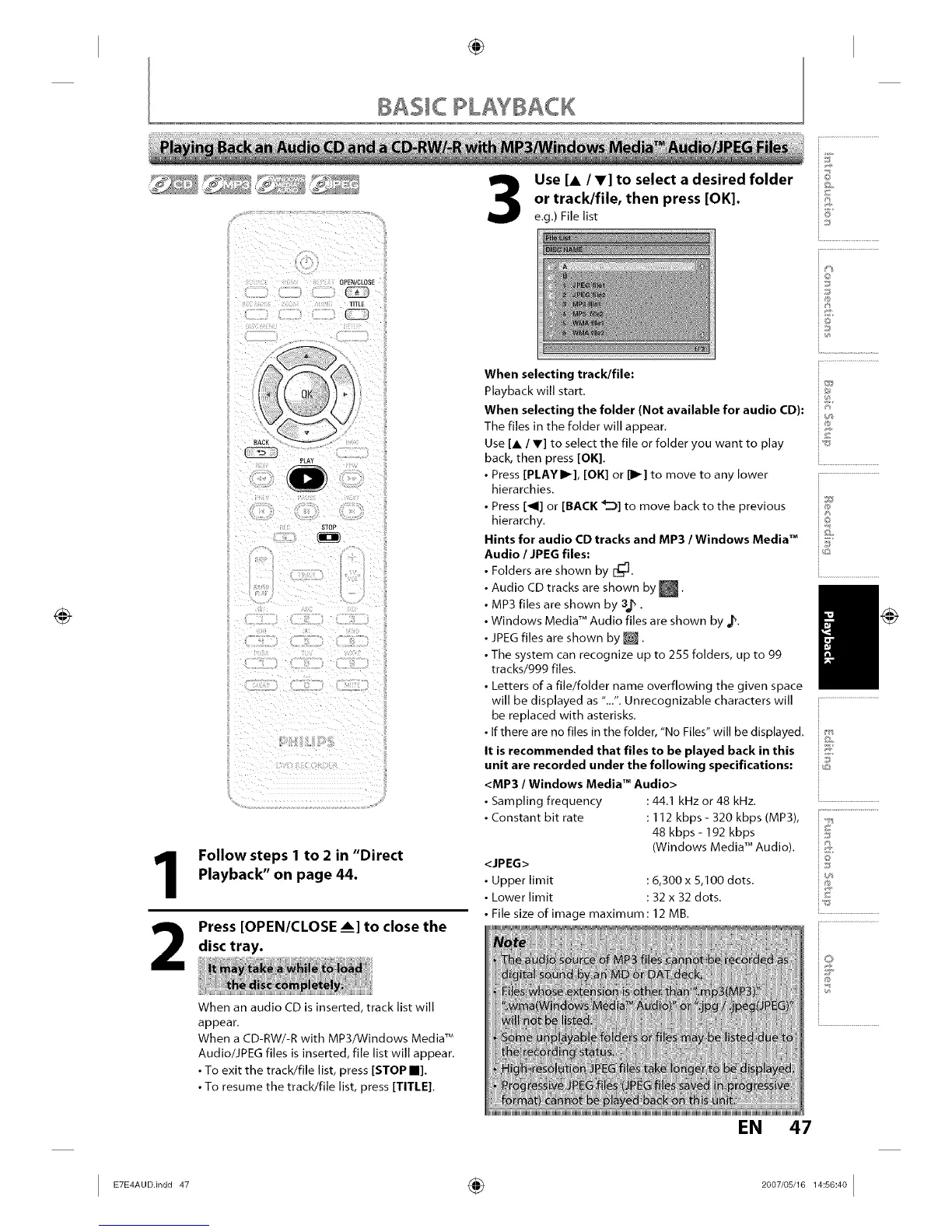
Use [A IV] to select a desired folder
or track/file, then press [OK].
e.g.) File list
TITLE
ii:cI:I:Si:)iq!p i
I XXXXXXXXXXXXXXXXXi i/
Follow steps 1 to 2 in "Direct
Playback" on page 44.
Press [OPEN/CLOSE Am]to close the
disc tray.
When selecting track/file:
Playback will start.
When selecting the folder (Not available for audio CD):
The files in tile folder will appear.
Use [A / V] to select the file or folder you want to play
back, then press [OK].
• Press [PI.AY I1_], [OK] or I11_]to move to any lower
hierarchies.
• Press [_1] or [BACK _] to move back to the previous
hierarchy.
Hints for audio CD tracks and MP3 Windows Media TM
Audio / JPEG files:
• Folders are shown by 12_]
• Audio CD tracks are shown by
• MP3 files are shown by 3_.
• Windows Media _MAudio files are shown by _.
• JPEG files are shown bye.
• The system can recognize up to 255 folders, up to gg
tracks/ggg files.
• Letters of a file/folder name overflowing the given space
will be displayed as "...'. Unrecognizable characters will
be replaced with asterisks.
• If there are no files in the folder, "No Files" will be displayed.
It is recommended that files to be played back in this
unit are recorded under the following specifications:
<MP3 / Windows Media TM Audio>
• Sampling frequency
• Constant bit rate
<JPEG>
• Upper limit
• Lower limit
:44.1 kHz or 48 kHz.
: 112 kbps - 320 kbps (MP3),
48 kbps - lg2 kbps
(Windows Media TMAudio).
:6,300 x 5,100 dots.
: 32 x 32 dots.
• File size of image maximum: 12 MB.
When an audio CD is inserted, track list will
appear.
When a CD-RW/-R with MP3/Windows Media TM
Audio/JPEG files is inserted, file list will appear.
• To exit the track/file list, press [STOP II].
• To resume the track/file list, press [TITLE].
EN
@
io
_J
i®
£
i®
io
i.........................................
s
47
I 47 ÷ 2°°7'°s'1614:s°:4°I







 To Next Page