14 Getting Started with Webster Tools
TS and Webster
®
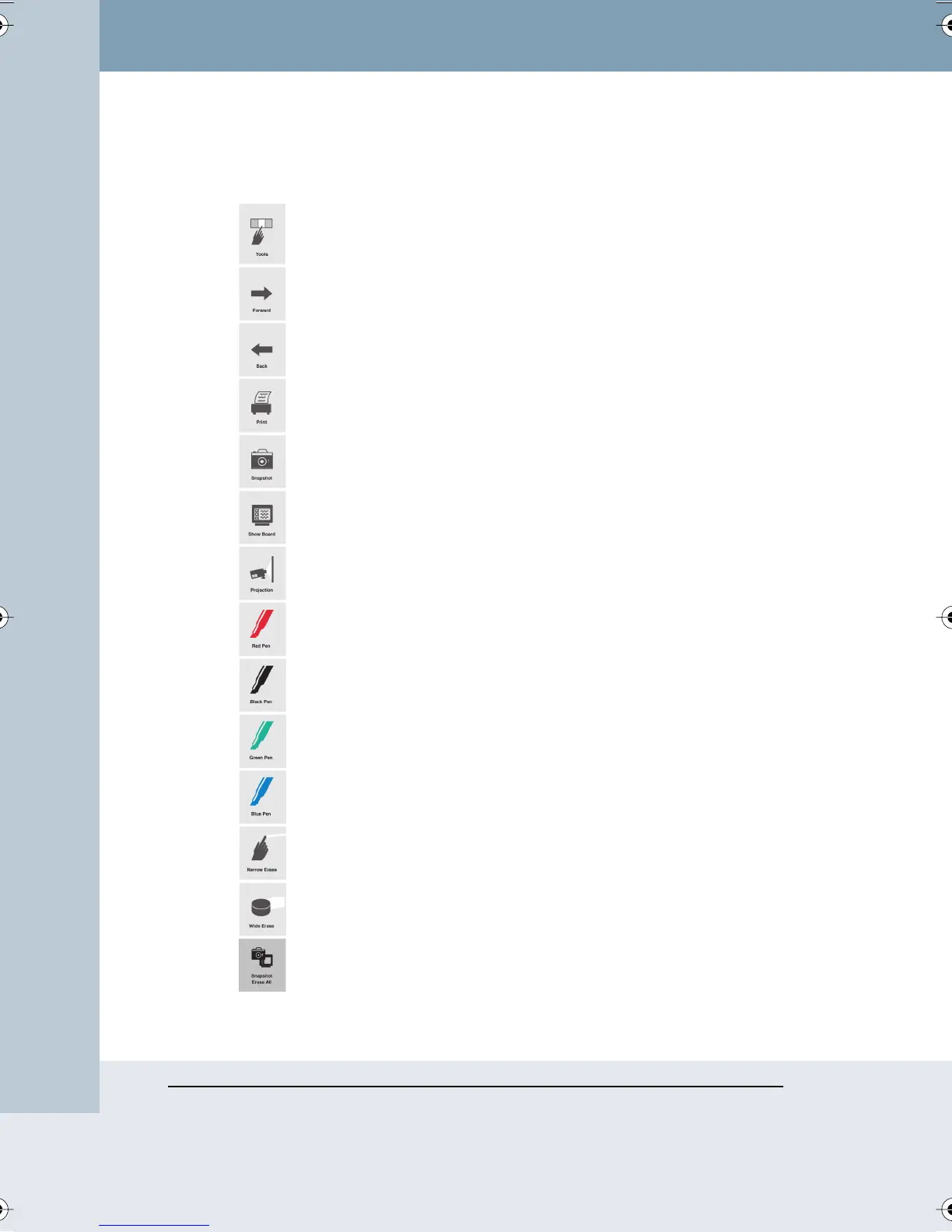
WHITEBOARD ICONS
TS and TSL whiteboards include an icon strip with the following functions:
Projection toolbar: In projection mode, display or hide the
projection tools.
Forward arrow: In projection mode, scroll forward through
snapshots or PowerPoint slides.
Back arrow: In projection mode, scroll backward through
snapshots or PowerPoint slides.
Print: Print the contents of the board to the currently active
printer without capturing a snapshot.
Snapshot: Capture a snapshot of the board.
Show Webster: In projection mode, bring the Webster
software to the front or send it to the rear.
Projection: Enter or exit projection mode.
Red Pen: In the software, record the active pen as red.
Black Pen: In the software, record the active pen as black.
Green Pen: In the software, record the active pen as green.
Blue Pen: In the software, record the active pen as blue.
Narrow Erase: Erase in a narrow band using a finger or the
edge of the eraser.
Wide Erase: Erase in a wide band using the wide surface of the
eraser.
Snapshot/Erase All: Capture a snapshot of the board, clear the
software’s current board pane, and set the board for erasing.
Webster_draft2.book Page 14 Friday, November 3, 2006 2:24 PM



 To Next Page