60 NetMeeting and Webster
TS and Webster
®
3 Make sure the NetMeeting button in the Webster command toolbar is
not pressed.
4 Bring Webster to the front.
Using Webster with the NetMeeting Whiteboard
You can connect the Webster PolyVision product and the NetMeeting
whiteboard so all writing is recorded on both applications’ windows
simultaneously.
To connect Webster and the NetMeeting whiteboard:
1 Choose “Options” from the Edit menu.
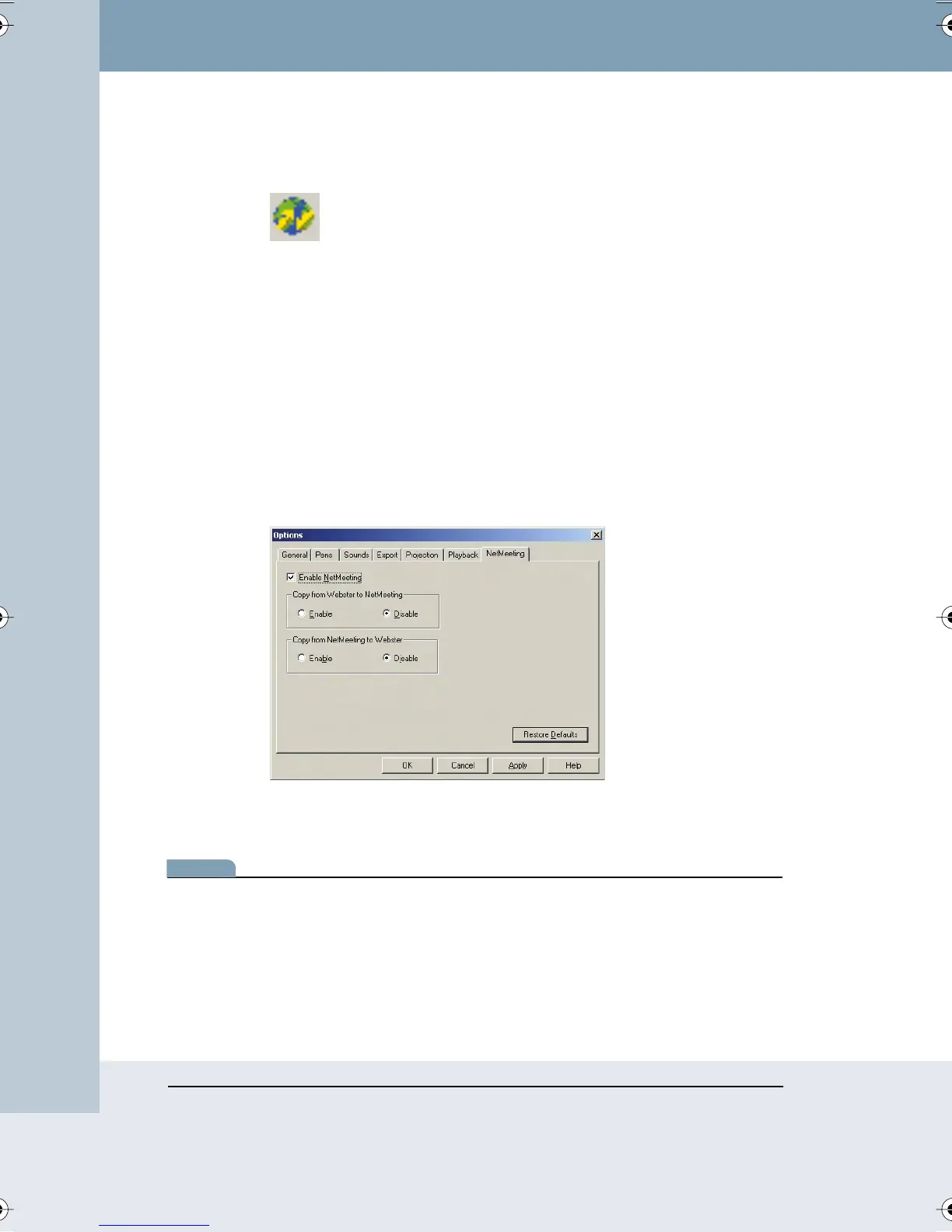
2 Click the “NetMeeting” tab. The following dialog appears:
3 Click “Enable NetMeeting,” then click both “Enable” buttons to permit
information transfer between Webster and the NetMeeting application.
note:NOTE:
To transmit but not receive in a NetMeeting conference, click the “Disable”
button under “Copy from NetMeeting into Webster.”
4 Click “OK” to apply the setting and close the dialog.
5 Start or join a NetMeeting conference (see your NetMeeting
documentation).
NetMeeting button
Webster_draft2.book Page 60 Friday, November 3, 2006 2:24 PM



 To Next Page