26 Using Webster with a Projector
TS and Webster
®
2 Click the “Projection” tab.
3 Choose an alignment type from the drop-down list.
Proceed as usual to enter projection mode or re-align while in projection
mode. Follow the alignment instructions that are projected on your
product.
USING WEBSTER IN PROJECTION MODE
While in projection mode, you can control your computer while standing at
the PolyVision product using the stylus (or your finger on any interactive
whiteboard) as a mouse.
For mouse actions using the stylus (or your finger on any interactive
whiteboard):
• Tap the PolyVision product once to click.
• Tap the PolyVision product twice rapidly to double-click.
• In Windows, for a right click, tap the “Right Click” button on the
projection toolbar, then tap the PolyVision product or hold your finger or
the stylus to the whiteboard for one second.
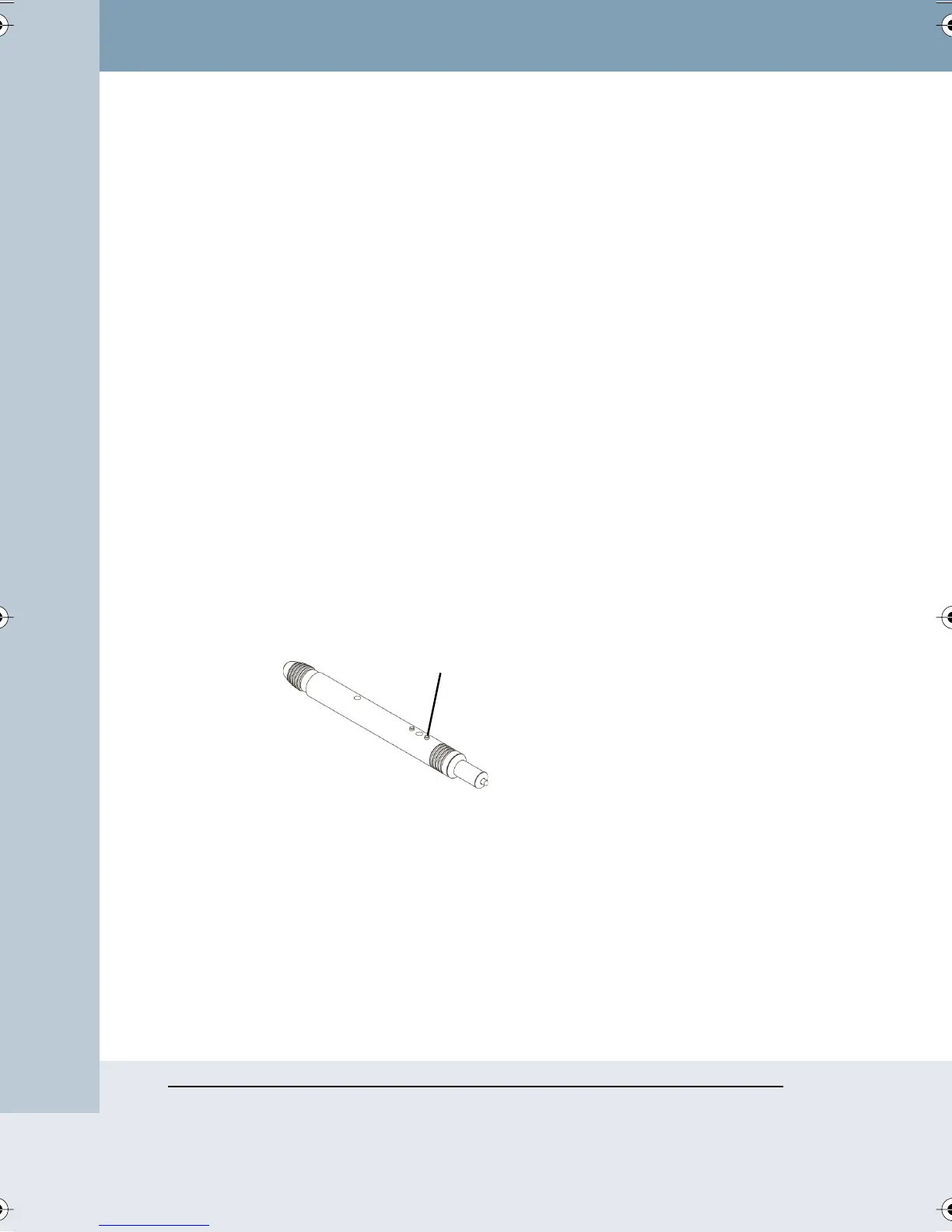
• To right click on FSM models, hold the bottom button on the stylus as
you tap the board.
WT and WTL whiteboards:
• Always tap inside the projected computer screen to control the board.
On any Walk-and-Talk model, you can perform mouse actions and control
your computer using the remote control:
• To click or double-click, press L or the click trigger once or twice, or tap
once or twice on the remote control touch pad.
Right click button
on FSM stylus
Webster_draft2.book Page 26 Friday, November 3, 2006 2:24 PM



 To Next Page