Working with Snapshots 41
TS and Webster
®
In Windows, closing a Webster file opens a new untitled file, because
Webster must always have an open file.
To close a file and quit Webster:
• In Windows: Choose “Exit” or click the Close box in the upper right
corner of the Webster window.
• For Mac OS X, choose “Quit” from the application menu.
If the file contains unsaved data, you are prompted to save it.
Password Protecting a File in Windows
In Windows, you can password protect a Webster file. A password
protected file can be opened only by entering the correct password. If you
create a password, it applies only to the current Webster file.
After you define a password for a file, you can continue working, but once
you close it, you must enter the password to open it again.
When a file that is password protected is open, you can change or delete
the password without knowing the existing password.
To password protect a file in Windows:
1 Open the Webster file.
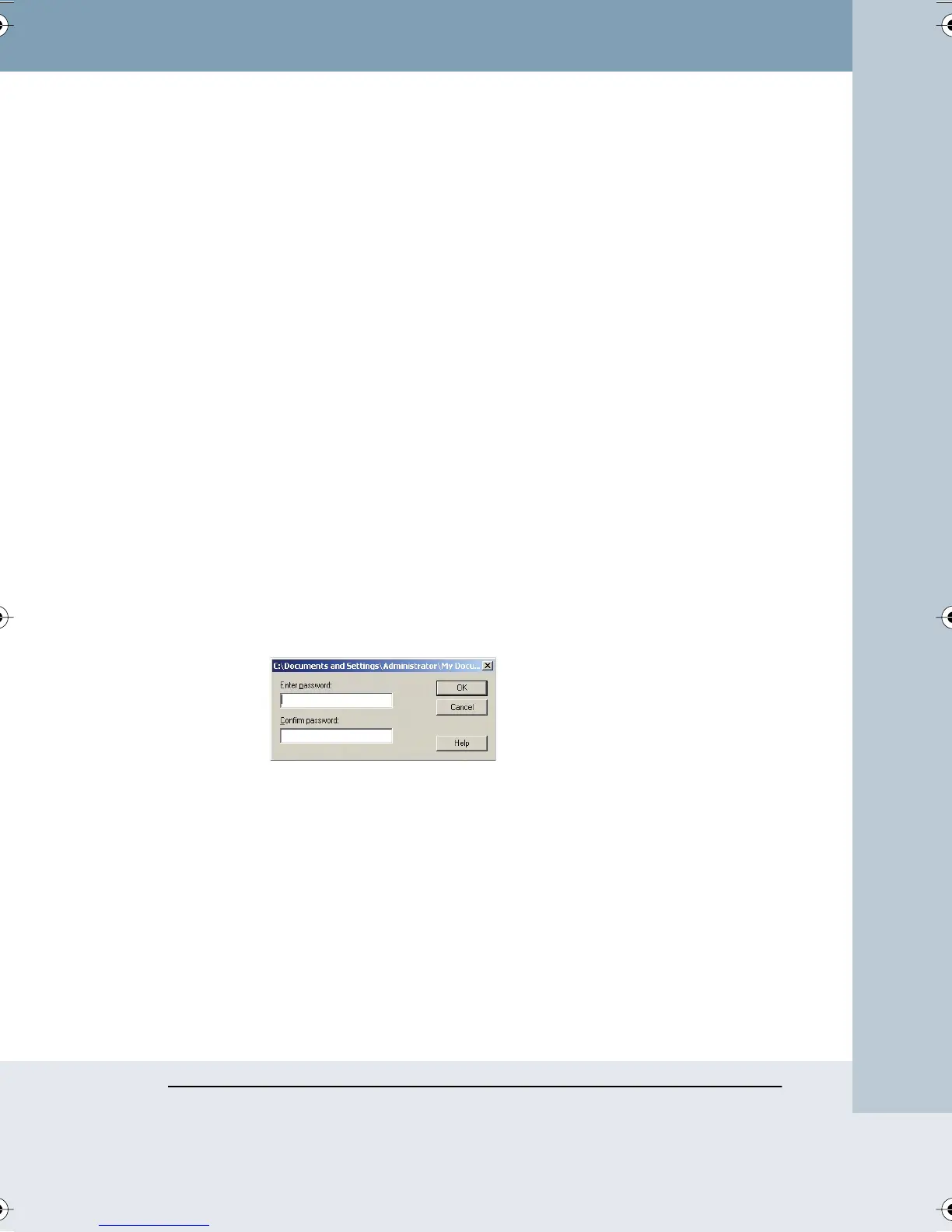
2 Choose “Password” from the File menu. The following dialog appears.
3 Enter a password.
4 Enter the password a second time as confirmation.
5 Click “OK” to apply your password and close the dialog.
6 Save the file.
PLAYING BACK SNAPSHOTS
Webster software records all writing and erasing in a snapshot and enables
you to review everything you did in the order it occurred. In addition, you
can play back a sequence of snapshots. To play them back in another
Webster_draft2.book Page 41 Friday, November 3, 2006 2:24 PM



 To Next Page