68 Webster Options
TS and Webster
®
To restore factory default options:
• Click “Restore Defaults.”
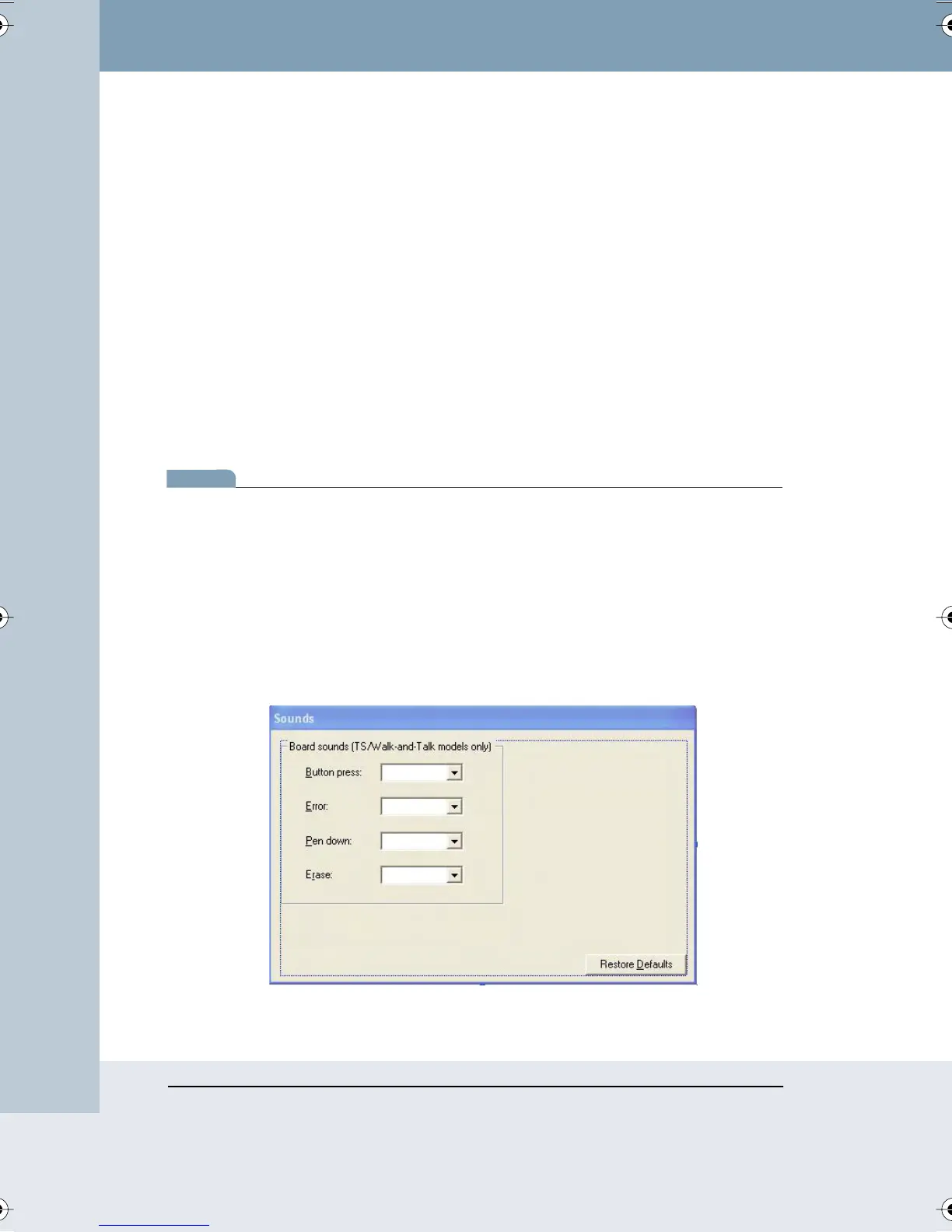
CUSTOMIZING SOUNDS (WHITEBOARDS ONLY)
Audible feedback on TS, TSL, WT or WTL whiteboards indicates which tool
you are using. By default, the TS and TSL whiteboards emit sounds:
• On startup and shutdown
• Selecting a tool (pen or eraser)
• Using an eraser function
• Touching or writing on the whiteboard
You can change the sounds associated with functions or turn them off.
note:NOTE:
If you turn sounds off, the board no longer provides audible feedback that a
particular tool is in use, that the whiteboard is communicating with your
computer or that an error exists. We recommend that you not customize
sound settings until you are thoroughly familiar with Webster.
To customize Sound settings:
1 Choose “Options” from the Edit menu (Windows) or “Preferences”
from the application menu (Mac).
2 Click the “Sounds” tab.
Webster_draft2.book Page 68 Friday, November 3, 2006 2:24 PM



 To Next Page