Webster Options 69
TS and Webster
®
3 Select a sound from the drop down menus. On a Macintosh, click the
speaker icon to hear the sound.
4 Click “OK” to apply the settings and close the dialog.
To restore factory default options:
• Click “Restore Defaults.”
CUSTOMIZING IMAGE EXPORT
You can specify the default characteristics for images that you export.
(Refer to “Exporting Snapshots” on page 43.)
To customize export settings:
1 Choose “Options” from the Edit menu (Windows) or “Preferences”
from the application menu (Mac).
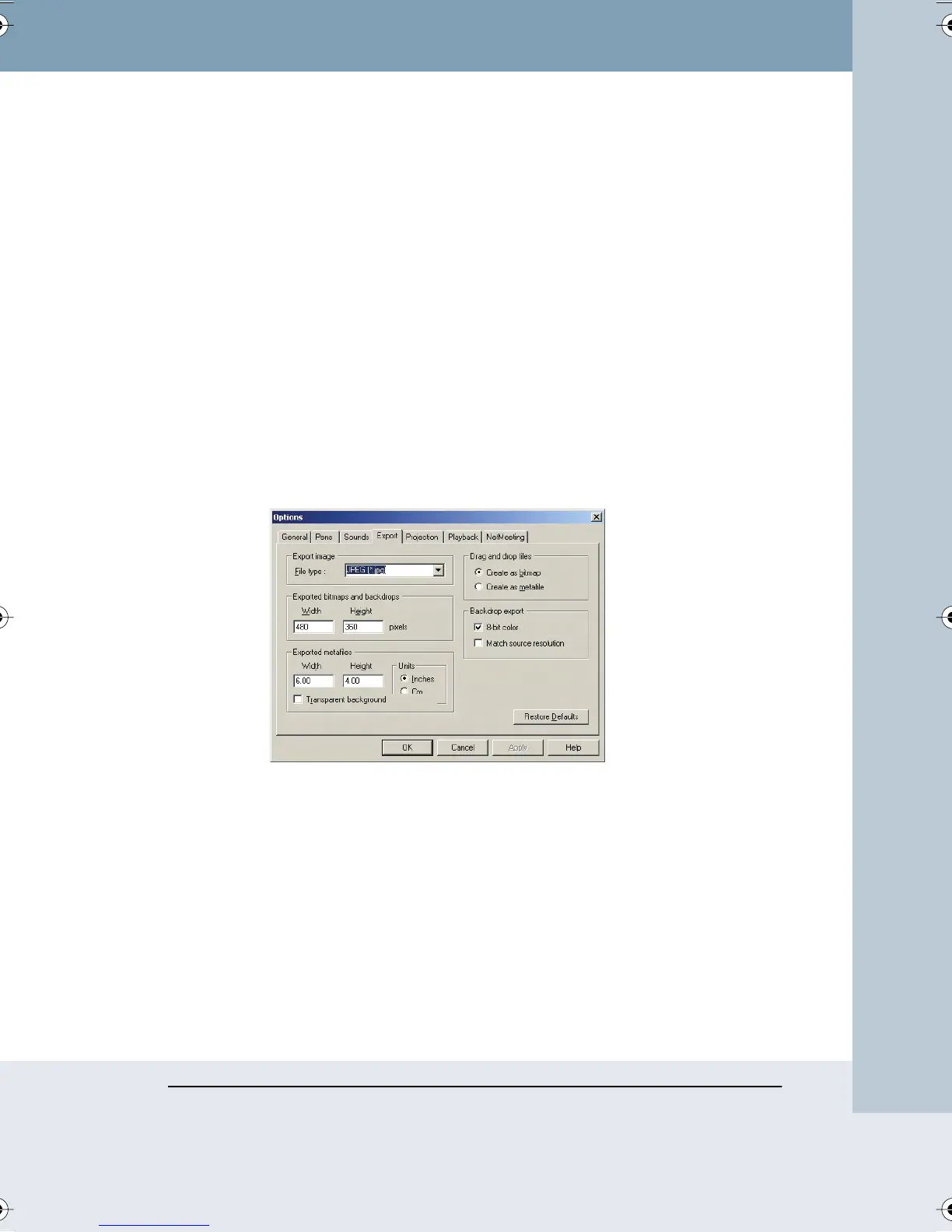
2 Click the “Export” tab. The following dialog appears.
“Export image”: Choose the default exported image file type. This file type
appears as the default in the “Export Image” dialog.
“Exported bitmap and backdrops” (Windows), “Export Image Dimensions”
(Macintosh): Define the default pixel width and height of the resulting image
when you export in one of the bitmap formats.
“Exported metafiles”: In Windows, define the width and height in inches or
centimeters of the resulting image when you export a snapshot as a
metafile. Check “Transparent background” if you want the background of
the resulting metafile to be transparent. Otherwise the background is filled.
Webster_draft2.book Page 69 Friday, November 3, 2006 2:24 PM



 To Next Page