Installing the TS and TSL Series Whiteboards 89
TS and Webster
®
in a smooth curve, not at a sharp angle. Bending cords at sharp angles can
damage the cords.
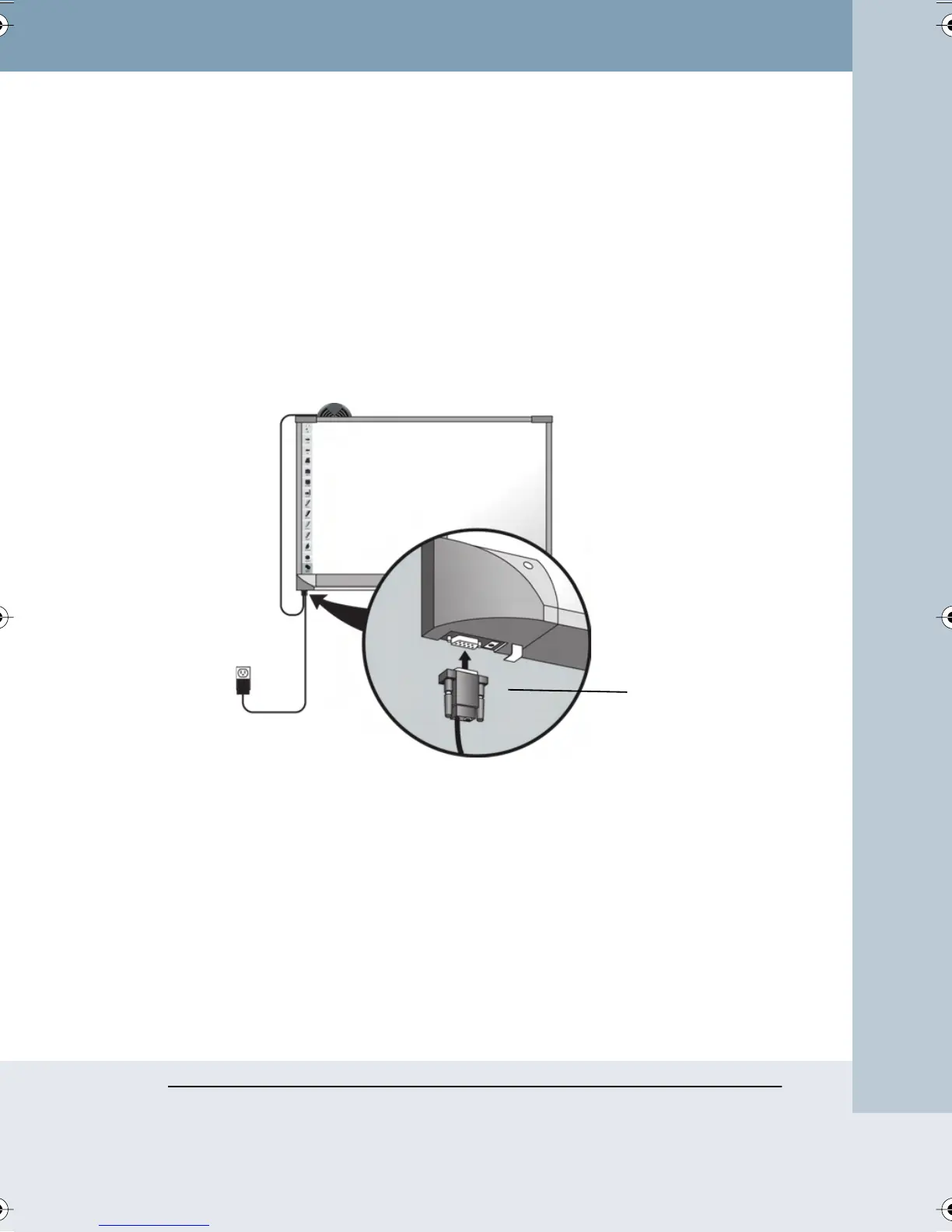
Connecting the Serial Cable
The 9-pin serial plug at the end of the whiteboard transceiver cable plugs
into the 9-pin serial socket below the lower-left corner of the board. The
serial connection uses D connectors. D connectors only fit together one
way. Align the wide side of the D connector on the cable with the wide side
of the connector on the board and push them together. They should fit
snugly together. Tighten the thumbscrew on the plug to prevent it from
falling out of the socket.
Connecting Power
Transceivers are powered using an external power supply. The transceiver
power supply plugs into a barrel connector socket located on the back of
the serial plug.
Use the TS Wireless power supply to power both the transceiver and your
TS whiteboard. Take the following steps:
1 Remove the power supply that came with the TS board and set it
aside, if appropriate.
Serial Plug
Webster_draft2.book Page 89 Friday, November 3, 2006 2:24 PM



 To Next Page